Use the V-Ray UVW Texture to view the UVW mapping on object faces.
Overview
The UVW texture shows the UVW mapping on object faces. You usually combine it with the Extra Texture render element.
For correct results, apply the material to the object's faces rather than a group/component, or use texture projection tools. See UV Tools for details.


UI paths
||V-Ray Asset Editor|| > Textures (right-click) > UVW
||V-Ray Asset Editor|| > Create Asset (left-click) > Textures > UVW
UVW
Component selects which component to show.
All
U
V
W

Texture placement
Type controls how the texture is positioned on the geometry.
2D (UV Channel) uses the object's UV coordinates.
Environment applies when the map is connected to an Environment slot or a Dome light.
Texture Remapping uses UVW values from a colour texture or separate greyscale textures.
Mapping Source uses an external UV placement source.
2D (UV Channel)
UV Channel/Set selects the mapping channel index to use. A value of 1 uses the first available channel.
Repeat U/V sets how many times the texture repeats in the 0 to 1 UV square.
Lock U/V Repeat locks the U/V Repeat.
Offset U/V sets the texture offset in the U and V directions.
Rotate rotates the texture in degrees.
Tile U/V tiles the texture in the U and V directions. If you disable it, the Default texture colour appears outside the 0 to 1 UV square. Find the Default colour in Parameters > Color Manipulation.
Mirror U/V mirrors the texture separately in the U and V directions. It cuts the texture in half and flips one side vertically or horizontally. Use it to help avoid seams when repeating textures that do not tile.
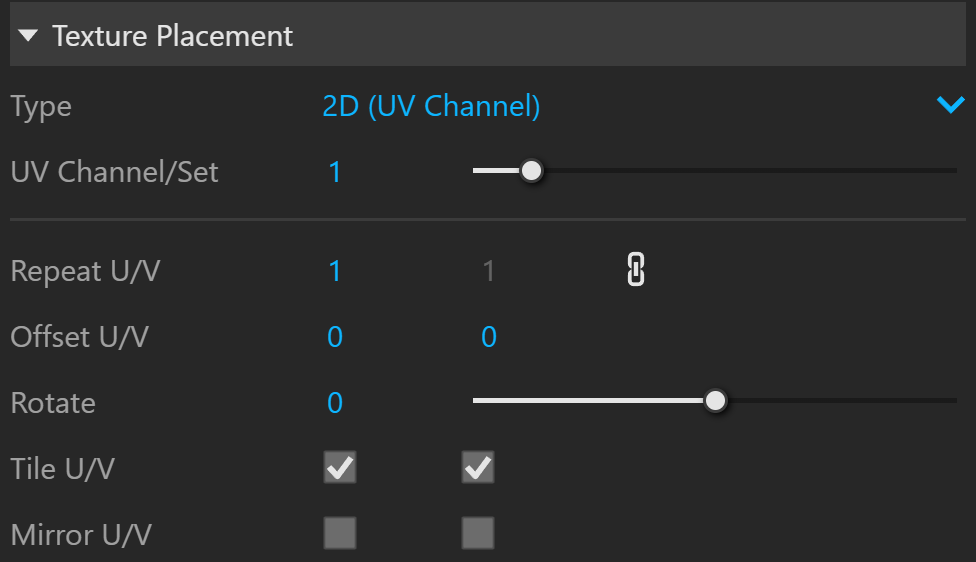
2D (UV Channel) parameters
Environment
Mapping sets the texture's mapping type and shape.
Angular
Cubic
Spherical
Spherical Inverted
Mirror Ball
Screen
Rotate H rotates the environment sphere horizontally.
Flip H flips the environment sphere horizontally.
Rotate V rotates the environment sphere vertically.
Flip V flips the environment sphere vertically. It is active only in Spherical Mapping.
Ground enables ground projection of the texture.
Position X/Y/Z offsets the ground projection along the X/Y/Z axis.
Radius sets the projection radius. Use it to control the projection's scale.
For 2d Transformation, see the 2D (UV channel) parameters.
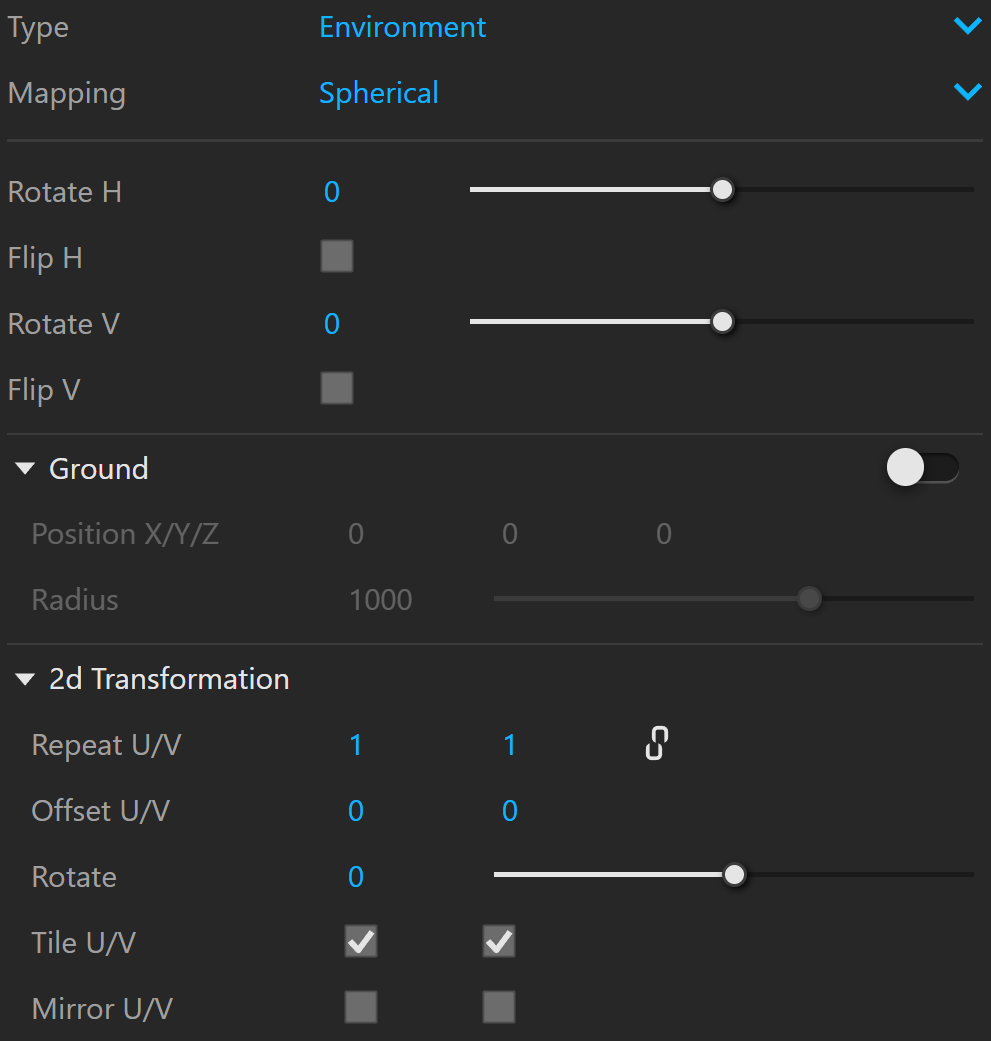
Environment parameters
Texture Remapping
Mode selects whether to use a single texture or multiple textures to remap the U and V texture coordinates.
UV uses the input texture's Red channel to set the U sampling coordinate. The Green channel sets the V coordinate.
U uses this texture's value to set the U sampling coordinate.
V uses this texture's value to set the V sampling coordinate.

Texture Remapping parameters
Mapping Source
UV Placement Source selects the external UV placement source for the texture.

Mapping Placement parameters