Use the V-Ray Image to EXR Converter to convert .vrimg images to .exr files. The application is included in all V-Ray installations.
Overview
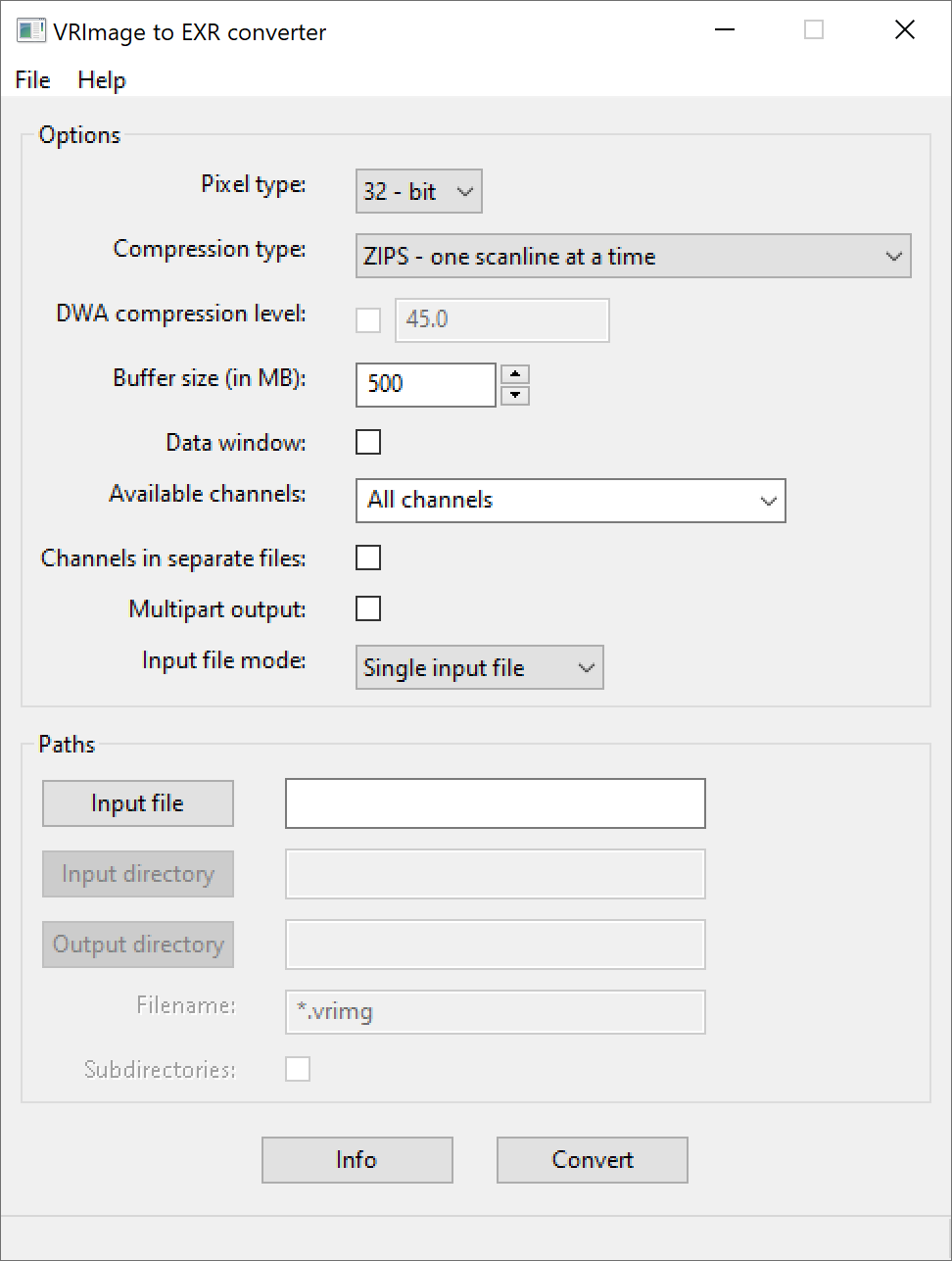
The VRImg to OpenEXR converter converts .vrimg image files to .exr files in OpenEXR format. You can use it from the command line or through a graphical interface. A .vrimg file stores the rendered image and all available render elements. Converting it to EXR lets you load those elements into compositing software for Back-to-Beauty compositing or adjustments to individual render elements.
SketchUp installation
Windows | C:\Program Files\Chaos\V-Ray\V-Ray for SketchUp\extension\vray\bin |
Windows | C:\Program Files\Chaos\V-Ray\V-Ray for SketchUp\extension\vray\bin |
macOS | /Applications/Chaos/V-Ray/V-Ray for SketchUp/extension/vray/bin |
VRIMG file format
VRIMG is Chaos's proprietary file format. The V-Ray Frame Buffer (VFB) uses it to save the rendered image bucket by bucket during rendering, in full floating-point format with all available render elements. Use VRIMG for render output; it is not recommended for textures. It also stores metadata, such as render statistics, and supports dynamic bucket size.
You can save VRIMG like any other image format. Set it as the render output format or save it from the VFB.
GUI usage
Run vrimg2exr without parameters or open it from the Start menu to use the graphical interface shown in the Overview section. You can convert individual or multiple .vrimg files to OpenEXR files. You can also view information about the data in a .vrimg file.
Pixel type sets whether the .exr file stores data as 16-bit or 32-bit floating-point numbers.
Compression type lets you choose a compression method from the following options. The default is ZIP.
- None
- RLE uses run length encoding.
- ZIPS compresses one scanline at a time.
- ZIP compresses blocks of 16 scanlines.
- PIZ uses PIZ-based wavelet compression.
- PXR24 uses lossy 24-bit float compression.
- B44 uses fixed-rate, lossy 4x4 pixel compression.
- B44A uses lossy 4x4 pixel compression.
- DWAA uses lossy DCT-based compression in blocks of 32 scanlines.
- DWAB uses lossy DCT-based compression in blocks of 256 scanlines.
DWA compression level is a floating-point value that controls compression when you use a lossy DWA method.
Buffer size (in MB) sets the maximum allocated buffer size. The default is 500 MB. If the image does not fit in the buffer, the converter processes it in several passes.
Data window tries to find the valid data window in the .vrimg file using non-zero pixels in the alpha channel. The file must fit into memory for the converter to read it in one pass.
Available channels lets you choose which channels to write from the .vrimg file to the .exr file. After you select an input file or directory, it lists all available channels in the selected files.
Channels in separate files writes each channel to a separate .exr file when enabled.
Multipart output writes each channel to a separate OpenEXR2 'part' when enabled.
Input file mode sets how you select input files.
- Single input file converts a single file.
- Multiple input files converts multiple files at once.
Input file specifies the .vrimg file to convert when Input file mode is set to Single input file.
Input directory specifies the directory containing the input files when Input file mode is set to Multiple input files.
Output directory specifies where to save the .exr files when Input file mode is set to Multiple input files.
Filename sets a search pattern for input file names. You can use wildcards (*) in the pattern.
Subdirectories also converts all .vrimg files in subdirectories of the selected input directory when enabled.
Info shows information about the .vrimg files after you select an input file or directory.
Convert starts the conversion.
Command line usage
You can run vrimg2exr from the command line using either method below. Both methods keep the original .vrimg file.
Convert a single .vrimg file to a single .exr file:
> vrimg2exr <vrimg _file> <exr_file> [options]
The <vrimg_file> cannot contain wildcards. Include the .exr extension in the output file name; the converter does not add it automatically.
Convert multiple .vrimg files to multiple .exr files:
> vrimg2exr <vrimg_wildcard> [options]
The <vrimg_wildcard> can contain the wildcard symbols '*' and '?'. The converter automatically converts matching .vrimg files to OpenEXR files with the .exr extension.
Options
You can specify one or more of these options:
Option | GUI equivalent | Description |
|---|
Option | GUI equivalent | Description |
|---|---|---|
-info | Info button | Prints information about the .vrimg file, including its resolution and channels. Only supports .vrimg files created with V-Ray versions 1.48.xx and higher. |
-half | Pixel type drop-down | Stores data in the .exr file as 16-bit floating-point numbers. Without this option, it stores the data as 32-bit floating-point numbers. |
-sRGB | - | Converts RGB data from the .vrimg file to the sRGB colour space before writing it to the .exr file. Without this option, the converter leaves the colour space unchanged. |
-gamma <gamma_value> | - | Applies the specified gamma value to RGB colours before writing the .exr file. Without this option, the converter stores the data in linear space. |
-channel <name> | Available channels drop-down | Reads only the specified channel from the .vrimg file and writes it as the RGB channel in the output file. It writes no other channels to the .exr file. Use this option to extract channels into separate image files. Use -info to list the file's available channels. |
-compression <method> | Compression type drop-down | Sets the compression type for the .exr file. The default is ZIP. Supported values for <method> are: none, zips, zip, piz, pxr24. |
-dwaCompressionLevel <level> | - | Sets a floating-point value that controls compression when you use a lossy DWA method. |
-bufsize <buf_size> | Buffer size spinner | Sets the maximum buffer size per channel, in megabytes. If the image does not fit in the buffer, the converter processes it in several passes. A larger buffer speeds up conversion but uses more memory. The default is 10 MB per channel. For large files, a value of 100 or more is recommended. A value of 0 removes the buffer limit. The converter then tries to load the image in one pass, which may use all available memory. |
-dataWindow | Data window checkbox | Tries to find a rectangle containing non-zero image data, based on the alpha channel. It stores only this data window in the OpenEXR file. |
-separateFiles | Channels in separate files checkbox | Writes each render channel to a separate OpenEXR file. Without this option, the converter creates a single multichannel OpenEXR file. |
-multiPart | Multipart output | Writes each render channel to a separate "part" within a single OpenEXR file. Applications can then load each render element separately, which may speed up work with many render channels. |
-shortChanNames | - | Keeps channel names shorter than 32 characters. The resulting .exr file is compatible with OpenEXR 1.x. |
-threads <num> | - | Sets the number of computation threads. By default, or when set to 0, the converter uses the same number of threads as processors. |
-help | - | Prints all available command-line parameters. |