Use the V-Ray Utilities toolbar in V-Ray for SketchUp to prepare scenes for rendering and export to LayOut.
Overview
The V-Ray Utilities toolbar has tools for preparing interior and exterior scenes for rendering. It also helps you export projects from SketchUp to LayOut.
UI paths
||V-Ray Utilities|| > Enable Solid Widgets, Hide V-Ray Widgets, Remove Materials, Tri-Planar Projection (World), Tri-Planar Projection (Fit), Spherical Projection (World), Spherical Projection (Fit), Scene Interaction Tool

Enable Solid Widgets
Enable Solid Widgets displays viewport widgets with faces. When disabled, the widgets use only lines. Use this tool to prepare your project for export from SketchUp to LayOut.
Hide V-Ray Widgets
Hide V-Ray Widgets1 hides V-Ray Lights, Fur, Infinite Plane and Mesh Clipper widgets from the viewport. It does not affect rendering. Use this tool to prepare your project for export from SketchUp to LayOut.

Remove Materials
Remove Materials removes the material from the selected face, group or component and all its children.
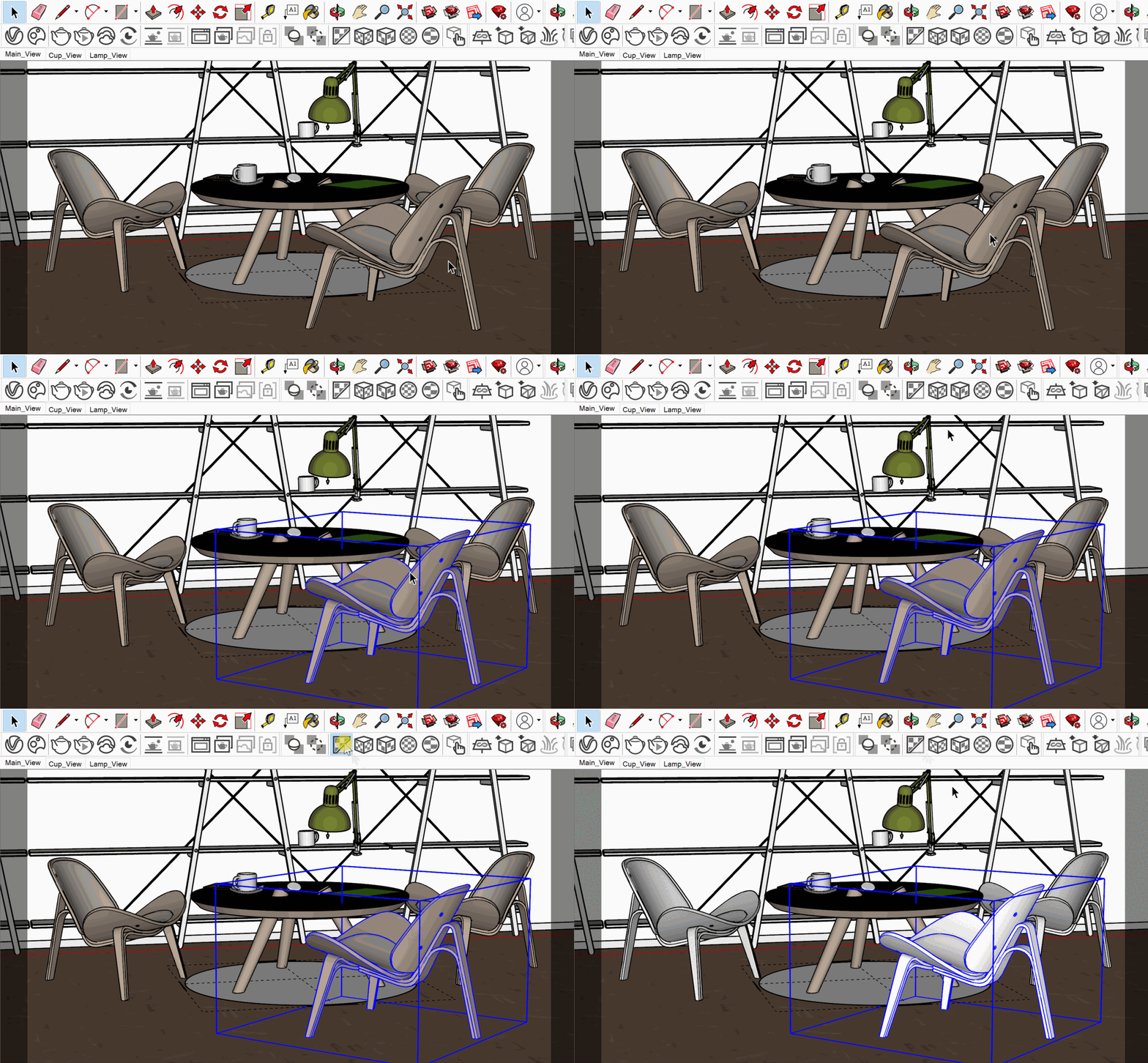
Tri-Planar Projection (World)
Tri-Planar Projection (World) changes texture placement on selected objects using cubic projection. The texture size stays independent of object scaling.

Tri-Planar Projection (Fit)
Tri-Planar Projection (Fit) changes texture placement on selected objects using cubic projection. It scales the texture to match the objects' bounding box size.

Spherical Projection (World)
Spherical Projection (World) changes texture placement on selected objects using spherical projection. The texture size stays independent of object scaling.

Spherical Projection (Fit)
Spherical Projection (Fit) changes texture placement on selected objects using spherical projection. It scales the texture to match the objects' bounding box size.
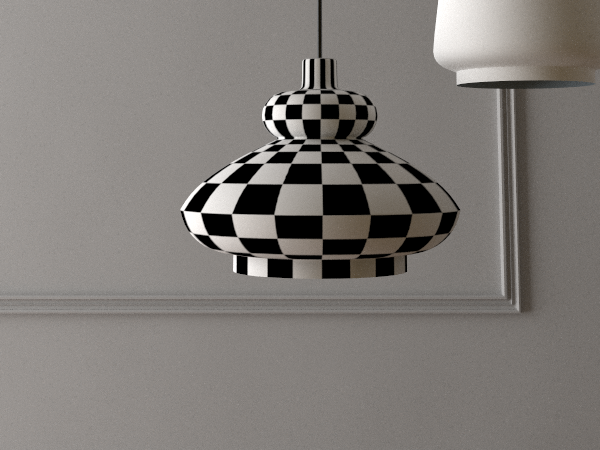
Scene Interaction Tool
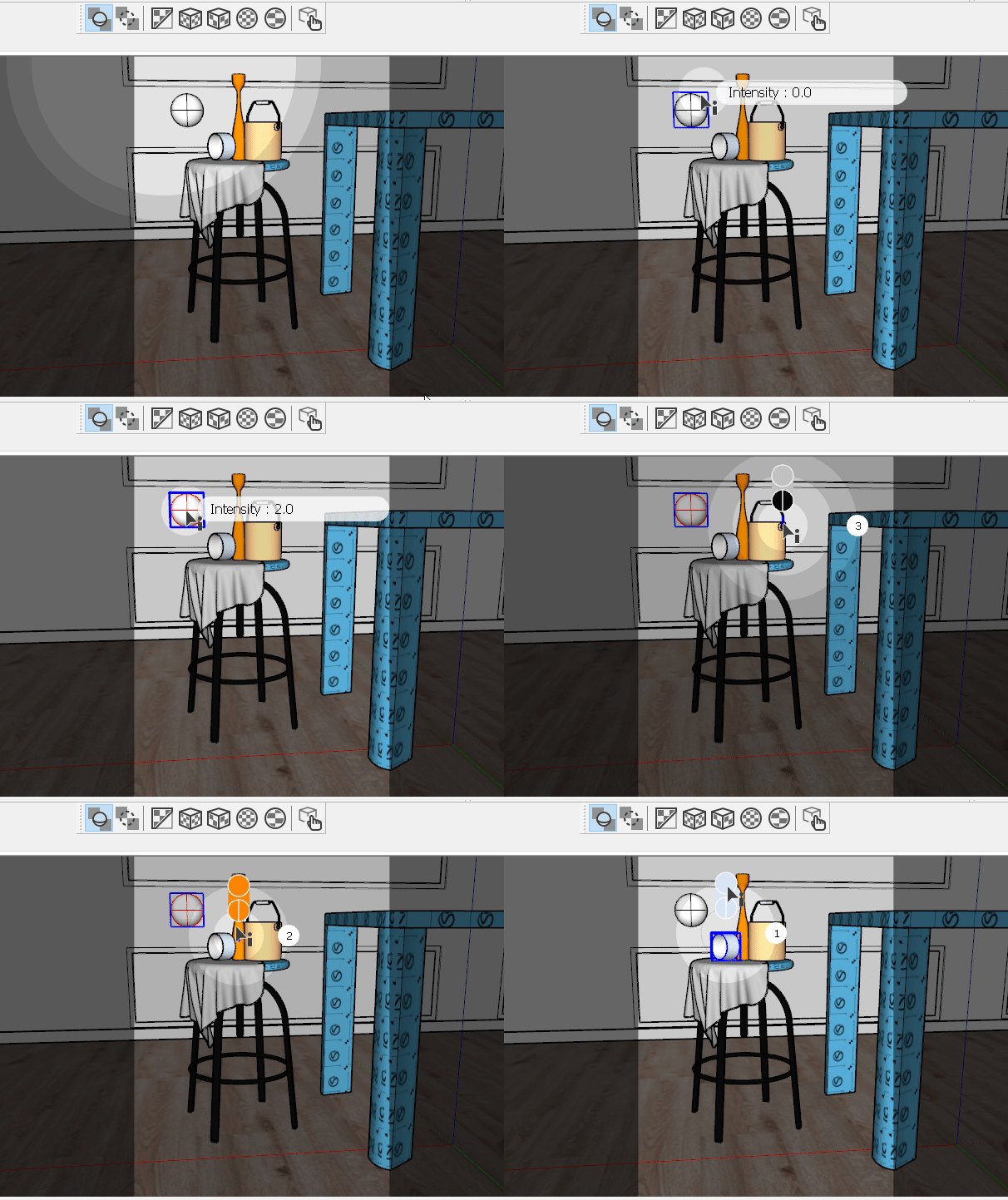
Use Scene Interaction Tool to inspect your scene's object hierarchy, the materials inherited through that hierarchy and V-Ray Object ID assignments. Circular material markers show front and back face material assignments, with each marker split in half. Hold down Shift while hovering to select parent group or component definitions. Hold down Shift while hovering and click to select a material assigned to any group or component in the current hierarchy.
You can also use the tool to adjust light intensity interactively. While the tool is active, hover over a light to see its current intensity value. Hold the left mouse button and drag the cursor up or down to adjust it.
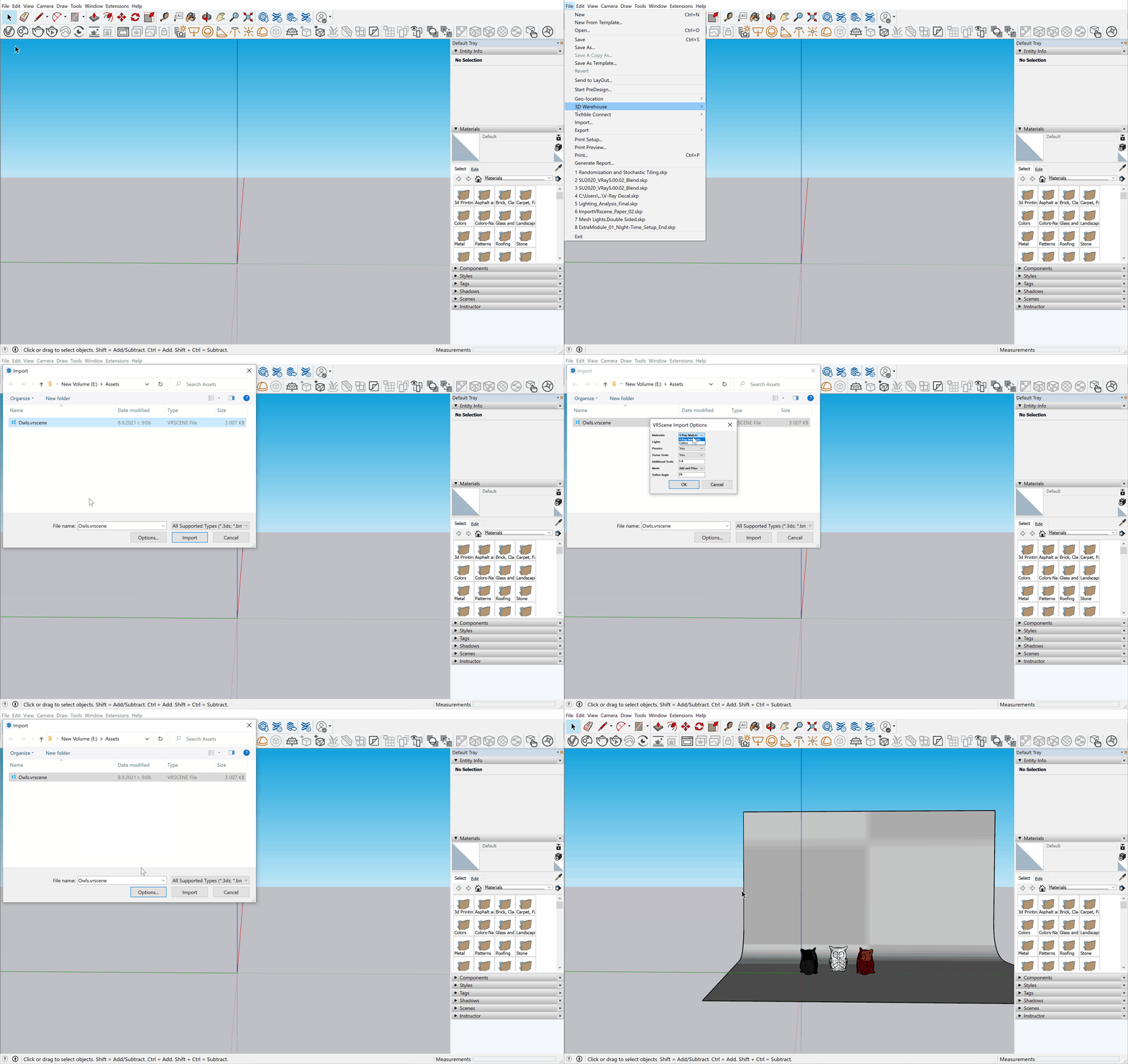
V-Ray Scene Importer
V-Ray Scene Importer imports .vrscene files directly as editable SketchUp models. It imports geometry, material assignments and texture placement. It scales and positions the imported scene correctly, regardless of the source application or the source file's units configuration.
For details, see the V-Ray Scene Importer page.
Footnotes
- The "Hide V-Ray Widgets" button currently also affects V-Ray Proxy objects.
- Scene Interaction Tool is available in V-Ray Next for SketchUp 2017 and later.