KeyShot Studio
Animation Output
3. Video Output Enable this to generate a video of the animation.
Last updated 3 August 2026
Output Options
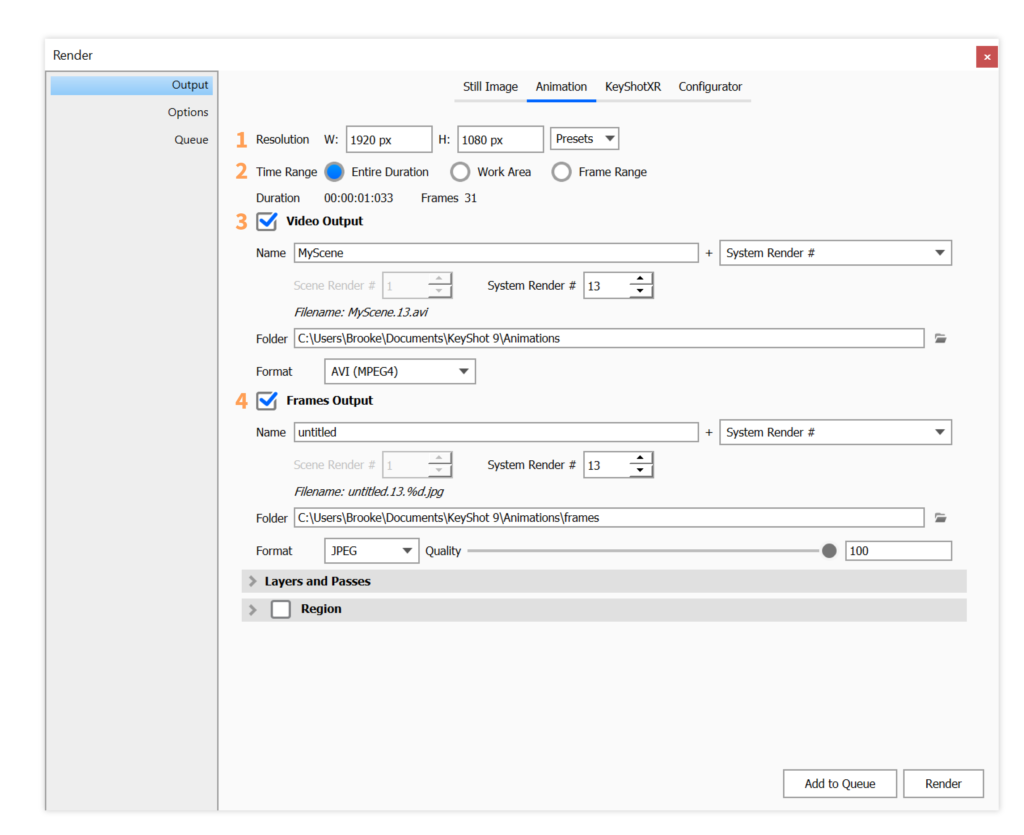
1. Resolution 2. Time Range |
3. Video Output
Enable this to generate a video of the animation.
- Name: Select the Prefix and Name Template that fits your needs. If the Template includes either the System or Scene Revision # you can reset them here. The Filename shows the full render name generated from the Prefix and the active Name Template. Learn More about Name Templates.
- Folder: Select a folder to output the video to. Unless a specific folder is chosen, it will be saved in your KeyShot Studio Animation folder
- Format: Select the video format between following options:
- MP4 (H.264)
- AVI (MPEG4)
- AVI (uncompressed)
- MOV (H.264)
- Animated GIF
4. Frame Output
Enable to output every frame used to create the animation.
- Name: Select the Prefix and Name Template that fits your needs. The image name will have a incremented postfix, that ensures that there won’t be naming conflicts.
If the Template includes either the System or Scene Revision # you can reset them here. The Filename shows the full render name generated from the Prefix and the active Name Template + incremented postfix. Learn More about Name Templates. - Folder: Select a folder to output the video to. Unless a specific folder is chosen, it will be saved in a Frames folder located in your KeyShot StudioAnimation folder
- Format: Select format for the images between following options:Integer output formats:
- PNG
- JPEG
- TIFF
- PSD
- PSD 16-bitFloating point formats:
- EXR (16-bit half-precision)
- TIFF 32-bit
- PSD 32-bit