Use the CMF (Colour, Material, Finish) output option in KeyShot to create a document with an image, callouts and a table of material information.
CMF output option
1.Output Type
Select your output type from the drop-down menu.
2. Orientation
Choose the layout orientation for your document. Landscape places the image and table next to each other. Portrait places the image above the table.
3. Setup Callouts
Click  to open the Callout Editor.
4. Name
Select the Prefix and Name Template you want to use. If the template includes either the System or Scene Revision #, you can reset them here. The Filename shows the full render name generated from the Prefix and active Name Template. See Name Templates for details.
5. Folder
Choose where to save the render. If you do not choose a folder, KeyShot saves it in your KeyShot Studio Renderings folder.
6. Format
Choose PNG or JPEG. PNG can include an alpha channel. JPEG provides an image quality slider to control optimisation and file size.
Include Alpha (transparency)
If your selected format supports transparency, you can include it in the image.
7. Metadata
Enable this option to save a metadata file with your still image. Metadata includes the scene name, Camera name and properties, Environment name and properties, active Model Sets, active Studio, Lighting settings, material names and Render Quality settings.
Click  to select the metadata format:
- .xmp files can be read in any text editor or imported into Adobe applications.
- Simple (.meta) files are formatted for easier reading.
7. Resolution
Set the render resolution by typing a value or selecting a preset.
8. Print Size
For print output, enter the print dimensions and desired DPI. The resolution updates to match the size you set.
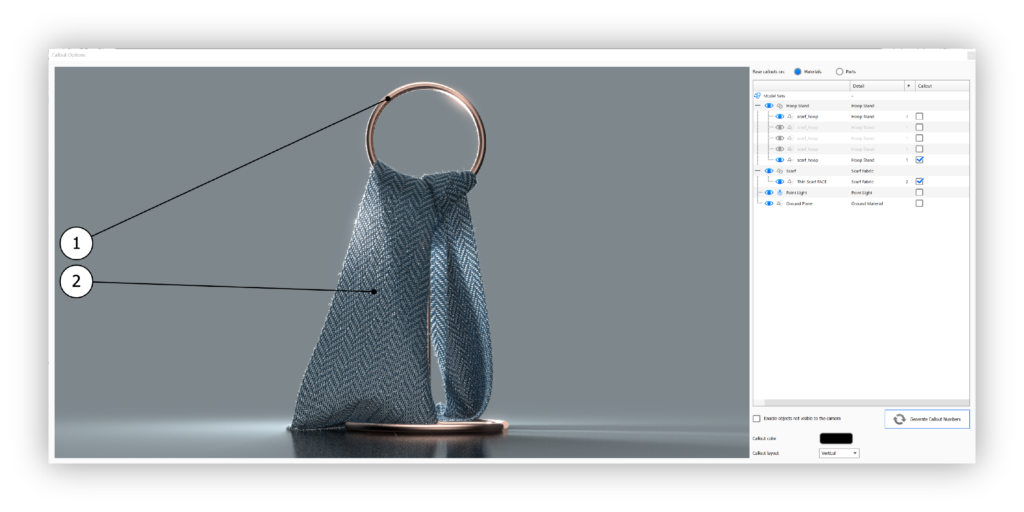
Callout Editor
Use the Callout Editor to add, edit and manage callouts for your Material Information.
Scene Tree
In the Scene Tree on the right, choose whether to base callouts on materials or parts. Then select which materials or parts have callouts.
EnableObjects not visible to the camera
Use this option to enable or disable objects in the Scene tree that are not visible to the camera.
Generate Callout Numbers
Regenerate callout numbers for the materials or parts with a check mark in the scene tree.
Callout Color
Choose the colour of your callouts.
Callout Layer
Choose a vertical or horizontal layout.
Output document
The Output Document contains a still image with callouts and a table with the material image you specified in the Material Information Manager. Find the document in the output folder inside KeyShot Studio> Renderings.