Use the Anisotropic material type in KeyShot to control surface highlights and create a finely brushed metal effect. Materials with a single “Roughness” slider spread highlights evenly in all directions as you increase the value. Anisotropic has two independent sliders that control roughness in two directions, so you can change the highlight shape.
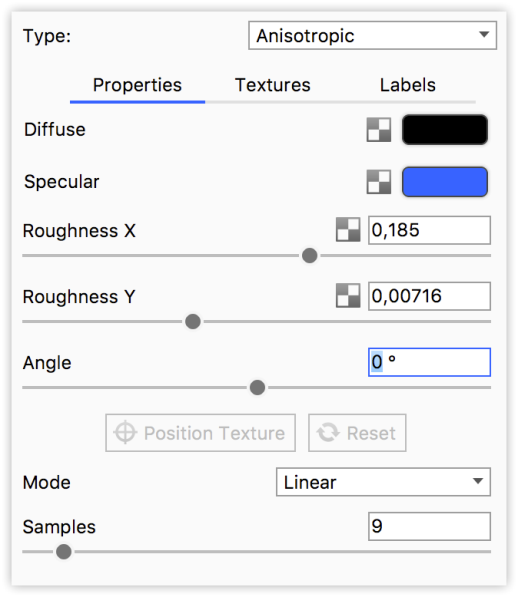
Diffuse To create metal, set the diffuse colour to pure black. Any other colour gives the material a more plastic appearance. Specular This controls the colour and intensity of reflected light sources in the scene. Black gives 0 intensity, so the material has no reflections. White gives 100% intensity, so the material is completely reflective. For metal, set the material colour here. |
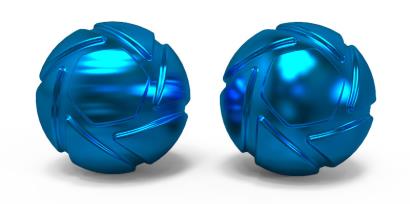
Roughness X and Y The X and Y roughness sliders control how far highlights spread in independent directions. Set different values to stretch the highlights and create a finely brushed effect. Set both sliders to the same value to spread reflections evenly in all directions. | The material ball on the left has different roughness values. The ball on the right has equal values. |
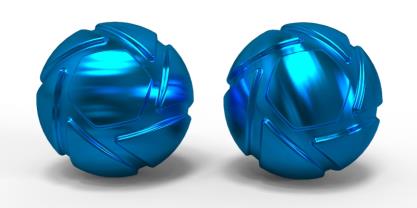
Angle This rotates the stretched highlights created by different roughness x and y values. The value is in degrees, from 0 to 360. | The material ball on the left has an angle of 0. The ball on the right has an angle of 90. |
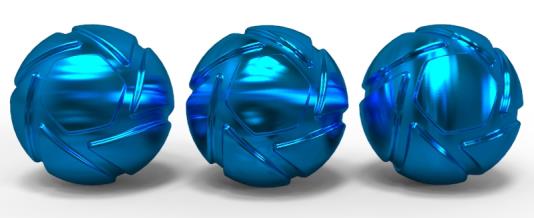
Mode This advanced setting controls how highlights stretch. Choose from three modes.
| Linear, Radial and UV mode. |
Samples
A low samples setting (8 or lower) tends to make the surface noisier, giving it a rougher, less perfect appearance. Increase the value to reduce noise and distribute roughness more evenly.