Use the Advanced material in KeyShot Studio to create metals, plastics, transparent or cloudy plastics, glass, leather and diffuse materials. It has more parameters than any other material type. It cannot create translucent materials or metallic paints.
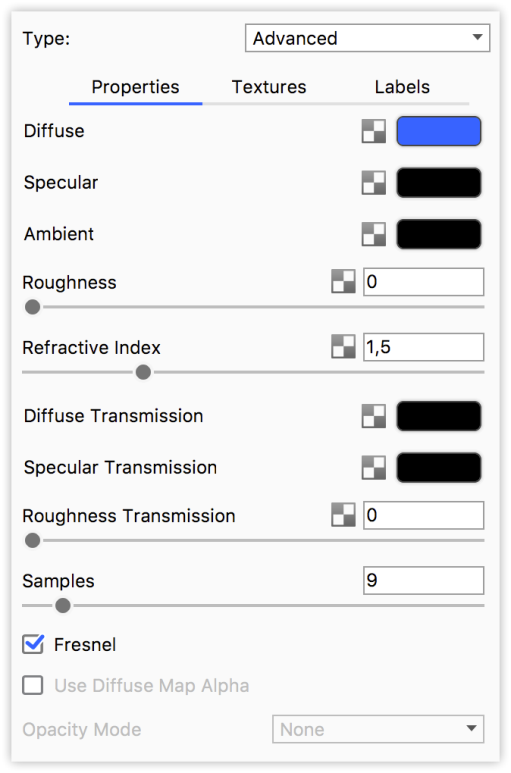
Diffuse This sets the material's overall colour. Transparent materials have little or no diffuse colour. Metals have no diffuse colour and get all their colour from specular. See the section on diffuse for more detail. Specular This sets the colour and intensity of reflections from light sources in the scene. Black gives 0% intensity and no reflections. White gives 100% intensity and full reflectivity. For plastic, set the specular colour to grey to reduce reflectivity. |
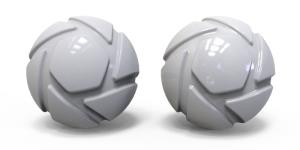
Ambient This sets the colour of shadows the material casts on itself in areas without direct light. Keep it black unless you need it, as other colours can look unrealistic. | The material on the left has a green ambient colour. The material on the right has a black ambient colour. |
Roughness Increasing this value adds microscopic imperfections to the material's surface. At 0, the material looks perfectly smooth and polished. Higher values make it look rougher as light scatters across the surface. | The material on the left has a roughness of 0. The material on the right has a roughness of 0,04. |
Refractive Index This sets the material's level of refraction. | The refractive index on the left is 1,3. On the right, it is 2,3. |
Diffuse transmission
This scatters additional light across the material's surface to simulate a translucent effect. It increases render time, so leave it black unless you need the effect.
Specular transmission
This sets the material's transparency. Black makes it 100% opaque. White makes it 100% transparent.
For transparent glass or plastic, set diffuse to black so all the colour comes from this parameter. Set specular to white. For cloudy plastic, set diffuse to a very dark version of the colour you set here.
Roughness transmission
This sets the roughness of refraction inside the material. Unlike surface roughness, it can create a frosted look while keeping the surface shiny. The material needs some transparency through specular transmission for the effect to appear.
Samples
Increase the samples to improve the accuracy of glossy (rough) reflections.
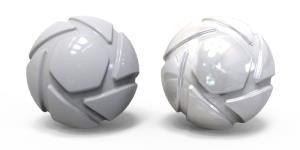
Fresnel This controls the intensity of reflections on surfaces perpendicular to the camera. In the real world, materials reflect more light around an object's edges than on areas facing the viewer or camera directly. This setting is enabled by default. | The material on the left has Fresnel checked. The material on the right does not. |
Use Diffuse Map Alpha
This option is available if your material has a Diffuse texture map with an alpha channel, such as a .png with transparent areas.
When enabled, KeyShot Studio also uses the diffuse texture to control the material's opacity. This setting is mainly for legacy materials. Use the Opacity map for transparency in most cases.