Use the Curvature procedural texture in KeyShot to analyse surface curvature in your model and its parts. You can also use it as an opacity map to create materials with worn edges.
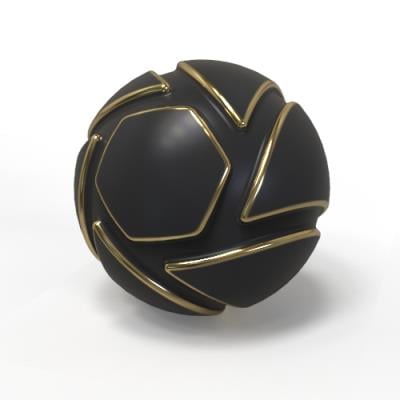
In this example, the Curvature texture is an opacity map on a metal label over black plastic.
Negative Curvature
Choose a colour for negative surface curvature. The sharper the angle, the closer the texture is to your chosen colour.
Zero Curvature
Choose a colour for areas with zero curvature. The flatter the surface, the closer the texture is to your chosen colour.
Positive Curvature
Choose a colour for positive surface curvature.
Cutoff
Control the scale of the curvature. Decrease the value for a smaller curvature range. Increase it for a larger range.
Radius
Set the radius around each surface point used to estimate curvature.
Advanced
Samples
Increase the samples to improve the quality of the gradations. This also increases render time.
Radius in Pixels
If you disable this setting, the radius uses the current scene unit.
Sample Same Material Only
Enable this toggle to use curvature data from this material only.