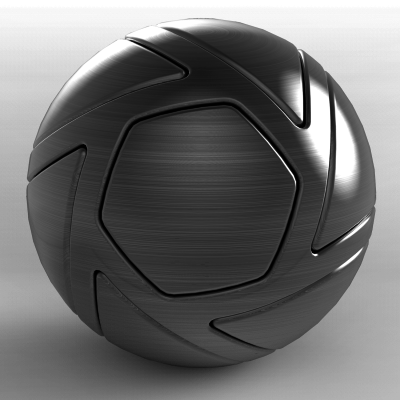
Use the Brushed (Radial) procedural texture in KeyShot to create a spun brushed metal finish.
Mapping Tool
Use the mapping tool to position the centre of the brushed texture. See Move Texture for details.
Scale
Set the scale of the texture.
Angle
Read the Angle description.
Color 1/Color 2
Choose contrasting colours to create a ringed brushed pattern.
Radius
Radius
Set the radius of the radial brush to control how many rings it generates.
Falloff
Increase this value to reduce the contrast between your selected colours.
Variation
Angular Noise
Increase this value to vary the width of the rings.
Distortion Noise
Increase this value to distort the rings from perfect circles. Leave it at 0 for a traditional spun brushed finish.
Distortion noise scale
The Distortion Noise Scale slider controls the size of the distortion.
Advanced
Radial Axial Blend
Use this to make the texture continue from a cylinder onto a rounded cap. Leave it at the default for most uses.
Sync
Textures on this material node with sync enabled scale, move and adjust together.