Use KeyShot Studio's three output methods to export models, take screenshots or render scenes.
- Export your model to another 3D format.
- Take a screenshot of the Real-time View.
- Render a scene.
Export options
KeyShot Studio Pro includes additional 3D export formats for specific workflows. Find them in File > Export.
File format options
- OBJ (Object files). A simple format that stores 3D geometry only. Many 3D graphics applications support it.
- STL (STereoLithography files.) A common 3D format used mainly for 3D printing.
- FBX (Filmbox files). A widely supported 3D format owned by Autodesk.
- glTF/GLB (GLtransmission format). A 3D format for moving content between 3D creation tools and modern 3D applications. It also works with AR viewers, mainly on Windows and Android.
- USD (Universal Scene Description). Pixar developed this 3D file format. Its variants are USD, USDa, USDc, and USDz. Use it to transfer 3D scene information between 3D tools or display 3D content, such as AR, mainly on macOS and iOS.
- 3MF (3D Manufacturing Format). The 3MF Consortium developed this format for 3D printing.
- AR exports both USD and GLB.
Read more about each export format.
Screenshots
To take a screenshot of the Real-time View, select the  Screenshot button on the Toolbar or press P.
Screenshots save to your Resources/Renderings folder by default. To choose a folder for each screenshot, open Preferences > General and enable Ask where to save each screenshot. You can also enable Save Camera With each screenshot. This adds a camera each time you press P in the Real-time View or Presentation mode, so you can save camera angles as you try them.
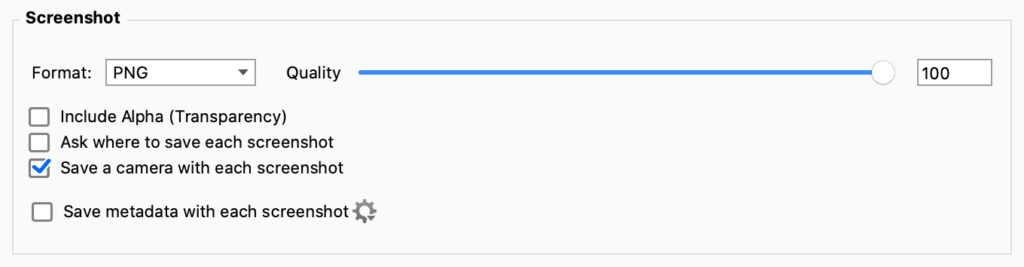
File format options
- JPEG
- PNG. Choose the quality and whether to include Transparency.
Metadata
If you include metadata, KeyShot Studio saves a metadata file with each screenshot. It contains information about the active camera angle, environment, model and materials. Use the Metadata settings  to choose .meta or .xmp as the output format.
Render output
Use KeyShot Studio to create still images, animations and interactive web visuals at unlimited resolution. Read about setting up Render Output.
File format options
Still images and Configurator
The Configurator requires KeyShot Studio Pro.
Image output
- JPEG
- TIFF (8 bit) 1
- TIFF (32bit) 1
- EXR (32 bit) 1
- PNG 1
- PSD 1,2
- PSD (32 bit) 1,2
Animations
Animation requires KeyShot Studio Pro.
Video output
- AVI (MPEG4)
- AVI (Uncompressed)
- Quicktime (MPEG4)
- Quicktime (Uncompressed)
- Flash Video
Frame output
- JPEG
- TIFF (8 bit) 1
- TIFF (32bit) 1
- EXR (32 bit) 1
- PNG 1
- PSD 1
- PSD (32 bit) 1
KeyShotXR and Web Configurator
KeyShotXR and Web Configurator require the KeyShot Studio Web add-on.
Image output
- JPEG
- PNG 1
Supported files
- HTML
- JS
Other
- iBook
1 Alpha channel option
2 Requires KeyShot Studio Pro