The image pin allows you to use HDR, HDZ, EXR, JPG, PNG, JPEG, and BMP as a pin. There are limitless usages for this pin, such as creating specific reflections, simulating a lighting array and using part of an HDR with another HDR among others.
Last updated 3 August 2026
The image pin allows you to use HDR, HDZ, EXR, JPG, PNG, JPEG, and BMP as a pin. There are limitless usages for this pin, such as creating specific reflections, simulating a lighting array and using part of an HDR with another HDR among others.
When adding an image pin, you will prompted to select an image to be used. Once selected, the image will be placed in the preview window. You can also drag an image onto the HDRI editor and it will be added as an image pin.
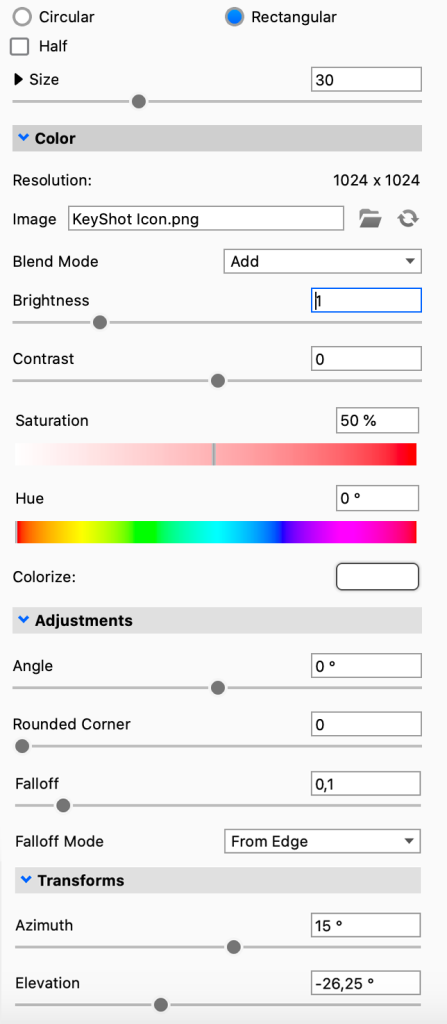
Adjustment sliders will be available to edit the image pin. These sliders are similar to the regular pin sliders.
Color
Resolution – Shows the resolution of the current Image pin
Image – Shows the name of the current image used for the pin. Hovering will show you the entire path to the file
Browse for another image file
Refresh the image file
Blend Mode – With this option, choose different ways to have the pins blend and interact with each other. Pin order becomes very important with this function
Brightness – Use this to adjust the intensity of the pin light.
Contrast – Use this to adjust the contrast of the pin light.
Saturation – Use this to adjust the saturation of the pin light.
Hue – Use this to adjust the hue of the pin light.
Colorize – With this you can add a color overlay to the pin.
Adjustments
Angle – The angle slider lets you rotate the image pin (Rectangular pins only)
Rounded corner – This will let you round the corners on the image pin (Rectangular pins only)
Falloff Mode – This controls the falloff of the light from the center of the pin. Different modes have different behaviors. You can see the effect of the various modes both in the editor as well as in the KeyShot Studio Real-Time View.
Falloff – This controls the softness of edge of the pin light. Increase the falloff for more blended, softer edges.
Transforms
Azimuth – Sets the horizontal position of the pin.

 Browse for another image file
 Refresh the image file