Customise existing hotkeys in KeyShot Studio. Hotkeys are grouped as Simple Hotkeys, Mouse Actions and Camera Controls. The hotkey type you select determines whether the Simple Hotkey or Mouse Action input fields are active. Camera Controls are always active.
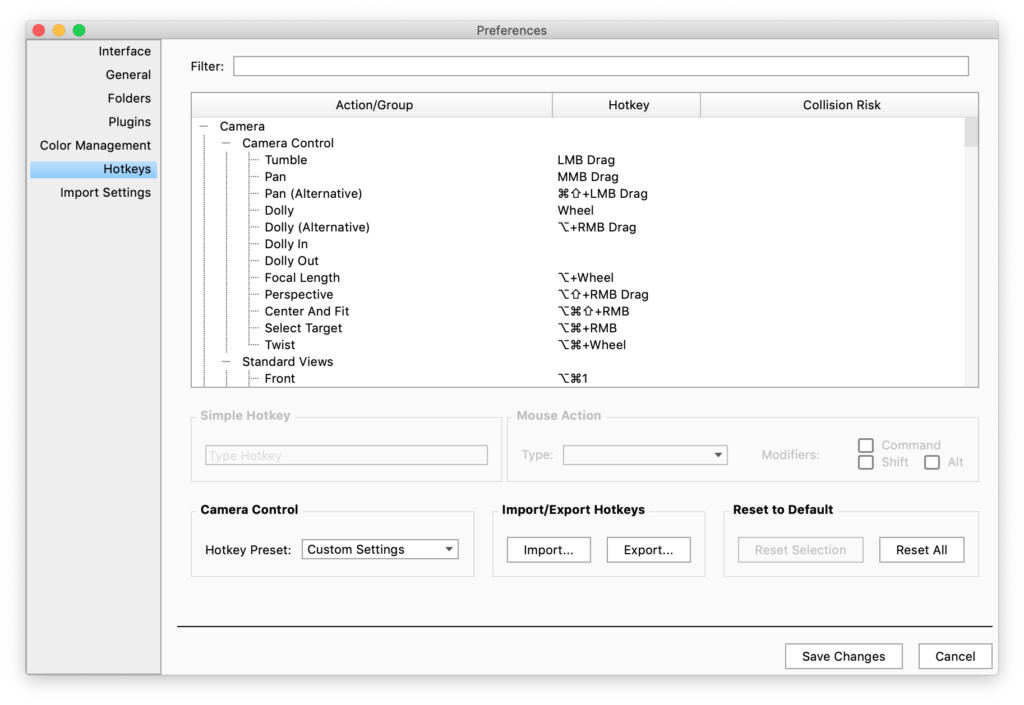
Filter/Hotkey List
Search the list for an Action/Group or Hotkey. The Hotkey List shows every KeyShot Studio command you can assign a key combination to. An empty Hotkey entry means the action has no hotkey assigned.
Simple Hotkey
Select a Simple Hotkey from the list. These hotkeys contain no mouse actions. Type in the input field to edit the hotkey. Select Change to Default to restore its default setting.
Mouse Action
Select a Mouse Action hotkey from the list. Change the mouse action using the drop-down menu. Select up to three modifier keys: Alt, Shift, Ctrl/Cmd.
Camera Control
Change the camera controls to match your preferred modelling application. The hotkey list shows which application is selected.
- Hotkey Presets lets you select your 3D modelling software from the drop-down menu. All camera controls adjust to match. Supported applications are:
- 3ds Max
- Alias
- Alibre
- Fusion 360
- Maya
- NX
- PTC Creo
- Rhino
- Solid Edge
- SOLIDWORKS
- SpaceClaim
- ZBrush
Import/export hotkeys
- Import… lets you import a custom hotkeys file previously exported from a KeyShot Studio installation. KeyShot Studio hotkey files use the .ksh format. The Migration Assistant migrates custom hotkeys when you upgrade from KeyShot 7 or later.
- Export… lets you export your custom hotkeys for use on another computer.
Reset to Default
- Reset selection restores the default setting for the hotkey selected in the HotKey List.
- Reset All restores all hotkeys to their default settings.