Create shape patterns in KeyShot for meshes in an opacity map or patterns in colour maps.
Clipping and mapping
Use these settings to adjust the mesh.
Clipping Width/Weight
If clipping is enabled for the texture, use this setting to set the mesh texture size.
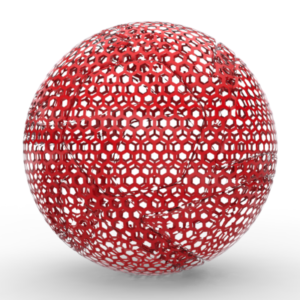
This example uses the mesh texture as an opacity map to add holes in the surface without modelling them.
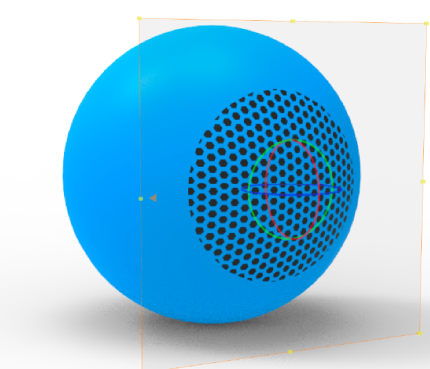
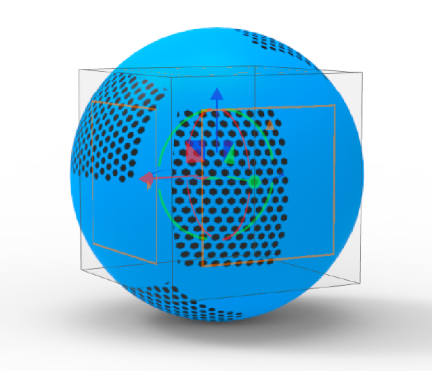
Depth (Planar mapping only) Limit the texture depth if you do not want it to cover the entire object. The texture applies only to surface areas within this depth, measured from the texture's position. In this example, the planar texture sits exactly on the surface and has a depth of 0,2cm. The sphere is 2cm. | |
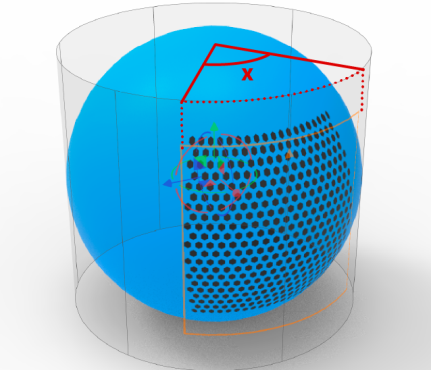
Wrap (Cylinder mapping only) Set the width of the map wrapped around the cylinder using an angle measured from the cylinder's centre. The height matches the width. | |
Diameter (Cylinder mapping only) Adjust the cylindrical map's diameter, measured from the centre. To match the diameter to your object, open the Move Texture widget and select Fit to X/Y/Z. | |
Shift U / Shift V (Box, Sphere, UV and Camera mapping) Offset the texture in the U or V direction without moving its centre. In this example, the texture is shifted -0,5 in the U direction. | |
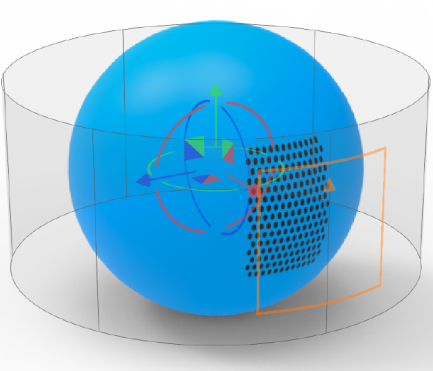
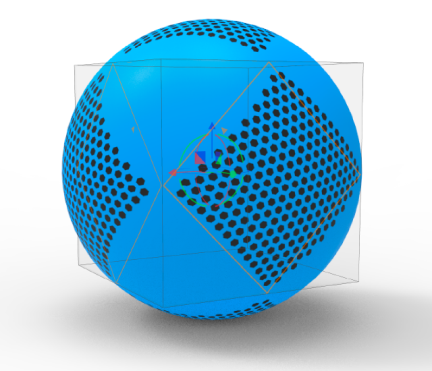
Angle UV (Box, Sphere, UV and Camera mapping) Rotate the map's UV plane. In this example, the texture is clipped and the UV plane is angled. The orange squares show the rotation. |
Angle
Rotate the entire map around the local Y axis, shown in green. This matches rotation in the Move Texture tool.
Expand the setting for more precise control.
Axis Tilt
Tilt the local axes around the Global X axis.
Axis Azimuth
Rotate the map around the global Y axis.
If the tilt is 0, adjusting the azimuth has the same effect as adjusting the overall angle.
Center X
Move the map's centre along the global X axis.
Center Y
Move the map's centre along the global Y axis.
Center Z
Move the map's centre along the global Z axis.
 Flip Horizontal
Mirror the texture across the local Y axis.
 Flip Veritcal
Mirror the texture across the local X axis.
 Two Sided
This setting applies only to Planar and Box Mapping. Its behaviour differs for each.
- Planar: Enable this setting to show the texture on both sides of the model. The back shows a mirrored texture.
- Box: Enable this setting to mirror the texture on the box's back faces. Disable it to show the same texture on all faces.
Clip Horizontal / Clip Vertical
Enable clipping to limit the texture's coverage across the object's width or height. When enabled, use Clipping Width/Height to adjust the values.
 Sync
Textures on this material node with Sync enabled scale, move and adjust together.
Color
Color
Set the shape colour. Use black to create holes when you use the texture as an opacity map.
Background
Set the background colour. Use white when you use the texture as an opacity map.
Show Outline
Add a coloured or textured outline along the shape's inside edge.
Blend Outline with Color
Enable this setting to blend the outline's colour or texture with the shape's colour or texture.
Outline Size
Set the outline width on a scale from 0-1. A value of 0 places it at the edge, and 1 places it at the shape's centre.
Shape and pattern
Scale Mesh
Scale the mesh to change both the shape size and spacing.
Shape
Choose a shape for your mesh.
Falloff
Feather the shapes' edges. Use the slider to set the falloff width. A value of 0 gives no falloff.
Shape Diameter/Width and Height
Set the shape size using diameter or width and height, depending on the shape. When setting width and height, use  lock aspect to scale uniformly or
 reset to restore the original aspect ratio.
Shape Angle
Rotate the shape.
Mesh Pattern
Choose a standard pattern for your mesh or define a custom pattern.
Variation
Jitter
Increase this value to add deviation to the pattern.
Distort
Increase this value to distort the shape randomly.
Distort Scale
Values above 1 decrease the distortion scale. Values below 1 increase the distortion scale.