Use the procedural Scratches texture in KeyShot to add wear to materials, especially metal. The settings below control the scratch pattern.
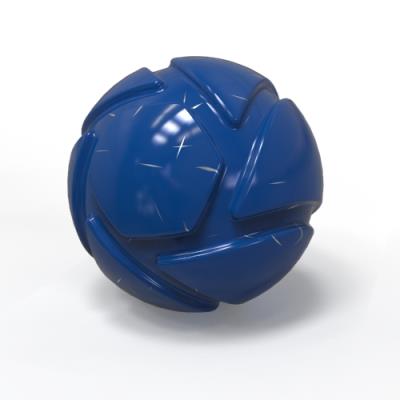
In this example, paint is applied as a label on a metal material. The Scratches texture acts as an opacity map on the label to reveal the metal beneath the paint.
Color
Set the colour of the scratches. Set this to black when you use the texture as an opacity map.
Background
Set the colour between the scratches.
Scale
Set the overall scale of the scratch pattern.
Bump Height
Increase this value for deeper scratches. Use a negative value for very subtle scratches.
Density
Control the number of scratches generated.
Size
Set the size of individual scratches. Expand this setting to control their thinness (width) and falloff (fade).
Directional Noise
Control how randomly the scratches change direction. Decrease this value to align the scratches more closely. Expand this setting to choose Direction Field mapping.
Noise
Control how straight the scratches are. Increase this value for more irregular scratches. Expand this setting to access the Noise Scale slider.
Levels
Control the number of unique scratches generated. Expand this setting to access the level scale.