Editing Collections
While editing a collection, you can add and modify its detailed information and remove content from it, such as models, other collections, and materials.
Last updated 17 July 2026
While editing a collection, you can add and modify its detailed information and remove content from it, such as models, other collections, and materials.
Accessing a Collection’s Edit Page
Collections are located in the My Collections section of your content library. After you choose to edit a collection, its Edit page appears.
To access a collection’s Edit page, follow these steps:
- On the My Collections tab of your content library, locate the collection you want to edit. For help finding the collection, use the search bar.
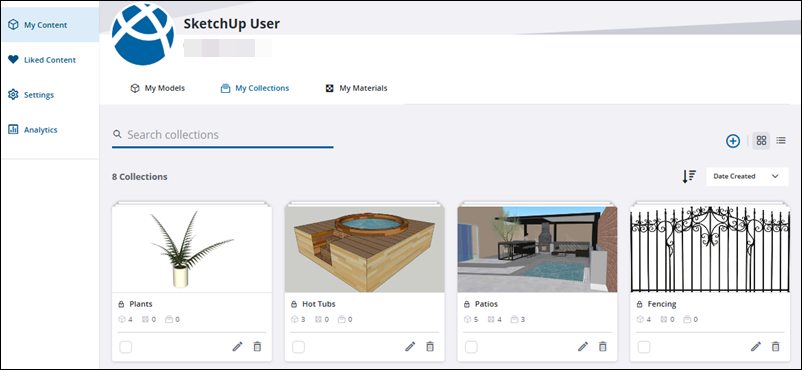
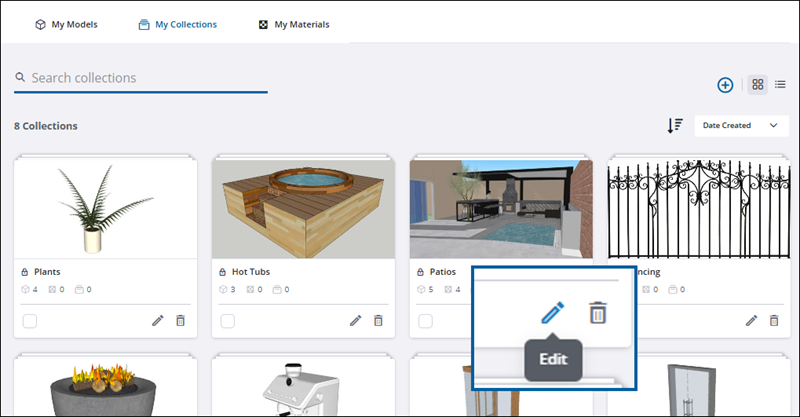
- Click Edit (
 ) on that collection’s tile.
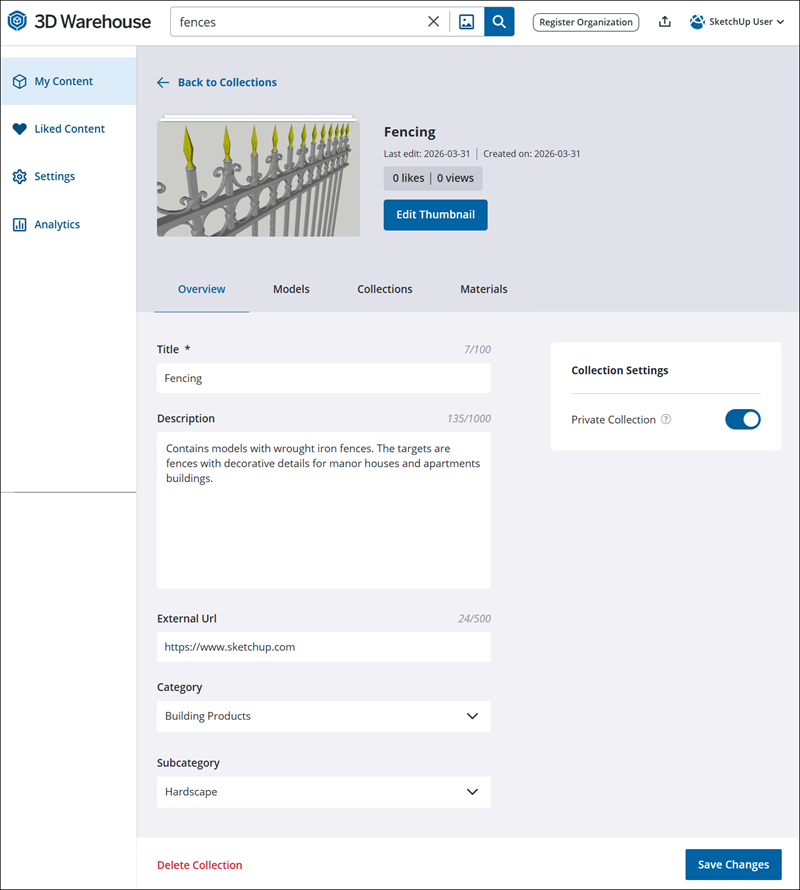
The collection’s Edit page appears with the Overview tab selected.
Editing Collection Details
In the Overview tab, you can add or remove details or change your privacy settings. For more details about the information you can adjust on this page, see Collection Details. After making changes, click Save Changes.
Editing a Collection’s Content
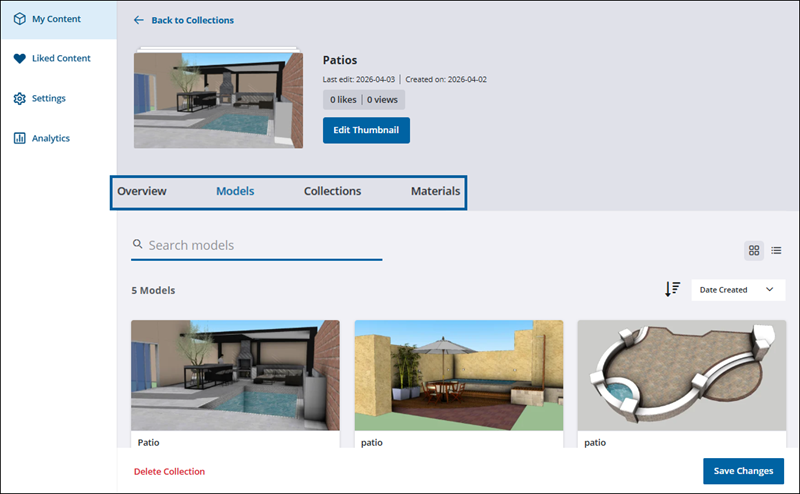
In a collection’s Models, Collections, or Materials tab, you can remove a single piece of content, multiple pieces, or all content from a collection. The procedures for removing content on a tab is the same for all three types of content.
A collection’s Edit page has four tabs that provide the following options.
- Overview – Add or modify details about your collection
- Models – Remove one or more models from your collection
- Collections – Remove one or more collection from your collection
- Materials – Remove one or more materials from your collection
To remove a single piece of content:
- Locate the content you want to remove and click Remove (
 ). For help finding content, use the search bar.
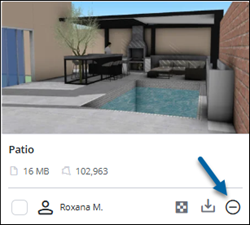
- Click Yes.
To remove multiple pieces of content:
- Select the check box for each piece of content you want to remove. A new check box appears that shows the number of items you have selected. You can select this check box to override your current choices in favor of selecting all content.
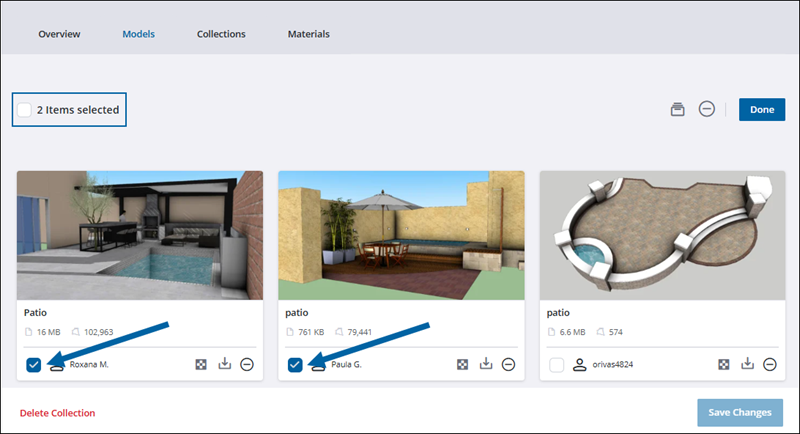
- Click Remove () in the upper right of the tab.
- Click Yes.
Still need help?
Technical support from our New Zealand team is available to customers with a current Procadsys SketchUp Plus subscription: Pro Plus, Pro Scan Plus, Pro Civil Contractor Plus, Advanced Workflows Plus or Studio Plus. Self-help articles are public.
Contact SketchUp support