Create collections in your content library or while browsing models, collections and materials in 3D Warehouse. See Collections in 3D Warehouse for more information. Once you create a collection, you can add content. See Adding Content to Collections for instructions.
Creating a collection in your content library
Follow these steps to create a collection in the My Collections section of your content library.
- Open your content library. See Accessing Your Content for instructions.
- Select My Collections. Your collections appear in the My Collections section.
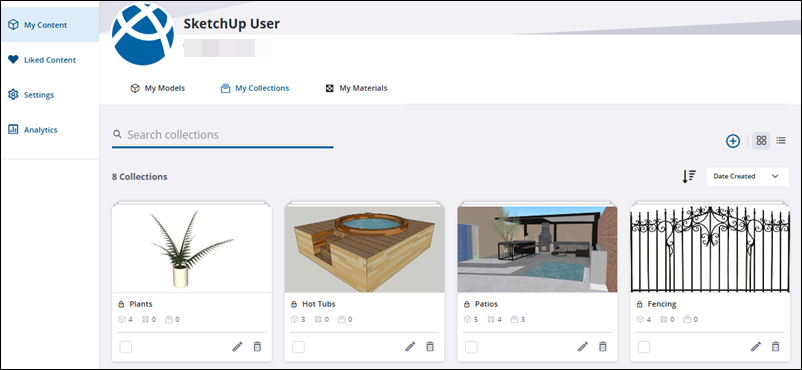
- Click Create New Collection (
 ). The Create a Collection dialog opens.
- Enter a collection title. This is the name you and other 3D Warehouse users see when searching for or viewing your collection.
- (Optional) Clear Select collection to private to make the collection public.
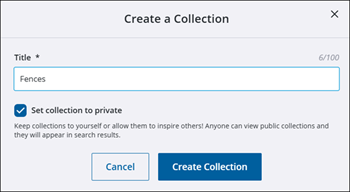
- Click Create Collection. The Collection Details page opens.
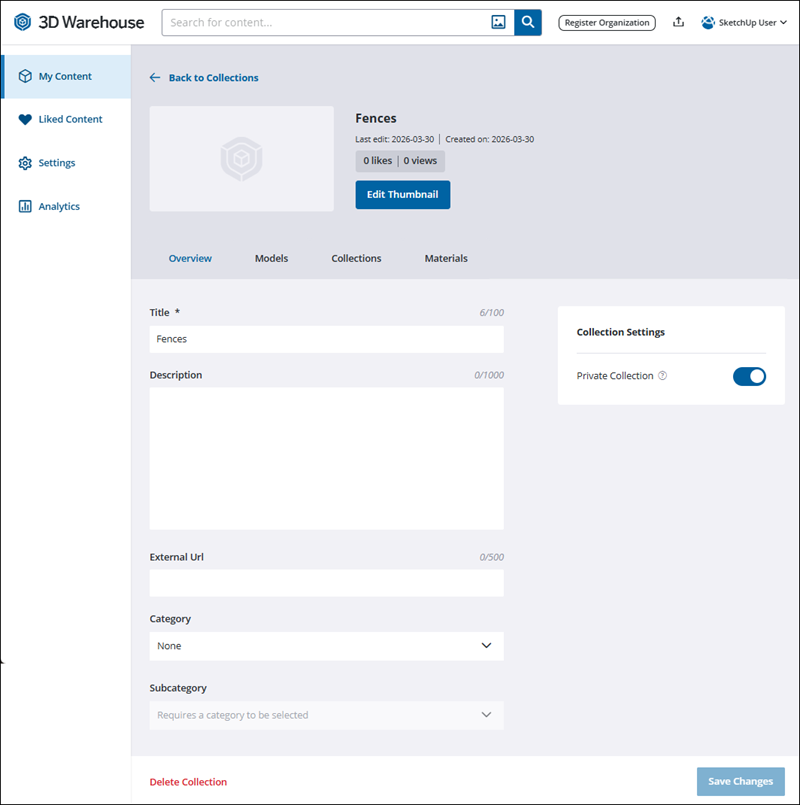
- (Optional) Enter more details about your collection, add a thumbnail image and change its settings. See Collection Details for more information about the page.
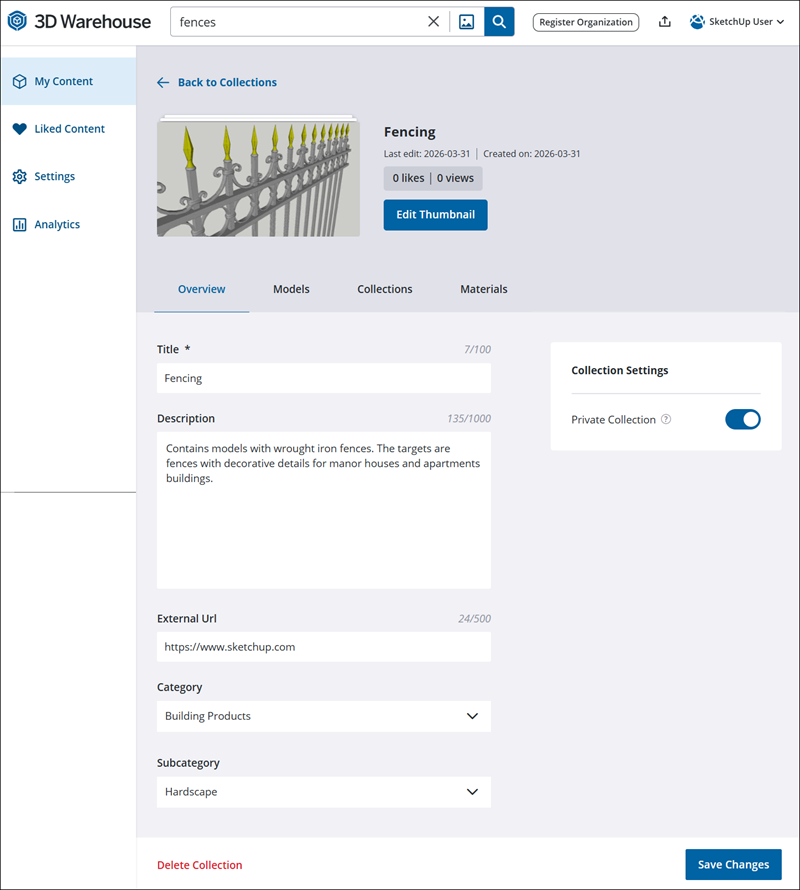
- Click Save Changes. The collection appears under My Collections in your content library.
Creating a collection while browsing
You can create a collection from any model, material or collection you open while browsing in 3D Warehouse.
When you create a collection this way, you only enter its title. To add more details, edit the collection. See Editing Collections for instructions and Collection Details for information about the details you can add.
Follow these steps to create a collection while browsing in 3D Warehouse.
- Select content in 3D Warehouse and open its Details page.
- Click Collections (
 ) and select Create New Collection.
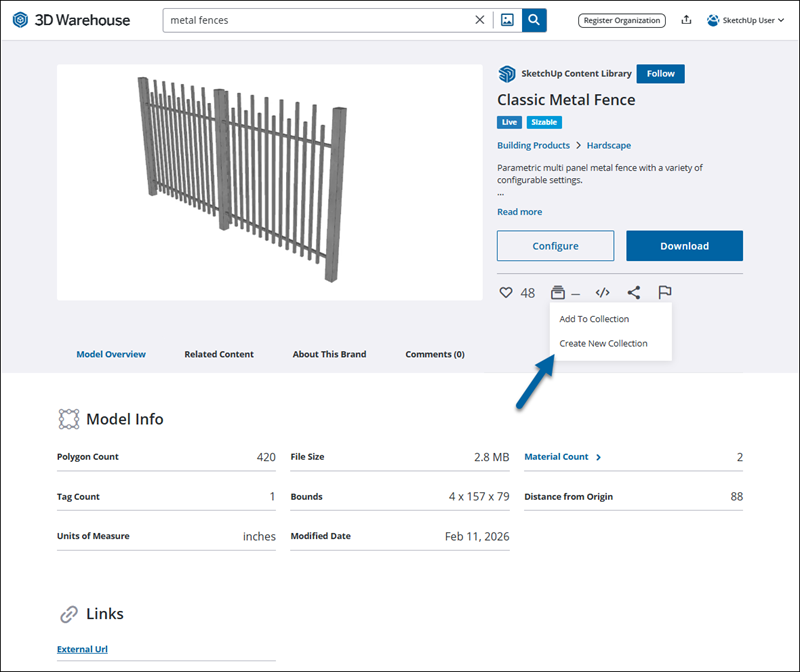
- Enter the collection name in the Create a Collection dialog.
- (Optional) Clear Select collection to private to make the collection public.
- Click Create Collection. A blank tile appears in the My Collections section of your content library. A thumbnail appears when you add content, such as a model, collection or material.
You can now change the collection's details, add more content or delete it. See Collections in 3D Warehouse for more information about working with collections.