Use the Collection Details page to describe your collection. More detail helps other users find your public collections.
When you create a collection through your content library, you can fill in the Collection Details page as you go. See Creating Collections.
Collections created from content you open while browsing 3D Warehouse have a title but no other information. Edit these collections to add details. See Editing Collections.
To open the Collection Details page for an existing collection, follow these steps:
- Open your content library. See Accessing Your Content Library.
- Click My Collections to open the My Collections tab.
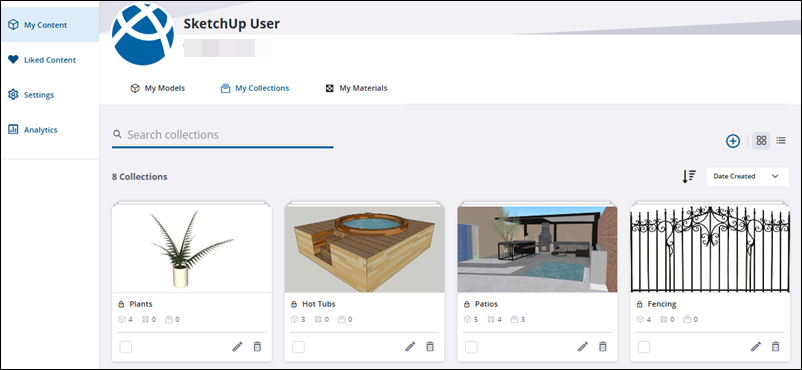
- Find your collection and click Edit (
 ). For help finding a collection while editing, see Editing Collections.
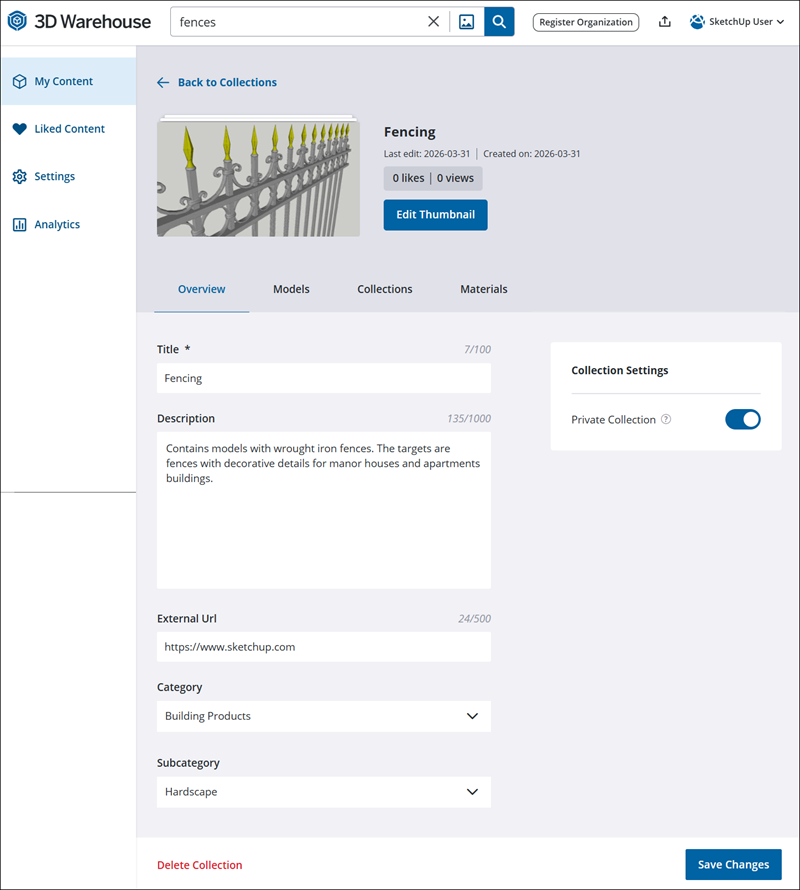
You can edit these fields and settings on the Collection Details page:
- Use Edit Thumbnail to replace the collection's default thumbnail with a custom image. If you do not add an image before adding content, the first model you add becomes the default thumbnail.
- Title is the collection name and is required. You can change it at any time.
- Use Description to explain what your collection contains, such as the types of models or materials. More detail helps other users find your collection if it is public.
- Use External Url to link to a website where other 3D Warehouse users can learn more about you. For example, link to your development's website if the collection contains models for a development project you plan to build. When viewing your collection, users can click Learn More to open the page you specify here.
- Use Category to choose categories that describe your collection. These match the filter categories in 3D Warehouse and can improve search results for your collection.
- Use Subcategory to describe your collection more precisely. The available subcategories relate to your selected category.
- Use Delete Collection to delete the collection.
- Use Collection Settings to switch between private and public. Turn on Private Collection to make the collection visible only to you. Turn it off to make the collection available to other 3D Warehouse users.