Use 3D Warehouse's Search tool to find materials by keyword, phrase or image. For search basics, see Searching in 3D Warehouse.
When you search in 3D Warehouse, click Materials at the top of the results to show only materials that match your search. Use the toggle at the top of the results ( ) to view materials as flat panels or cubes.
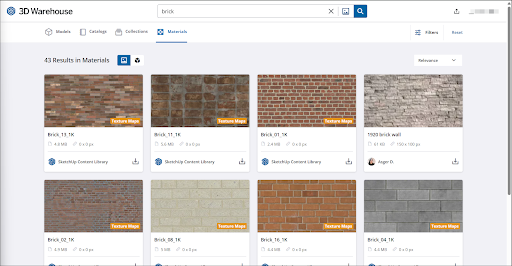
Materials with one or more texture maps show a Texture Maps tag in the preview window.
To narrow your results, click Filters to see filters for materials.
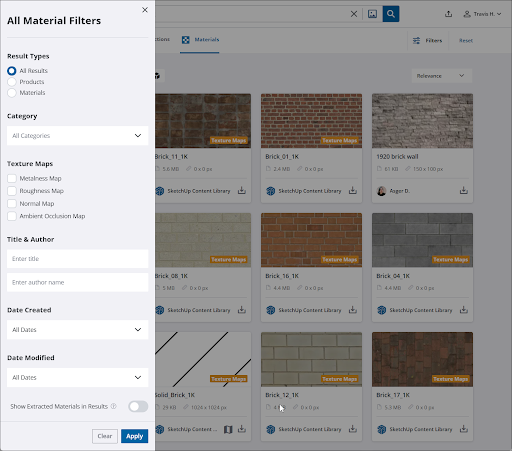
You can filter materials using:
- Use Result Types to choose All Results, Products or Materials.
- Use the Category dropdown list to filter by a common type of material.
- Under Texture Maps, select Metalness Map, Roughness Map, Normal Map or Ambient Occlusion Map. Select one or more options to show only materials that include that type of texture map.
- Under Title & Author, enter a title or author to show only materials that match either.
- Under Date Created, choose a listed date range or use the slider to set a custom range. 3D Warehouse shows only results created within your selected range.
- Under Date Modified, choose a listed date range or use the slider to set a custom range. 3D Warehouse shows only results last modified within your selected range.
- Turn on Show Extracted Materials in Results to include materials attached to other models.
After selecting your filters, click Apply. To remove all selected filters, click Clear.