Generate an object with a text prompt
If you don't have an image to use, enter a text prompt to create one. For help writing your prompt, see Best Practices for Custom Prompts.
Follow these steps to generate an object from a text prompt.
- Open AI Assistant and select the Generate Object tab (
 ).
- Click Generate From Prompt.
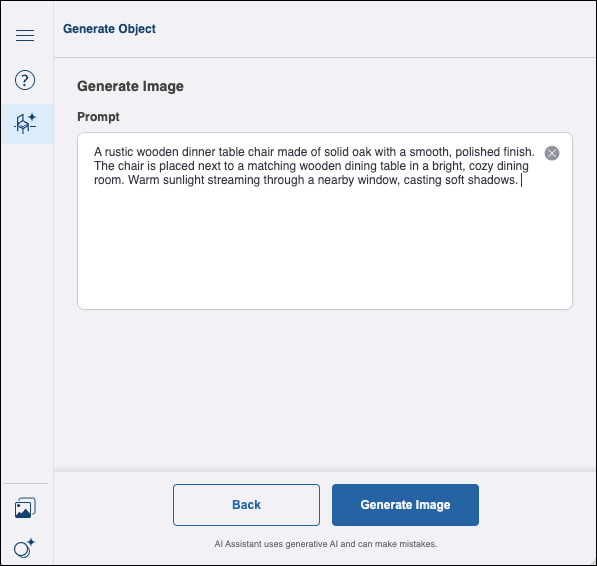
- Enter your prompt and click Generate Image. SketchUp AI generates an image after a short wait.
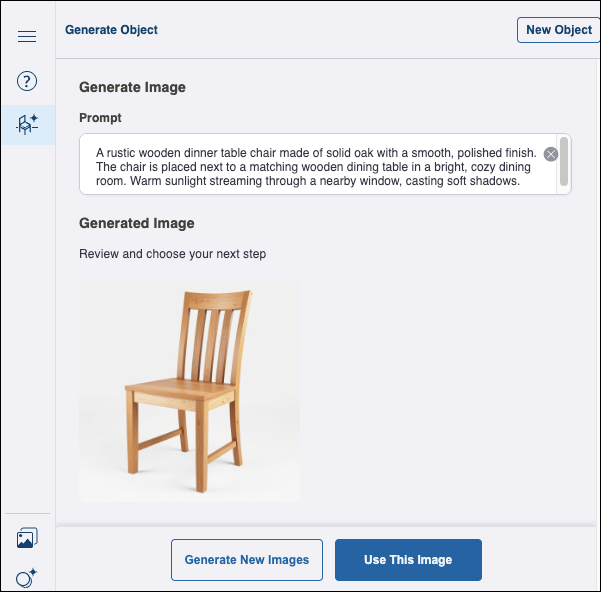
- If you're not satisfied with the image, adjust the prompt and click Generate More Images. AI Assistant creates several new images. Repeat as needed. When you're satisfied with an image, click Use This Image.
- After selecting your image, you can add another text prompt to guide how the object is generated. When you're ready, click Generate Model. SketchUp Assistant may take some time to generate your object.
- When your model is ready, SketchUp Assistant shows a preview and the details it used to generate the model.
- Click Download to return to the modelling window, where you can place the generated object.