Use AI Render to generate or refine an image with text prompts, masks and drawings.
Text prompts
Text prompts are the most common way to generate images with AI Render. Describe the image you want. Click the Prompt tool ( ) to enter your text. AI Render uses your prompt and the model viewport or generated image displayed in the AI Render window to generate an image.
AI Render starts with the Text Prompt tool enabled and the Auto preset active. Auto includes a basic prompt that produces a photorealistic image from your current model view. You can add prompts in the text box. To change the preset or adjust the settings, click Settings ( ). Settings has the following options:
- Presets lets you select Auto or one of SketchUp's preset prompts to give your image a particular look. See Preset Prompts for how they work.
- Add a Reference Image is available only in the "No Style" Preset. Click it to open your device's file browser and select a .jpg or .png.
Erase
Use AI Render's Eraser tool ( ) to select an area in your viewport and create a mask. This removes unwanted entities from your renders without changing your model's geometry.
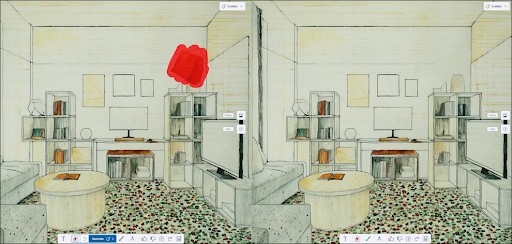
With the tool active, click Settings () to choose between two drawing options:
- Brush Mode – Choose a brush diameter, then colour in the area you want to erase. Brush mode is active by default.
- Lasso Mode – Circle the area you want to erase, as you would with SketchUp's Select tool.
Draw slightly outside the area you want to change to give AI Render more context and help improve results. After drawing over an area, click Generate. AI Render adds the results to the Gallery. Your selection stays if you leave the tool and return. To clear the Erase mask, click Clear and Reset.
Paint
Use the Paint tool ( ) to create a mask for a specific area and change that area using your prompts.
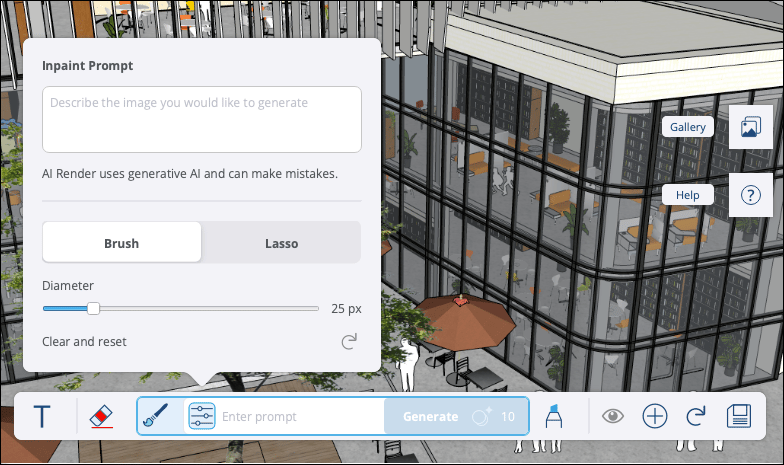
In the Paint tool's Settings (), you can add a Negative Prompt or change the drawing method to Brush or Lasso. Draw slightly outside the area you want to change to give AI Render more context and help improve results. After selecting an area and choosing a prompt, click Generate. AI Render adds the results to your Gallery. Your selection stays if you leave the tool and return. To clear the Paint mask, click Clear and Reset.
After Paint generates an image, AI Render returns to the Text tool by default. Select the Paint tool again to access your masks.
Sketch
Use the Sketch tool ( ) to add an element to your image based on your drawing and prompt.
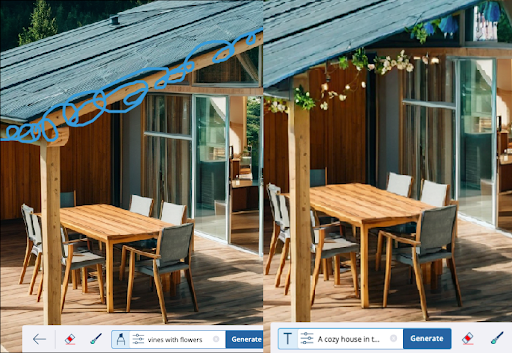
You can add a prompt and adjust the diameter of the lines you draw. Click Generate to create an image from your drawing and prompts. Your selection stays if you leave the tool and return. To clear it, click Clear and Reset.
After Sketch generates an image, AI Render returns to the Text tool by default. Select the Sketch tool again to access your masks.