Logging Into SketchUp
Access SketchUp on a new device with your Trimble ID.
Last updated 17 July 2026
Access SketchUp on a new device with your Trimble ID.
- A subscription seat can only be used by the user who is registered or assigned to that seat.
- Users can activate a license or sign-in on up to 2 devices at the same time.
- You need to be online.
Desktop and Web
When you first launch SketchUp for Desktop , a window prompting you to sign in will appear.
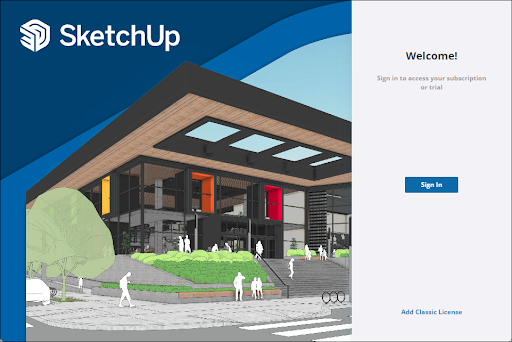
Clicking Sign In launches the Sign In page in a new tab of your preferred web browser. The same sign-in screen appears when you first access SketchUp for Web.
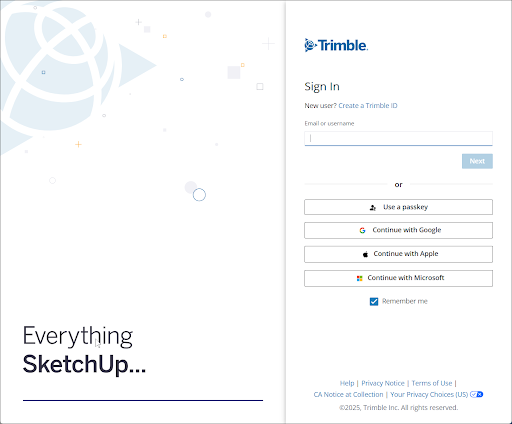
The same sign-in screen appears in SketchUp for Web .
iPad
SketchUp for iPad looks a bit different. When you first launch SketchUp for iPad, tap Get Started. A Trimble ID sign-in modal will appear.
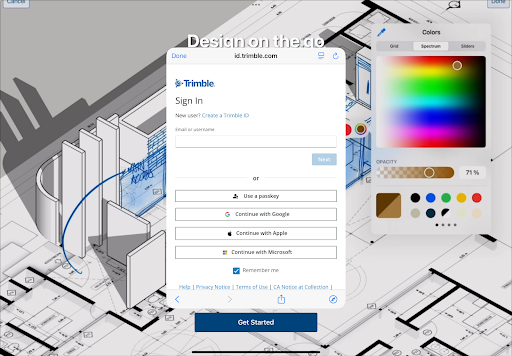
Signing In
Enter your Trimble ID email or username, or choose a sign-in method.
After you log in, a confirmation message will appear letting you know you are signed in to all things SketchUp.

If you are on SketchUp for Desktop or SketchUp for Web, you can close your browser window and return to the application. On SketchUp for iPad, you’ll see the Welcome window and can start modeling from there.
You are now ready to start modeling! If you are still having trouble logging in, see Troubleshooting Trimble Identity, or contact our support team.
Still need help?
Technical support from our New Zealand team is available to customers with a current Procadsys SketchUp Plus subscription: Pro Plus, Pro Scan Plus, Pro Civil Contractor Plus, Advanced Workflows Plus or Studio Plus. Self-help articles are public.
Contact SketchUp support