Use the Gaussian Splatting for SketchUp toolbar and Gaussian Splatting Manager to control splat visibility, model around your splat and save your changes.
Visibility tools
Gaussian Splats contain millions of data points, so displaying them can affect your system's performance. Use these Gaussian Splat Manager options to balance visual quality with navigation speed:
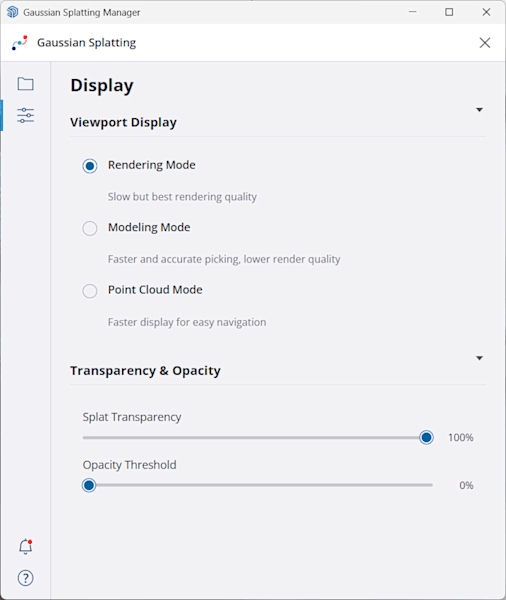
- Rendering Mode – Displays the splat at the highest rendering quality. Use this mode for presentations and visualisation.
- Modeling Mode lowers display quality and disables blending so you can see individual splats. Use this mode to pick points and snap to the splat when modelling.
- Point Cloud Mode displays only the raw point cloud data behind the splat. Use this mode for the fastest display and easier navigation.
- Transparency & Opacity sliders control how transparent the splat appears relative to the rest of your model.
Modelling and splat manipulation tools
Use the Gaussian Splatting toolbar to work with a splat after you import it into your model.

When you trace or design new structures within the scanned environment, use these controls to set how SketchUp interacts with the dense splat data:
- Transparency & Opacity - The Gaussian Splat toolbar has four presets to adjust these settings with one click:
- Hide Gaussian Splatting (
 ) hides the uploaded splat so you see only SketchUp geometry in your model.
- 50% Blending (
 ) shows both SketchUp geometry and the uploaded splat at 50% opacity.
- 75% Blending (
 ) makes the splat more visible than the SketchUp geometry.
- No Blending (
 ) hides all SketchUp geometry and shows only the uploaded splat.
- Hide Gaussian Splatting (
- Picking Priority controls what SketchUp's drawing tools snap to. Select Splat (
 ) on the toolbar to snap to Gaussian Splat data, or Model (
 ) to prioritise SketchUp geometry.
SketchUp's native tools can manipulate imported splats, but they may not work as you expect. The toolbar has similar tools designed for imported splats:
- Move (
 ) moves your splat around the modelling window.
- Rotate (
 ) rotates your splat.
- Crop Gaussian Splatting lets you isolate an area and hide unwanted background data. Click Crop (
 ) or double-click the splat to display a bounding box. Drag its handles to keep the area you need.
- Scale Gaussian Splatting lets you rescale the environment to a real-world length. Click Scale (
 ), pick two points on the splat and enter the required real-world length in the dialogue box.
- Align With Axes – Click Align With Axes (
 ) to align your splat with the model's axes.
- Select Sub-part: Click Selection Box (
 ) and draw a rectangle over the splat to highlight an area. Click Copy or Cut on the toolbar to extract that area as a new splat entity. The extracted splat appears in the Splat Manager, where you can select, hide, rename or delete it.
Saving your work
SketchUp does not store Gaussian Splat changes directly in standard SketchUp geometry. You must create a linked file to keep your changes:
- Click Save in the Splat Manager.
- Save the project as a .
sklat(SketchUp Splat) file. - Send both the .
skpfile and the linked .sklat file when you share the project with a collaborator.