Use the Protractor tool (  ) to measure or create angles in SketchUp. Find it in these locations:
- Construction toolbar
- Large Tool Set toolbar
- Tools menu
- Tool palette (macOS)
The Protractor tool has no default keyboard shortcut.
To measure an angle, select the Protractor tool ( ) and follow these steps:
- The protractor's colour matches the plane you are measuring from. Hover over different parts of your model or use the arrow keys to choose a plane. Hold down the Shift key to lock the protractor to a specific plane.
- Click to set the vertex of the angle you want to measure.
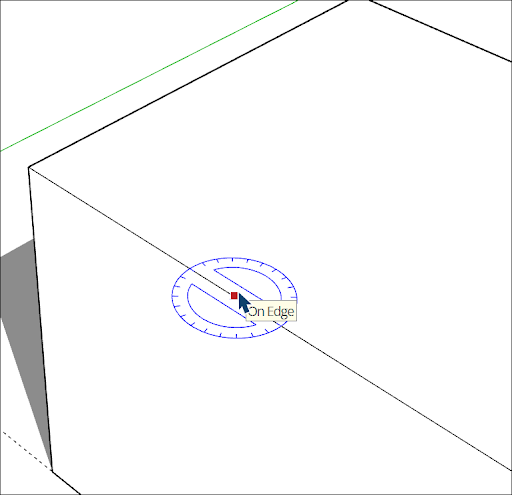
- (Optional) Tap Alt (Microsoft Windows) or Command (macOS) to free the protractor from the inferred plane. The protractor keeps the original plane's angle. You can now move it and infer other geometry.
- Click where the angle you want to measure begins.
- Press Esc at any point to start over.
- Move the cursor to measure the angle.
Use these tips to measure the angle:
- SketchUp supports angular precision of up to 0.1 of a degree.
- Check the Measurements Box. It shows the angle value as you move the cursor.
- Use the protractor's tick marks. They show 15 degree increments.
- Keep your cursor near the protractor's centre to snap to the tick marks. Move it farther from the centre to measure in smaller increments.