Use the Tape Measure tool ( ) to measure a distance, create a guide or find coordinates along an axis. You can find it in these locations:
- Getting Started toolbar
- Construction toolbar
- Large Tool Set toolbar
- Tools menu on the menu bar
- Tools palette (macOS)
The Tape Measure has three modes, each with a different cursor. While the tool is active, press CTRL to cycle through the modes:
- Create Guide Lines (
 )
- Create Guide Points (
 )
- Measure ()
To create a guide line or point with the Tape Measure, see Using Guides.
To check a line's length, activate the Tape Measure and hover over the line. The length appears in the Measurements Box. To measure part of your geometry, such as a smaller segment of a line, follow these steps:
- Activate the Tape Measure tool ().
- The Tape Measure starts in Create Guide Lines mode by default. Press CTRL to cycle through the modes until you reach Measure mode.
- Click the starting point of your measurement.
- Move the cursor in the direction you want to measure.
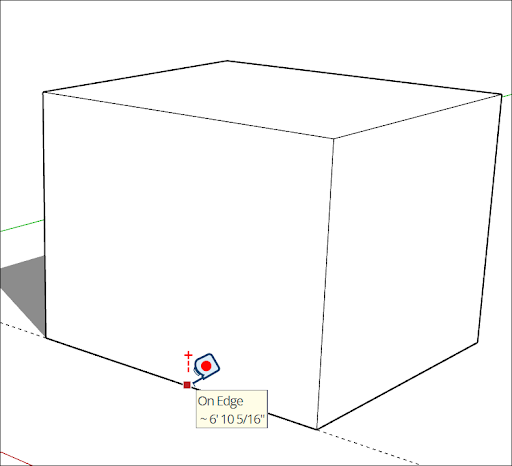
- If you need to start again, press Esc at any time to cancel.
- Click the ending point of your measurement. The distance from the starting point appears in the Measurements box.
If you enter a value in the measurements box after measuring an entity, SketchUp asks whether you want to resize your model. See Scaling Your Model or Parts of Your Model for details on resizing entities.