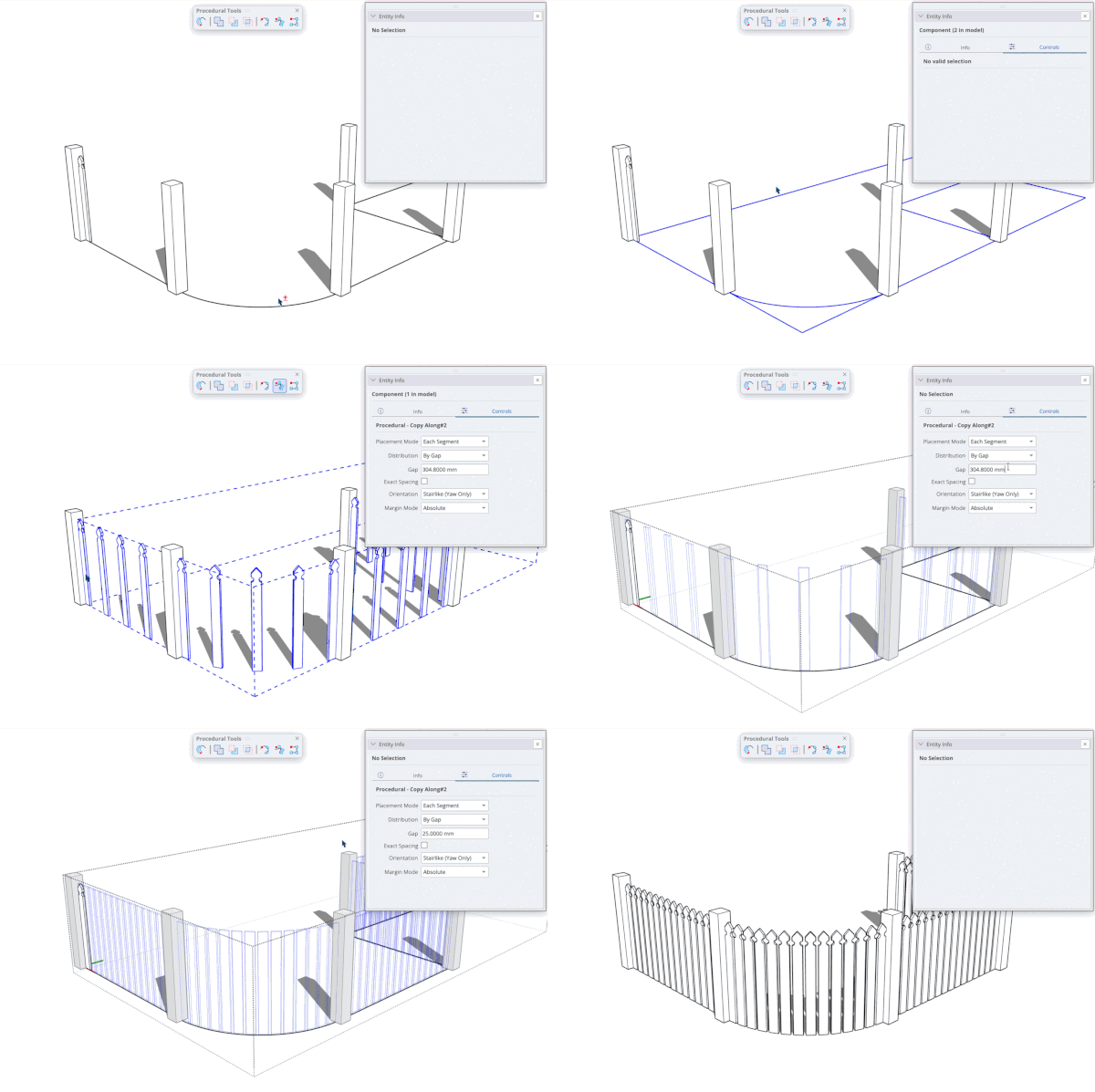
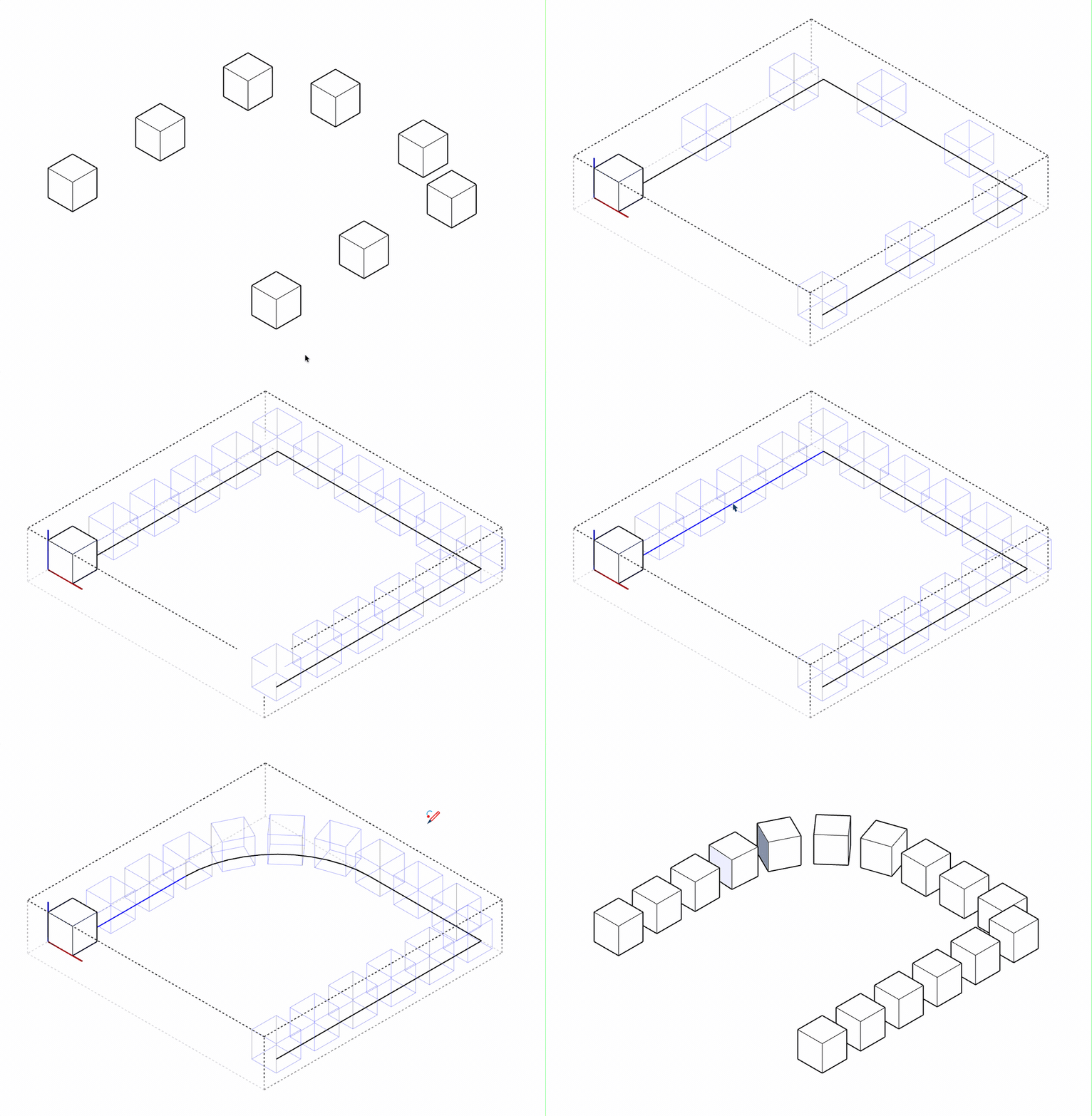
Use Procedural Copy Along in SketchUp to place copies of Groups or Components along a path with editable spacing. This creates a non-destructive Procedural Component whose path, placed object and controls you can edit in Entity Info.
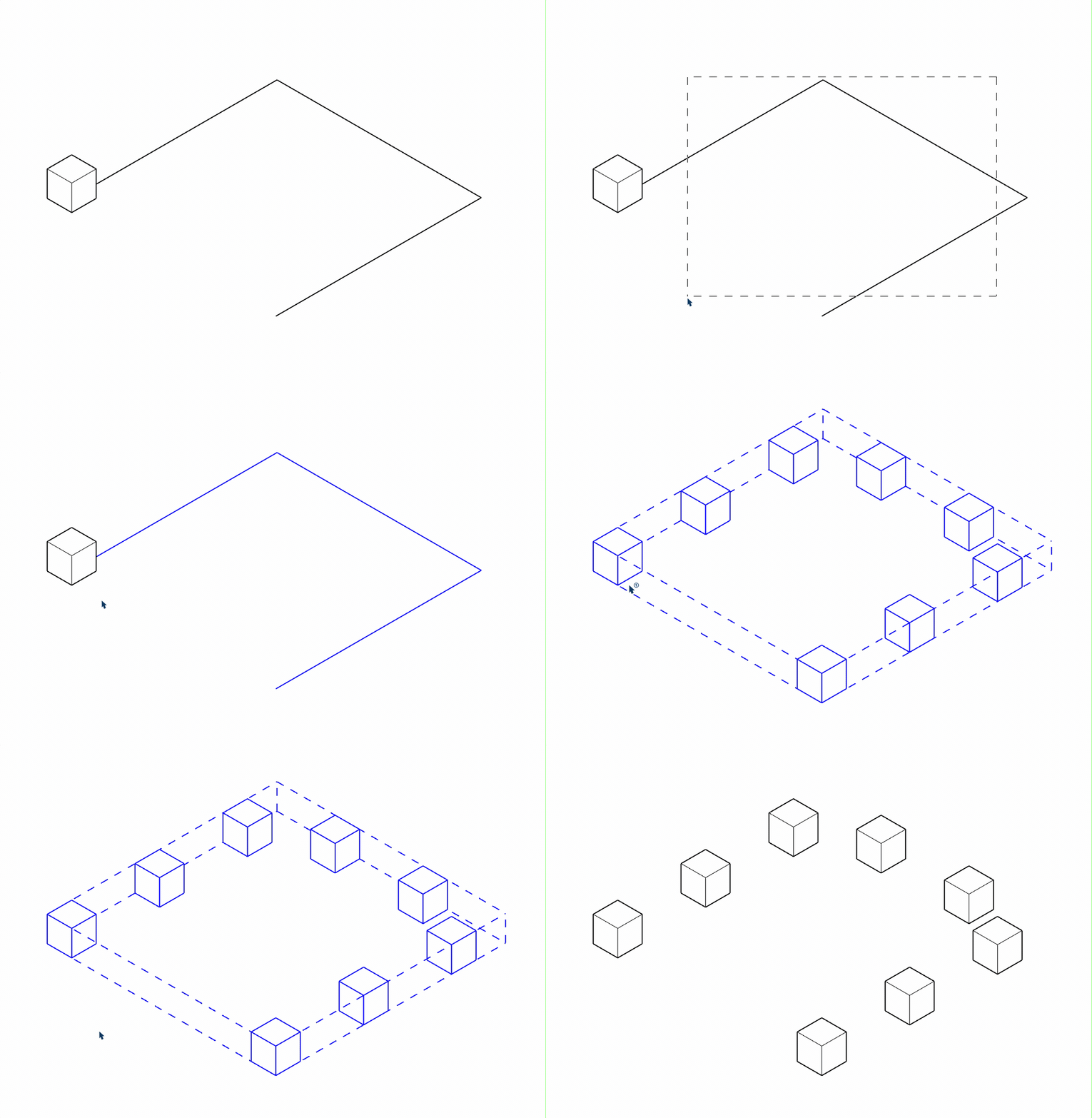
Copy Along has three placement modes:
- Entire Path (
 ) copies the selected component along the entire path.
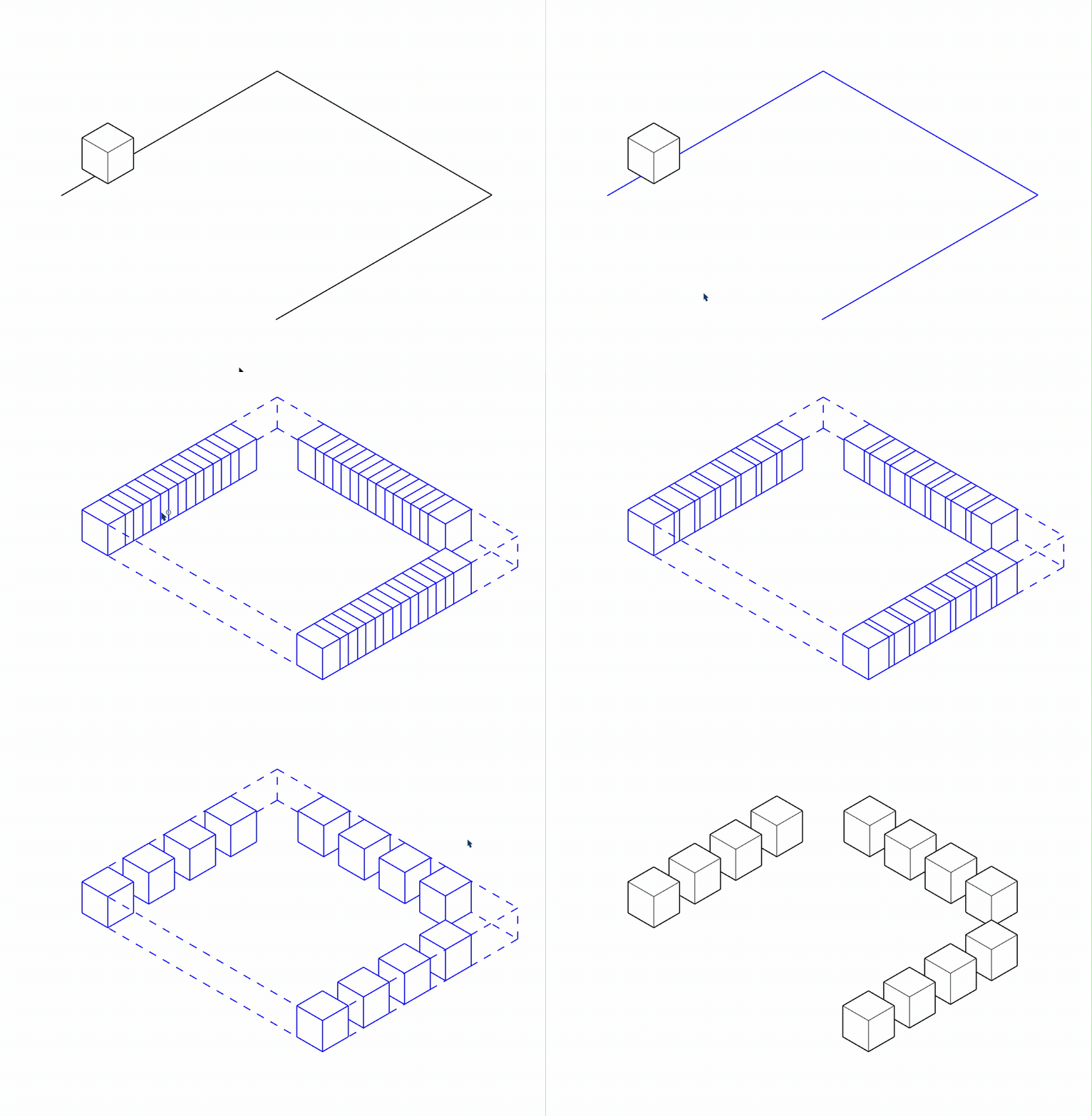
- Each Segment (
 ) copies the selected component to individual segments along the path.
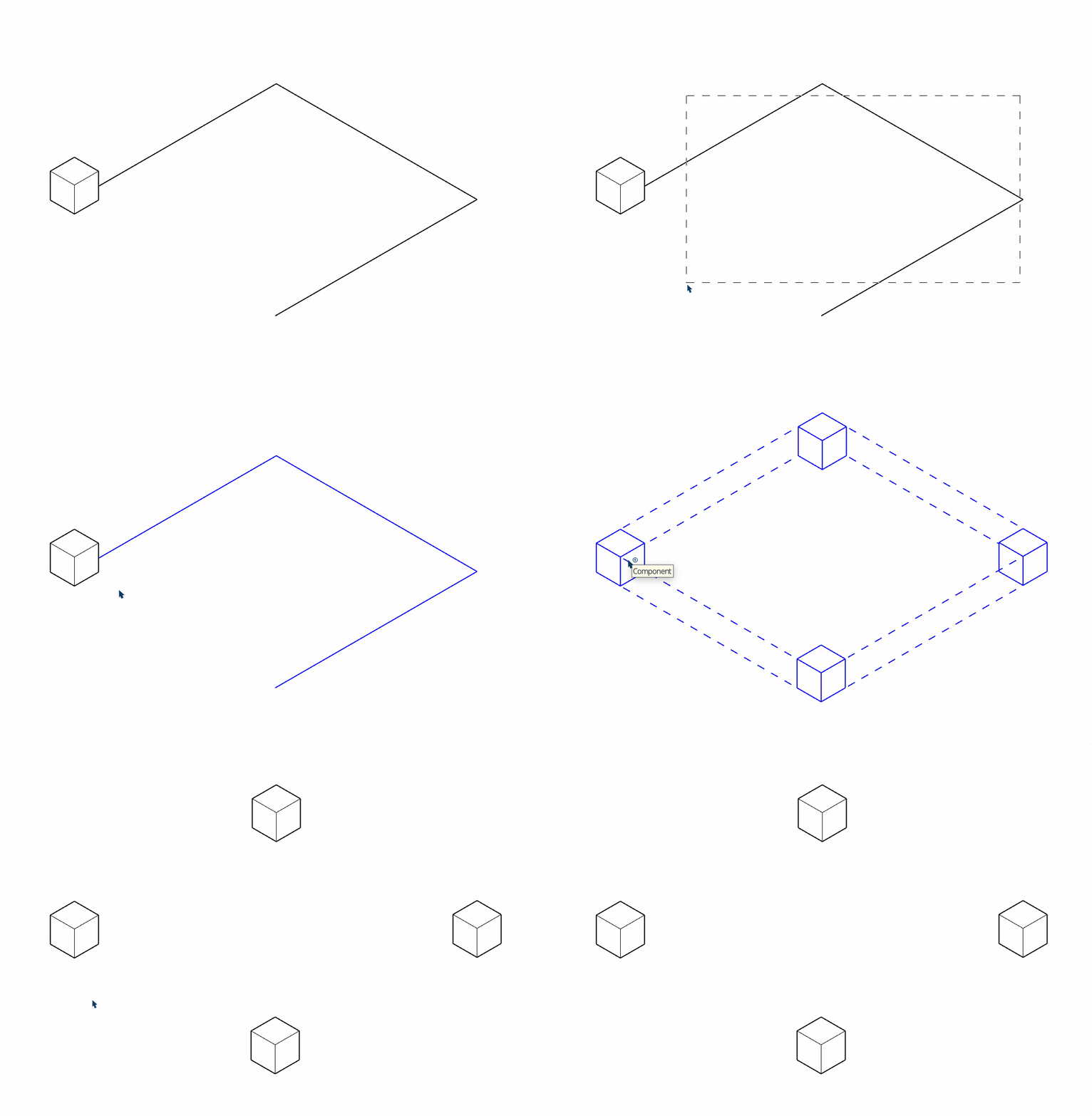
- On Corners (
 ) copies the selected component to the path's corners.
Follow these steps to copy a component in any placement mode:
- Activate the Copy Along tool you want to use.
- If you have already selected a component, go to step 3. Otherwise, select the component you want to copy.
- Move the cursor along the edge where you want the copies to appear.
- Click again to place the copies along the path and create a non-destructive procedural component.
After copying, double-click the new procedural component to open it. You can then edit the original component or adjust the path for the copies. For more information, see Editing Components.
When you edit a procedural component, Entity Info has these options:
- Use the Placement Mode dropdown to switch between Copy Along placement modes.
- Distribution controls how copies are placed along the path in Each Segment and Entire Path modes only. Choose from these options:
- By Count spaces a set number of copies evenly along the path.
- By Distance places a copy at each specified distance interval along the path, even if the copies overlap.
- By Gap places copies along the path based on the gap between each copy.
- Use Orientation to choose Stairlike (Yaw Only) or Roadlike (Yaw & Pitch).
- Use Margin Mode to choose Absolute or Relative in Each Segment mode only.