After you set up an attribute or three in SketchUp, enter values to control how they work. The method depends on the attributes you use.
You can define attribute values in the following ways:
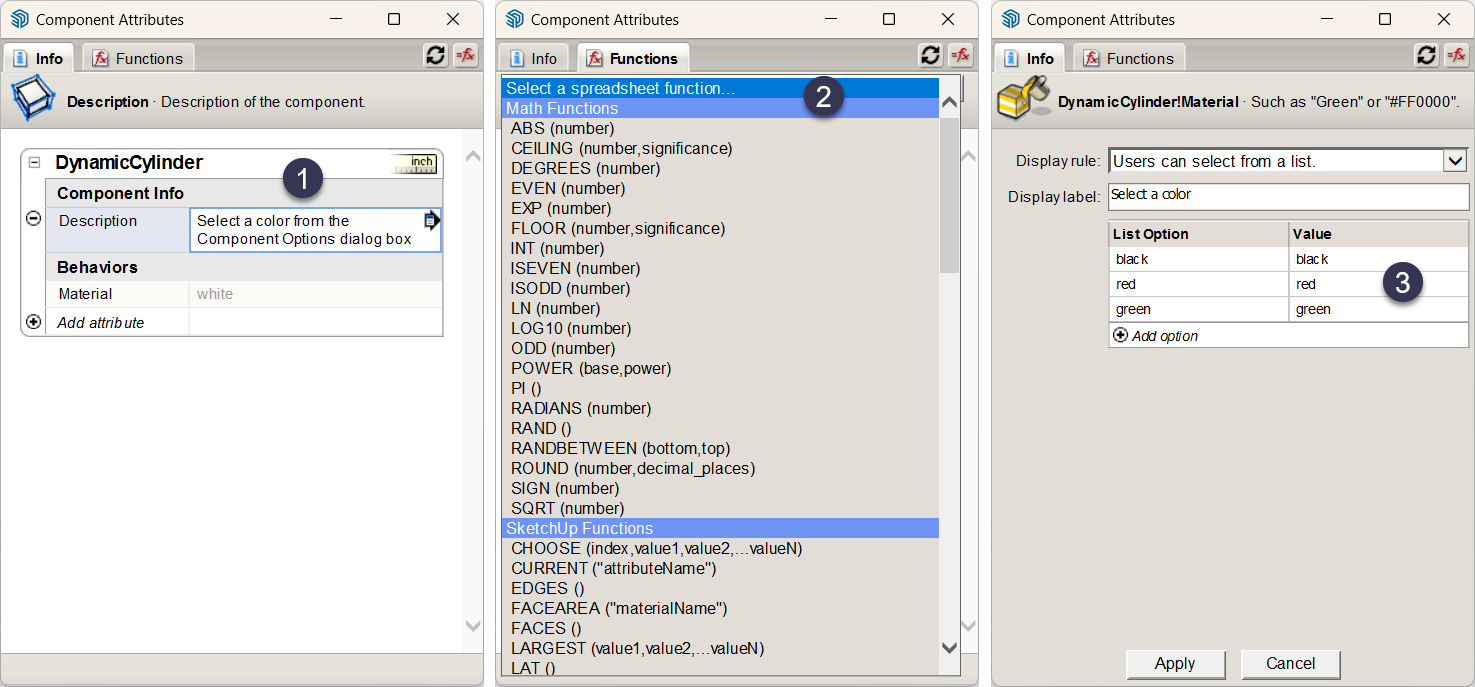
- Type in the attribute value text box. For example, add a Description attribute and enter a description in its value text box. For a formula, type an equal sign (=) followed by the formula.
- Insert a function from the drop-down list. Click the Functions tab to see the list. Open the list and select a dynamic component function. A brief description appears below the list. Select the attribute value text box where you want the function, then click Insert. Customise the value for the function you selected.
- Click the Details arrow (
 ) in the attribute value field. A drop-down list lets you set how the attribute appears. Choose whether users can see the attribute. If they can, choose whether its value appears as a text box or a drop-down list. If you select Users Can Select from a List, define the values users can select. In this example, adding material values lets users choose from a limited range of materials.
Follow these rules when you create formulas:
- Put text in quotes.
- Join strings with an ampersand (
&). For example:="I am a table with the cost of" & variable name - To display quotes within a text string, use a backslash (
\). For example:="This is the "\official\" retail price for this item:" & variable name - Formulas return numbers as floating-point values, never integers. For example,
if(5=5,1,0)returns1.0instead of1. - All lengths are in inches and angles are in degrees.
- Use an exclamation mark (
!) to refer to a value outside the current subcomponent. For example,Fence!spacingrefers to the value of thespacingvariable in theFencecomponent.