Divide edges and faces to shape your 3D model in SketchUp. You can also split circles and polygons into individual segments.
Dividing a line or arc
SketchUp splits a line segment when you draw a new line perpendicular to it. For example, drawing two perpendicular lines across a cube's face has these effects:
- The lines divide the cube's edges and the lines on its face.
- You can select sections of what look like whole lines because other lines have split them.
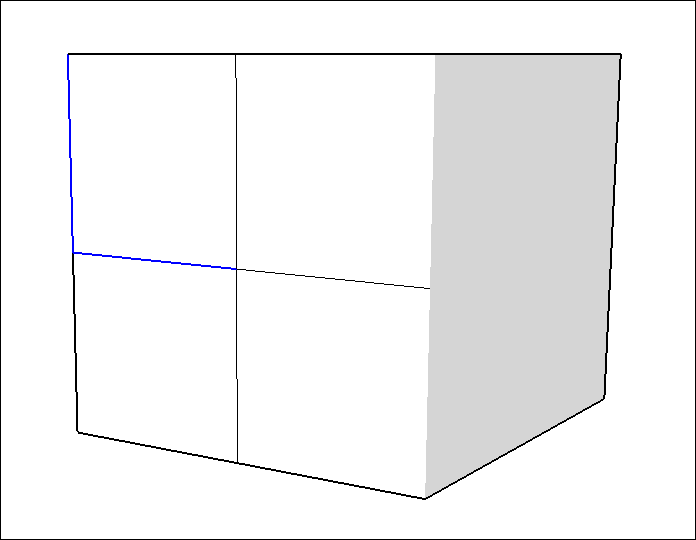
The lines do not have to be perpendicular. A line also splits another line or arc when it crosses it on a face.
You can also divide a line or arc into equal segments in SketchUp:
- Context-click a line or arc.
- Select Divide from the context menu. SketchUp adds points to show where the line or arc will be divided.
- Move the cursor towards the centre of the line or arc to reduce the number of segments. Move it towards either end to increase the number of segments.
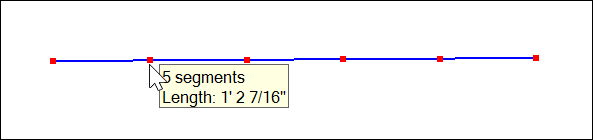
- (Optional) Type a value for the length of each segment.
- Click the line when the number of segments you want is shown. SketchUp divides the line into joined segments of equal length.
Welding a series of line segments
You can weld intersecting or adjoining line segments into a single entity. Use this to join segments after exploding a shape or drawing a complex profile. Welding edges creates a Curve entity, SketchUp's equivalent of a polyline. Curves affect your modelling in these ways:
- Curves are easier to select, group and organise in your SketchUp model. For example, welding imported contour lines makes it easier to select multiple contours with a selection window.
- Curves automatically create a smoothed face when you push or pull them.
Using a curve as a Follow Me path creates a 3D extrusion with hidden and softened edges.
Select all the edges you want to join, then right-click the selection and choose Weld Edges. Open the Entity Info panel to confirm that the selection is now a single Curve.
Splitting a face
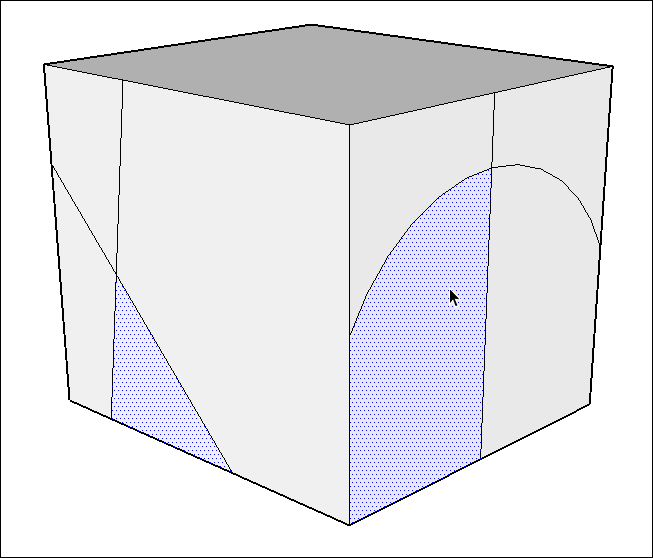
To split a face into smaller faces, draw a line with its starting and ending points on the face's edges.
Healing a face
Remove the dividing line or arc to restore a single face. Select the line or arc, context-click it and choose Erase from the menu. Alternatively, click the line or arc with the Eraser ( ) tool.
Exploding an entity
Use Explode to separate an entity into individual segments.
Circles, arcs, polygons and curves consist of several segments. Selecting any segment selects the whole entity. Exploding the entity separates its segments so you can select each segment individually.
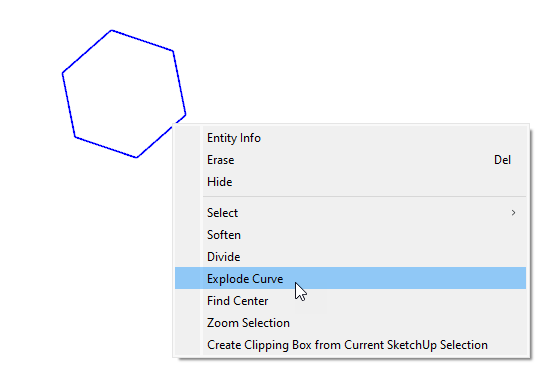
Select the entity, context-click the selection and choose Explode Curve from the menu. The figure shows a polygon ready to be split into individual segments.