You can set up a dynamic component in SketchUp so its price changes with the material or component size you choose. Follow these steps:
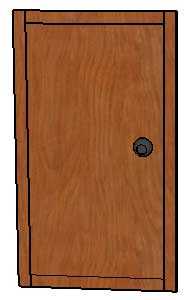
- Create a component, such as a cabinet door.
- Context-click the component to open its context menu.
- Select Dynamic Components > Component Attributes. The Component Attributes dialog box opens with the top-level component listed.
- Click add attribute in the component's last row. A drop-down list of attributes appears.
- Select Material from the list. The attribute field shows 'Material', and the field beside it opens for editing.
- Click Details to the right of the Material value. A drop-down list of display rules appears.
- Select Users can select from a list from the 'Display rule' drop-down list. The Display label field and a table appear. The following image shows the Display rule list, Display label field and table.
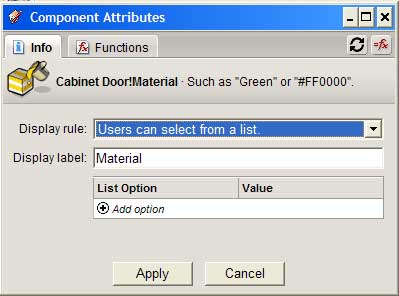
- Replace
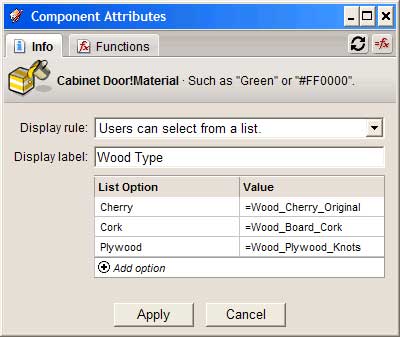
MaterialwithWood Typein the 'Display label' field. - Click the Add option icon in the table's List Option column. A new row appears with its List Option field open for editing.
- Type
Cherryin the 'List Option' field. This text appears in a drop-down list in the Configure Options dialog box. - Press Tab.
- Type
Wood_Cherry_Originalin the 'Value' field. This is the material's name in the Materials Browser. - Press Tab to accept the value.
- Plywood, Wood_Plywood_Knots
- Click Apply. The attribute details panel closes.
- Click Add attribute in the component's last row. A drop-down list of attributes appears.
- Type
Costand press Tab. The Cost attribute appears in the Custom list, and the field beside it opens for editing. - Type
=if(MATERIAL="Wood_Board_Cork", 40.00, if(MATERIAL="Wood_Cherry_Original",60.50,15.25)) - Press Tab to accept the formula. It sets the door's cost based on the wood material you choose.
- Click Close.
- Context-click the component to open its context menu.
- Select Component Options to open the Component Options dialog box. The following image shows this dialog box for the Television dynamic component.
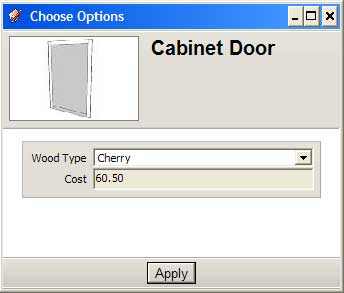
Choosing different Wood Types from the drop-down list changes the SketchUp material applied to the component and the door's MSRP to match the wood type.