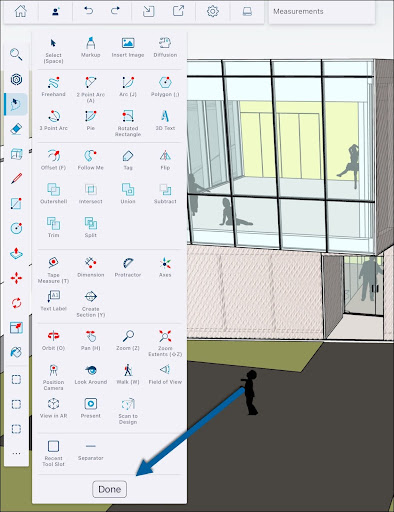
You can customise the toolbars in SketchUp for iPad as well as options in the Settings Panel.
Shortcuts Toolbar
SketchUp's floating Shortcuts Toolbar keeps your favourite tools within reach.
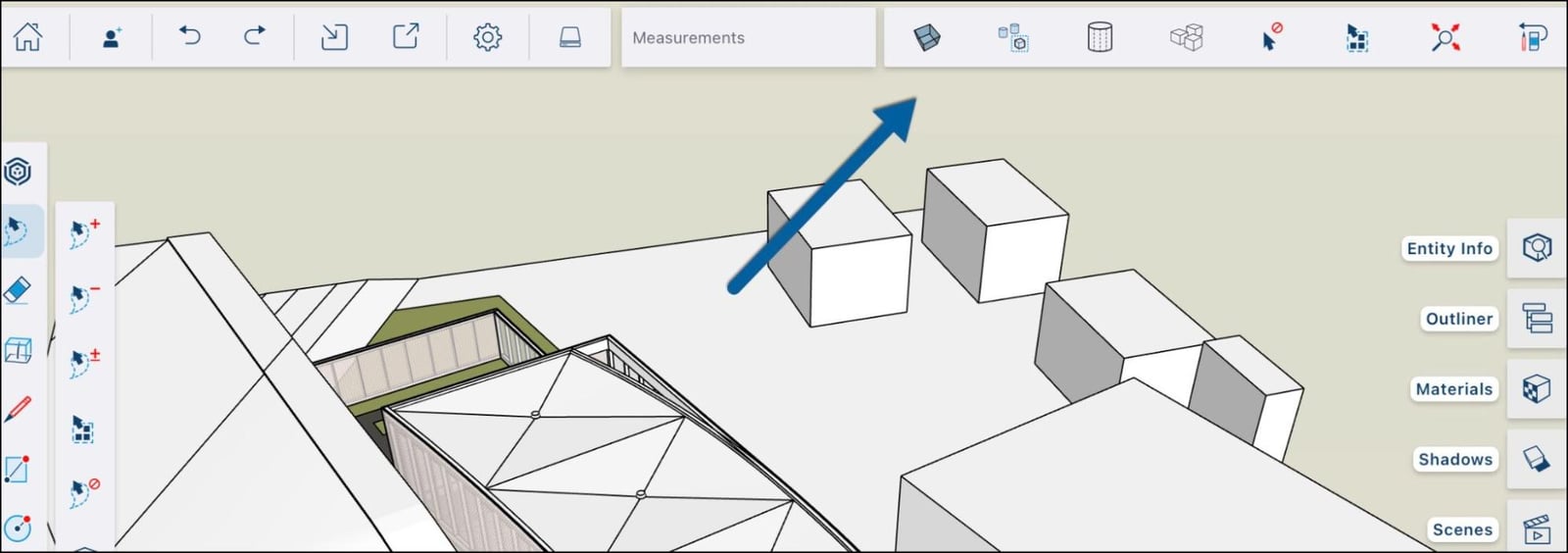
To activate the Shortcuts Toolbar, open Settings ( ) and select the General tab. For more information, see Settings Panel.
Radial Toolbar
Use the customisable Radial Toolbar to organise and access all the tools in SketchUp for iPad.
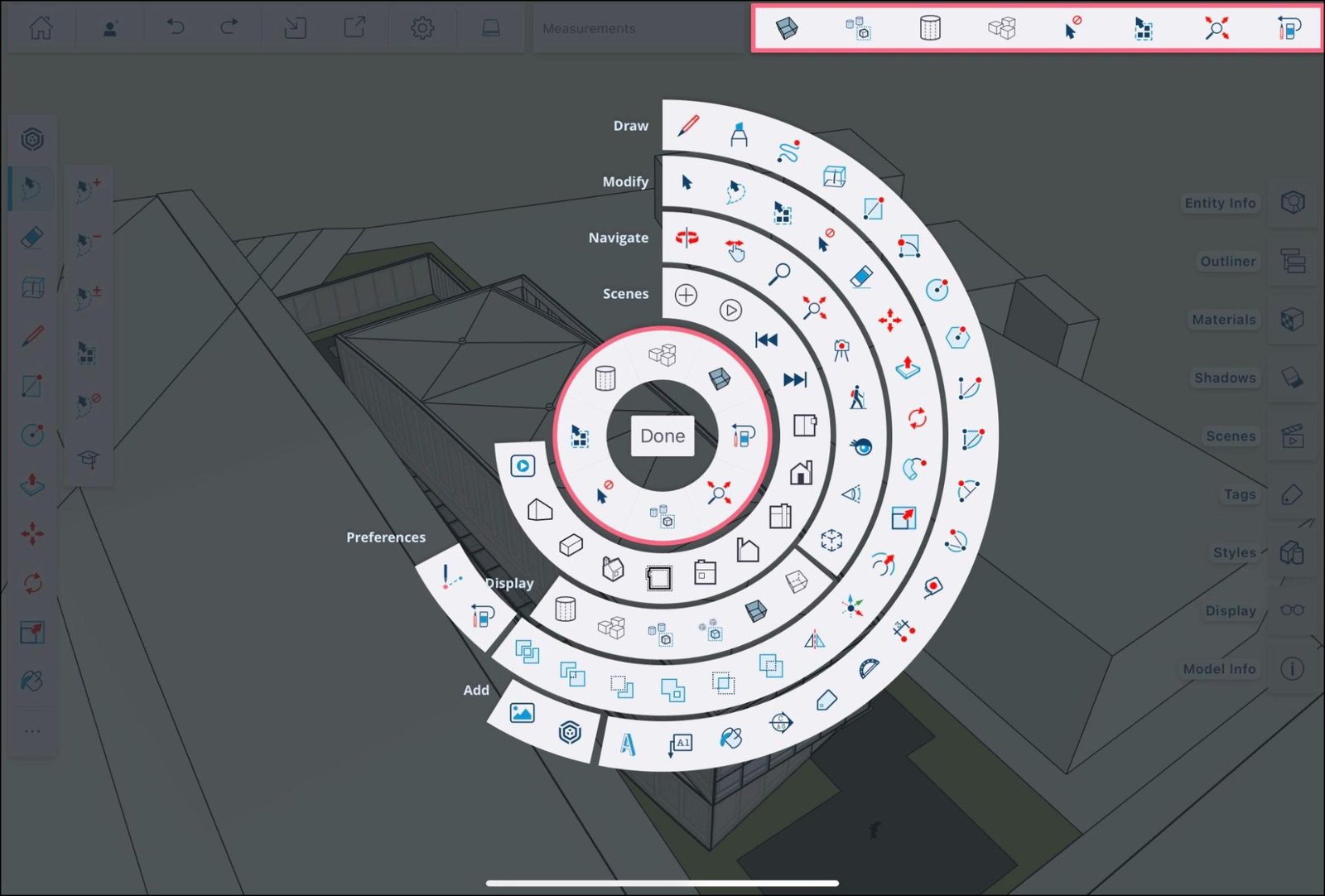
Activate the Radial Toolbar using one of these methods:
- On an M2 iPad with an Apple Pencil , double tap the Pencil while hovering.
- With a Magic Keyboard with Trackpad, use a two-finger tap on the trackpad.
- With a Bluetooth 3-button Mouse , right-click.
You can customise the Radial Toolbar.
Customise your toolbars
You can fully customise the Main Toolbar, Expanded Toolset, Shortcuts Toolbar and Radial Toolbar in SketchUp for iPad. To customise the Shortcuts Toolbar or Radial Toolbar, use one of these input methods:
- With Apple Pencil or Multitouch, long press any tool icon already on the toolbar. The icon becomes mobile. Then drag the tool to the location you want.
- With a Mouse or Trackpad, click to make the tool mobile. Then drag it to the location you want.
To customise the Main Toolbar or Expanded Toolset, open the Expanded Toolset and tap or click Edit. You can move tools freely between the toolbars. You can also use Recent Tool Slots and Separators to customise the layout. When you finish, click Done.