Use Presentation Mode  to present your SketchUp designs. Find the Presentation Mode tool in the extended toolset.
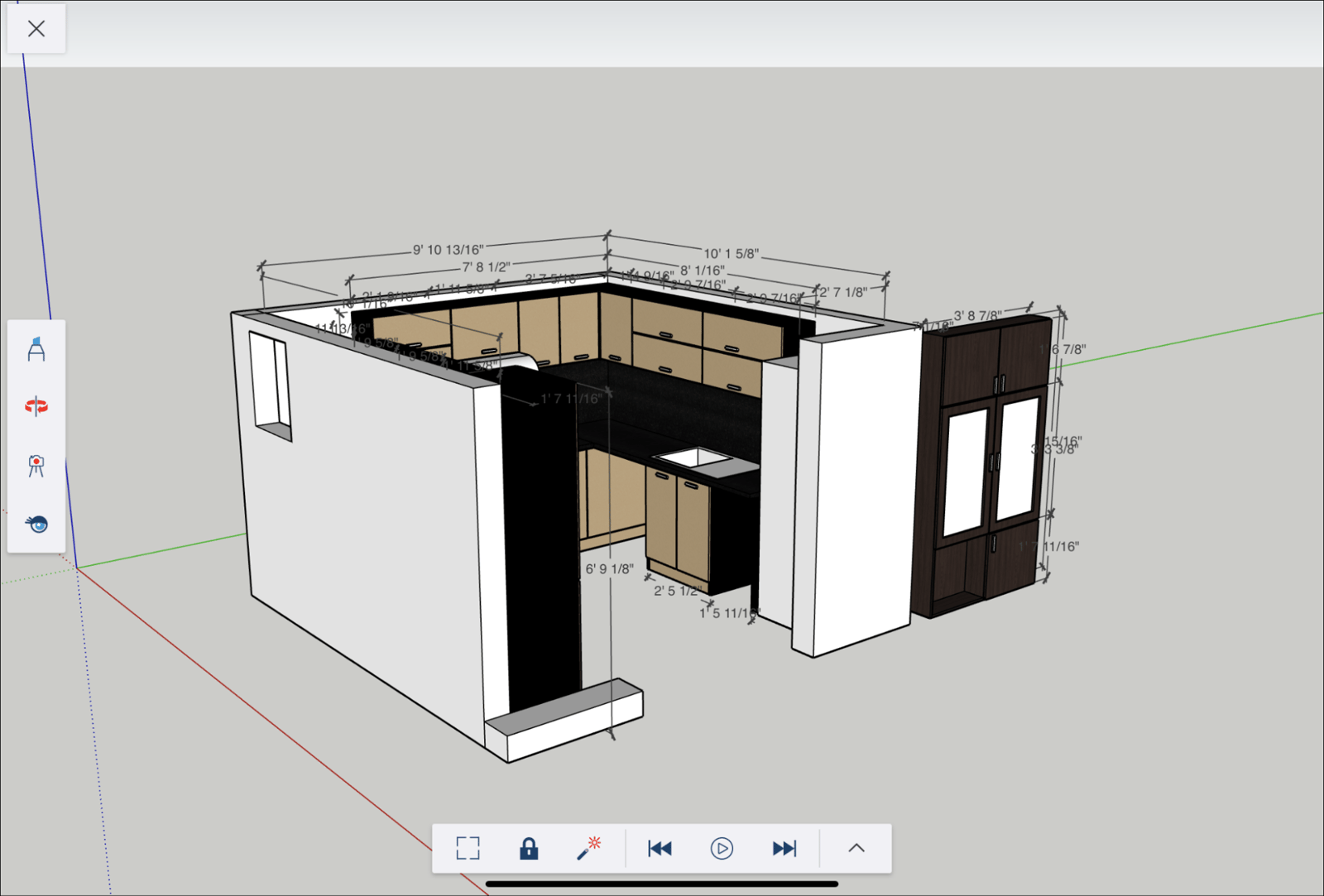
In Presentation Mode, you can present one scene or a series of scenes. The toolbar on the left contains these tools:
 Markup lets you draw on your model, highlight sections or draw arrows to point out details. Tap cancel to discard your markup. Tap Done to save it.
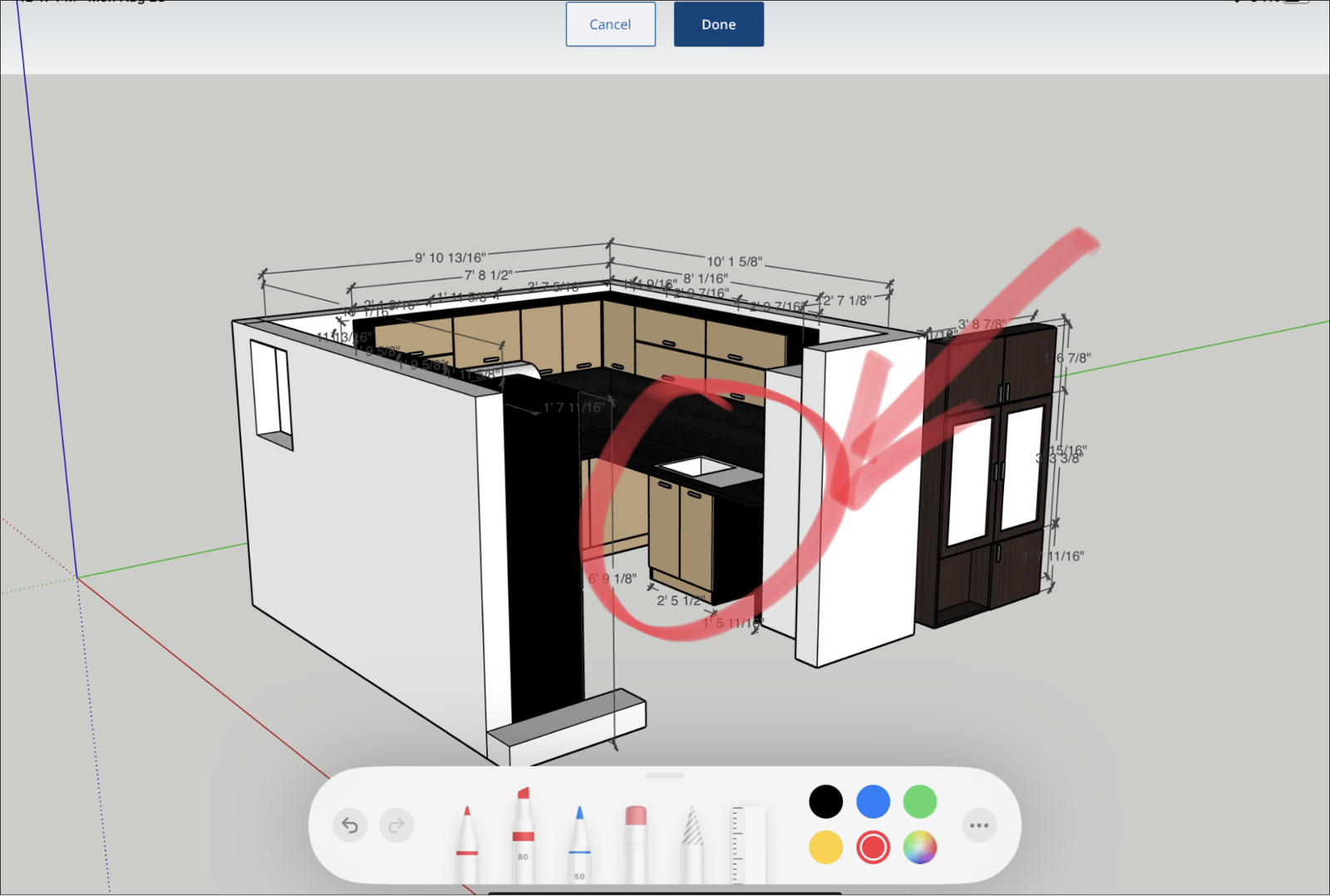
 Orbit lets you orbit around your model or adjust the view.
 Position Camera lets you set the camera to a specific viewpoint or eye height.
 Look Around shows your model as if you were standing inside it.
The context menu at the bottom of the screen has additional tools specific to Presentation Mode.

The context menu contains these tools:
- Laser Pointer (
 ) creates a simulated laser pointer to point out parts of your model. Activate it by dragging it from the context menu or using a long press.
- Lock Screen (
 ) locks the current view of your model and prevents changes until you unlock it. Tap the lock again to unlock it.
- Full Screen (
 ) hides all interface elements except the exit button at the top-left of the screen. You can also use a four-finger tap gesture to enter or exit full screen view.
Use the VCR controls in the context menu to move between scenes. They require at least one scene and work best with two or more. Use Previous Scene (  ) or Next Scene (
 ) to switch scenes. Tap Play (
 ) to hide the interface and animate the scenes as a presentation. Tap the screen again to pause the animation and show the interface.
Tap the arrow on the right side of the context menu to open a carousel with a thumbnail for each scene in your model.
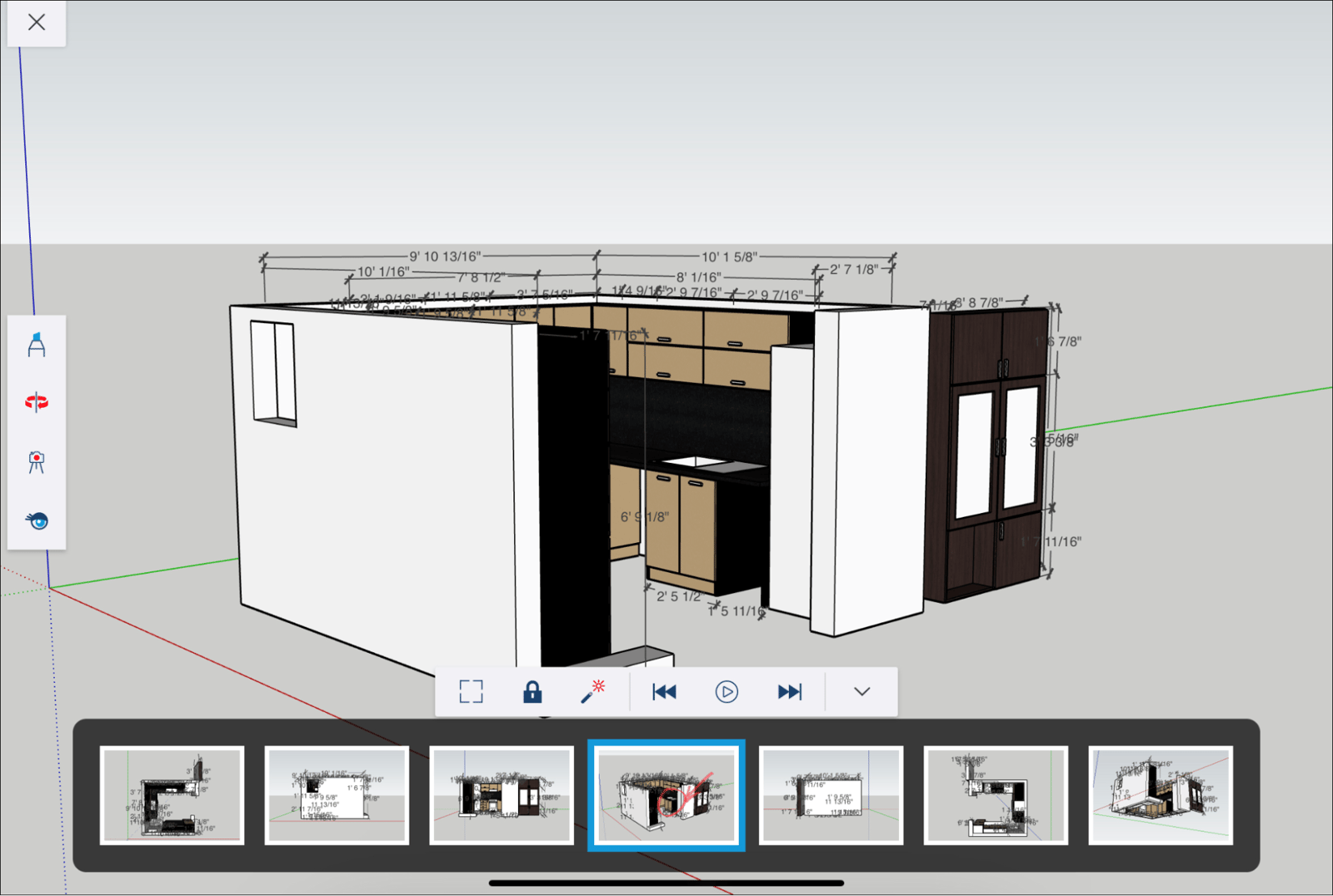
Tap a thumbnail to change the view to that scene.