Skip to content
07-848 2005

SketchUp, SketchUp for Web and iPad

iPad tools

Find and customise the tools in SketchUp for iPad. View, create and edit models with an Apple Pencil or multitouch.

On this page
  1. Where to find tools
  2. Customising your toolbar

Use an Apple Pencil or multitouch to view, create and edit models in SketchUp for iPad.

Where to find tools

Find your modelling tools in the Main Toolbar and Expanded Toolset.
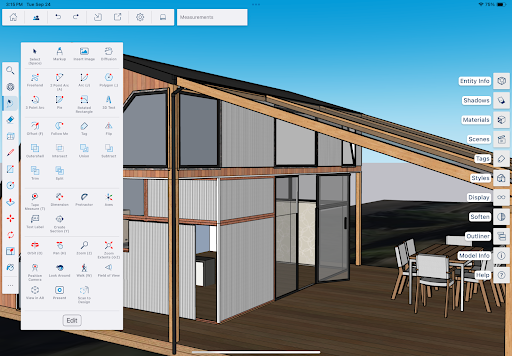
SketchUp for iPad with the Main Toolbar on the left and the Expanded Toolset open beside a house model.

When you open a new model, the Main Toolbar appears on the left. See SketchUp for iPad - Main Toolbar for details about its tools.

Select the icon (icon ellipsis horizontal) at the bottom of the Main Toolbar to open the Expanded Toolset, where you can find the remaining tools.

The Expanded Toolset has more tools for creating models. See SketchUp for iPad - Expanded Toolset for details about its tools.

Customising your toolbar

When you use a tool from the Expanded Toolset, it appears at the bottom of your toolbar. By default, the last three tools you use from the Expanded Toolset stay there, even when you create a new model. See Customizing SketchUp for iPad for more information.

Adapted from SketchUp Help Center documentation: iPad tools. © 2026 Trimble Inc.

Procadsys customer support

Still need help?

Licences, renewals and billing

Our New Zealand team looks after your SketchUp licences, renewals and invoices.

Monday to Friday, 9:00 am to 4:30 pm NZ time, excluding New Zealand public holidays.

Technical problems

Technical support from our New Zealand team is available with a current Procadsys SketchUp Plus subscription: Pro Plus, Pro Scan Plus, Pro Civil Contractor Plus, Pro Advanced Workflows Plus or Studio Plus.

Initial response within one business day.

On another SketchUp plan? Technical problems go to Trimble support.