iPad Main Toolbar
The Main Toolbar appears on the left side of the SketchUp interface and contains the most common tools used when creating models.
Last updated 17 July 2026
The Main Toolbar appears on the left side of the SketchUp interface and contains the most common tools used when creating models.
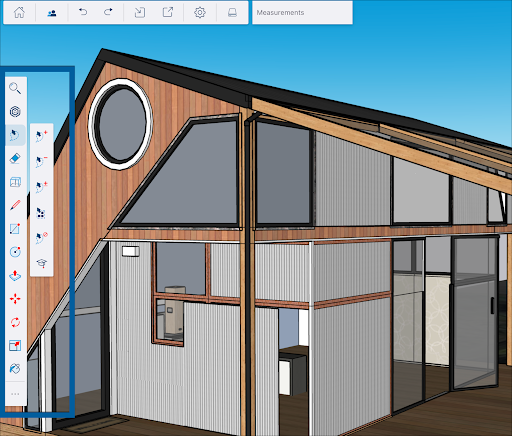
The first options seen in the Main Toolbar are Search (  ) and 3D Warehouse (
  ). For more information on how these options work, see Searching with the Omnibar or Getting Starte with 3D Warehouse .
The rest of the toolbar contains the following tools:
Icon | Optional Tool Modes | Shortcut | Tool Name | Learn More |
|
| Space | Lasso Select | |
|
| E | Eraser | |
|
| Autoshape | ||
|
| L | Line | |
|
| R | Rectangle | |
|
| C | Circle | |
|
| P | Push-Pull | |
|
| M | Move | |
|
| Q | Rotate | |
|
| S | Scale | |
|
| B | Paint Bucket |


Optional Tool Modes
Many tools have optional tool modes. Optional tool modes modify how a tool works. For example, the Lasso tool has three optional modes — Add, Remove, and Inverse.
Use the context menu (  ) at the bottom of the Main Toolbar to open the Expanded Toolset. As you use tools from the Expanded Toolset they will appear there in a few extra spaces designated for those recently used tools. The Main Toolbar is also fully customizable. For more information see iPad Expanded Toolset and Customizing SketchUp for iPad .
Still need help?
Technical support from our New Zealand team is available to customers with a current Procadsys SketchUp Plus subscription: Pro Plus, Pro Scan Plus, Pro Civil Contractor Plus, Advanced Workflows Plus or Studio Plus. Self-help articles are public.
Contact SketchUp support