Skip to content
07-848 2005

SketchUp, SketchUp for Web and iPad

Soften/Smooth panel

Use the Soften panel in SketchUp to change edge visibility and smooth selected geometry.

In SketchUp, Soften and Smooth change edge visibility. They help your model look more realistic and may improve performance.
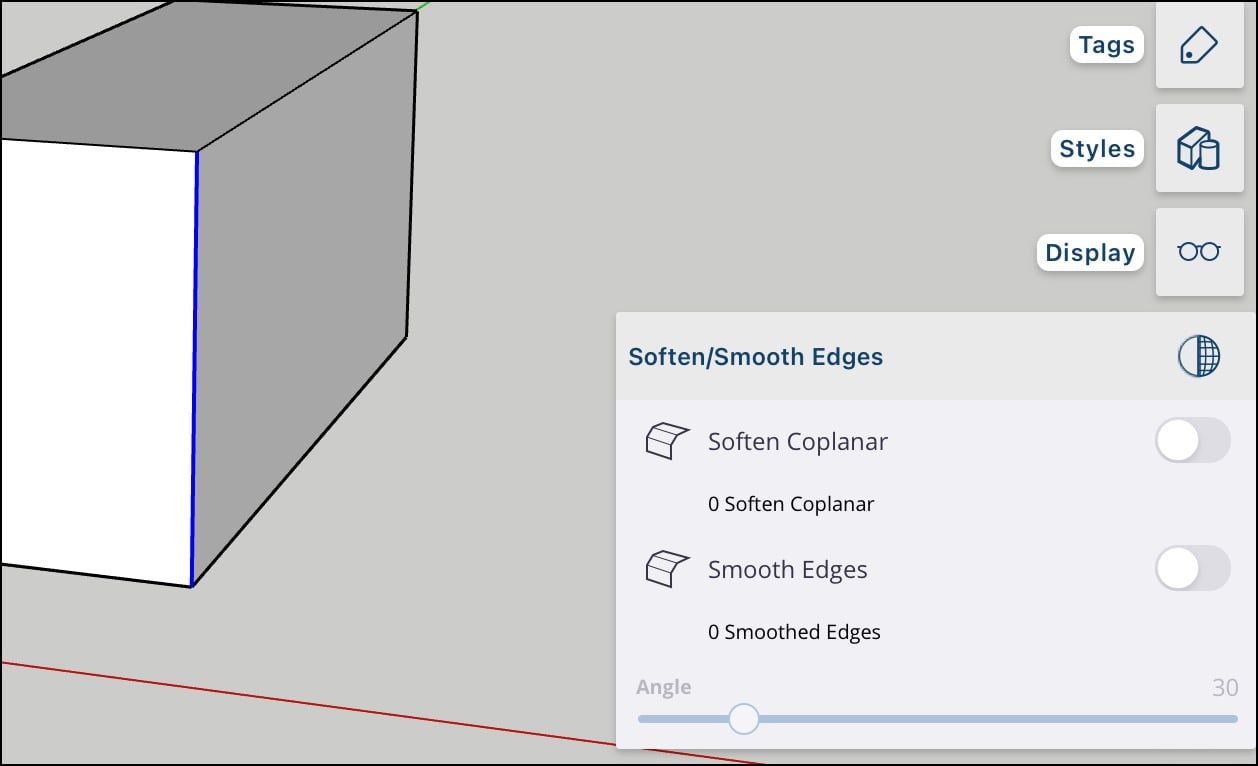
SketchUp's Soften/Smooth Edges panel with Soften Coplanar and Smooth Edges switched off.

Select geometry in your model, then open the Soften panel to use these options:

  • Turn on Soften Coplanar to soften the selected geometry, hide edges and change the bounding edges into an entity.
  • Turn on Smooth Edges to add shading and give the selection a smooth appearance. If you select this option alone, the edge stays visible.
  • Use the Angle slider with either or both options turned on. It sets the maximum angle to soften or smooth. A higher setting softens or smooths more angles.

For more information, see Softening, Smoothing, and Hiding Geometry.

Procadsys customer support

Still need help?

Licences, renewals and billing

Our New Zealand team looks after your SketchUp licences, renewals and invoices.

Monday to Friday, 9:00 am to 4:30 pm NZ time, excluding New Zealand public holidays.

Technical problems

Technical support from our New Zealand team is available with a current Procadsys SketchUp Plus subscription: Pro Plus, Pro Scan Plus, Pro Civil Contractor Plus, Pro Advanced Workflows Plus or Studio Plus.

Initial response within one business day.

On another SketchUp plan? Technical problems go to Trimble support.