You can let people configure values in your SketchUp dynamic component, such as fence picket spacing or stair width. These values appear in the Component Options dialog box, available from the component's context menu. Follow these steps to make a value configurable.
- Context-click the component to open its context menu.
- Select Dynamic Components > Component Attributes. The Component Attributes dialog box opens with the top-level component listed.
- Click + next to the component's name to show its attributes.
- Click Details to the right of the attribute you want people to configure. A drop-down list of display rules appears. The rules that allow configuration are 'Users can edit as textbox' and 'Users can select from a list'. These steps use 'Users can select from a list'.
- Select Users can select from a list. The Display label field and a table appear. The image shows the Display rule drop-down list, Display label field and table.
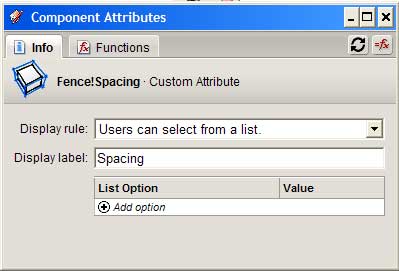
- Type a label in the 'Display label' field. This is the name people see for the attribute in the configuration box.
- Click the add option icon in the table's List Option column. A new row appears with its List Option field ready to edit.
- Type
Smallin the 'List Option' field. This text appears in a drop-down list in the Configure Options dialog box. - Press Tab.
- Type
1in the 'Value' field. - Press Tab to accept the value.
- Repeat steps 7 through 11 with these option and value pairs:
- Medium, 2
- Large, 3
- Extra Large, 4
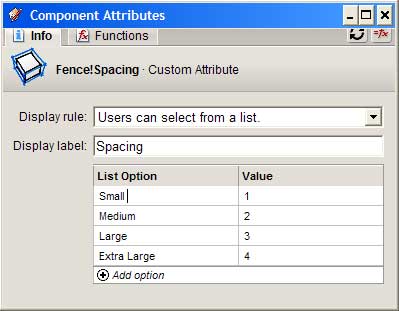
- Click Apply. The attribute details panel closes.
- Click Close to close the Component Attributes dialog box. People can now configure the component's Slat Spacing attribute in the Configure Options dialog box.