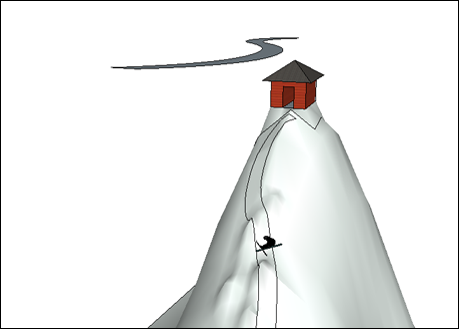
Use the Stamp tool ( ) and the Drape Tool (
 ) to add entities to terrain you have imported or created in SketchUp.
Stamping
The Stamp tool creates a flat surface on terrain that matches the bottom of the entity you want to place. It also creates a transition between the flat surface and the surrounding terrain.
Follow these steps to use the Stamp tool.
- Move the entity just above the location where you want to place it on the TIN.
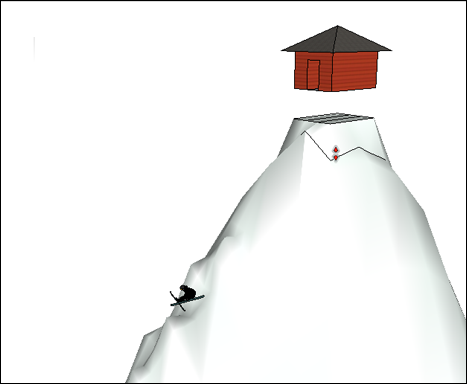
- Activate the Stamp tool.
- Click the entity you want to place.
- Enter an offset value in the Measurement box to set the space for the transition between the group and the selected entity. The value should suit how the entity blends into the surrounding terrain and how flat or sloped that terrain is.
- Click the terrain. A pad for the entity appears, and the cursor changes to an arrow.
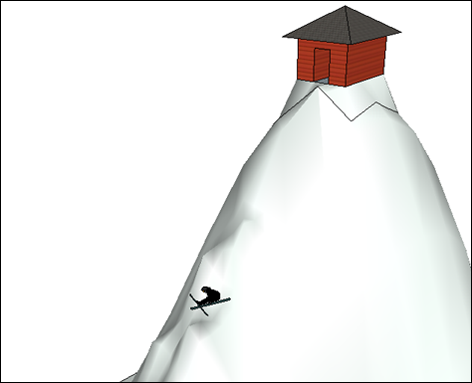
- Move the cursor up or down to set the height of the flat surface.
- Click again to finish.
Draping
The Drape tool transfers edges from a flat face onto the curved surface of a TIN.
Follow these steps to drape edges.
- Place the edges above the TIN.
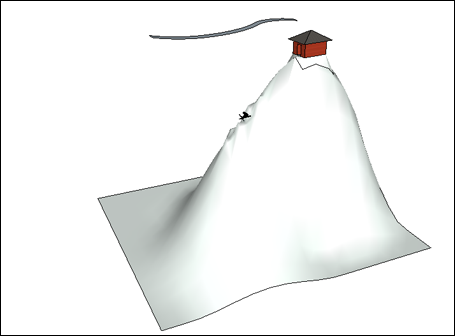
- Select the edges you want to drape over the TIN.
- Activate the Drape tool.
- Click the TIN. The selected edges transfer to the TIN.