Use SketchUp's Sandbox tools to shape and refine terrain you have imported or created. You can also shape a flat Triangulated Irregular Network (TIN) into terrain.
Smooving
The Smoove tool ( ) smooths and moves terrain to create or edit hills and valleys. To use Smoove:
- Select the area of the TIN you want to edit.
- Activate the Smoove tool. Vertices within the selected area are highlighted.
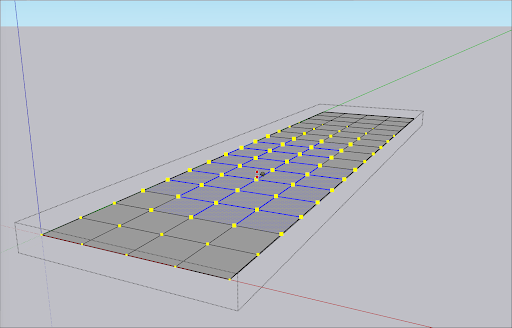
- If needed, enter a value in the Measurements box to adjust the radius.
- Move your mouse to change the elevation of the selected area. For a precise change, enter a value in the Measurements box. Negative values lower the area, while positive values raise it.
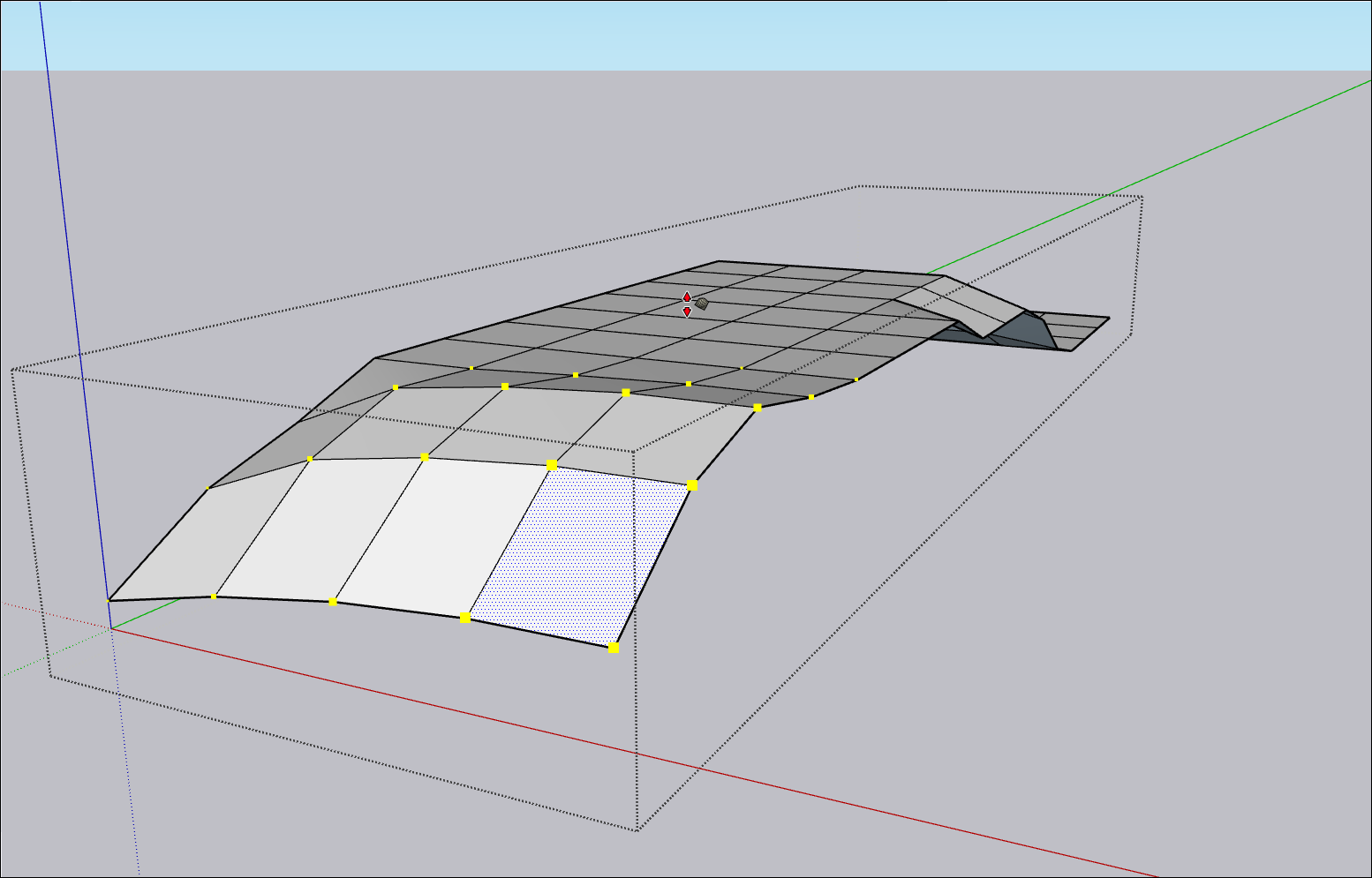
- Repeat as needed.
Adding detail
Use the Add Detail tool ( ) to add more complex terrain details, such as moguls on a hill you created with Smoove.
To add detail to your terrain:
- Activate the Add Detail tool.
- Click the edge or face where you want to create a vertex. To work with multiple edges, select them before activating the Add Detail tool.
- Move the cursor up or down to adjust the vertex and surrounding triangles. To move horizontally, hold down Shift as you move. For a precise adjustment, enter a value in the Measurements box.
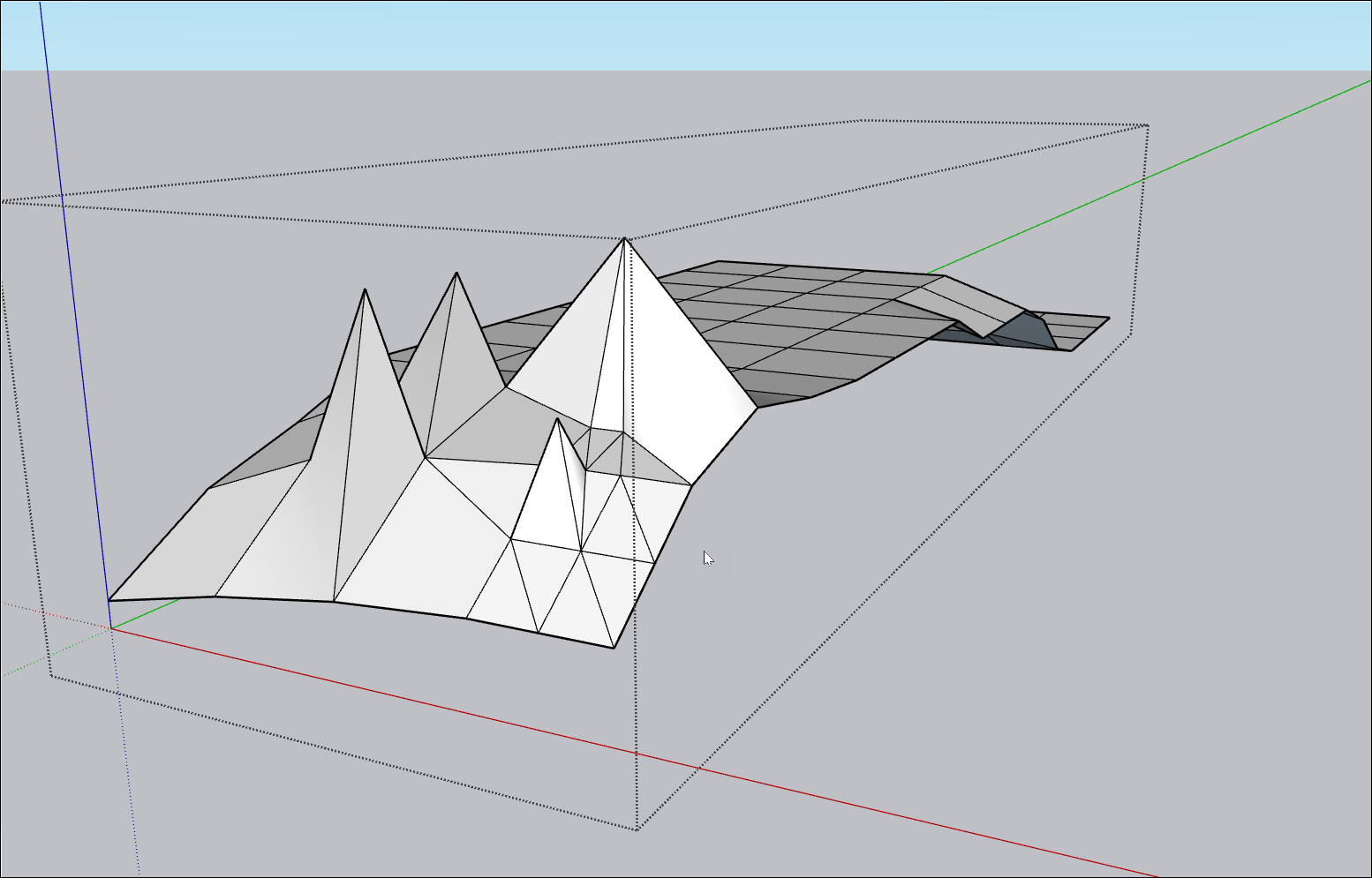
- Click again to set the vertex.
Flipping edges
Use the Flip Edge tool ( ) to remove unwanted flat areas after converting contours to terrain. To use Flip Edge:
- Make sure hidden geometry is visible.
- Activate the Flip Edge tool.
- Click the edge you want to flip.
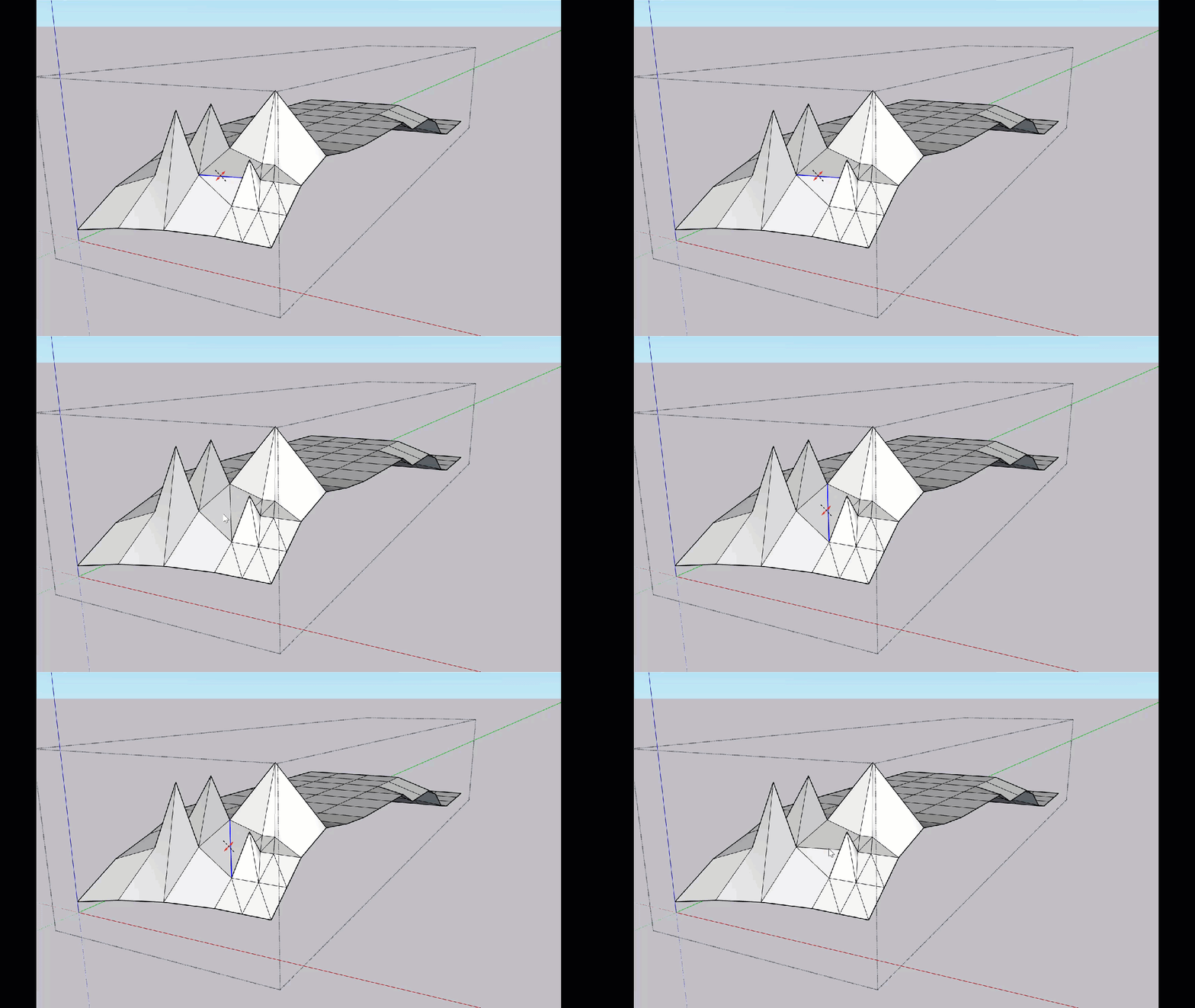
- Continue clicking edges until the terrain has the shape you want.