Stretching Geometry
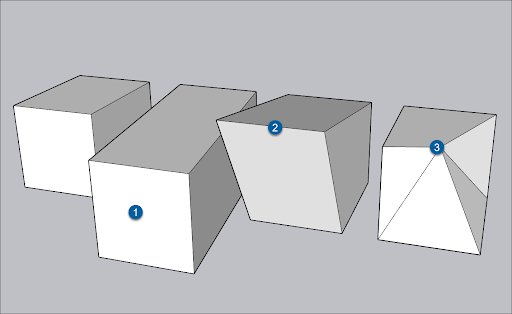
When you move geometry that's connected to other geometry, SketchUp stretches your model.To stretch your geometry, select the Move tool (). Clicking and dragging different parts of an entity will give the following results:
Last updated 17 July 2026
When you move geometry that's connected to other geometry, SketchUp stretches your model.
To stretch your geometry, select the Move tool (  ). Clicking and dragging different parts of an entity will give the following results:
- A face – Stretches the entity while keeping the selected face intact.
- An edge – Stretches all faces adjacent to the selected edge.
- An endpoint – Stretches all edges and faces adjacent to the selected endpoint.
Resizing surface entities
In a surface entity, if you click and drag a control edge, you resize the surface entity without distorting the geometry. You create a surface entity by extruding an arc, circle, or polygon. See Softening, Smoothing, and Hiding Geometry or the articles about arcs , circles, and polygons for details.
When you position the Move tool over a surface entity's control edge, the edge lights up in a way that nearby edges do not.
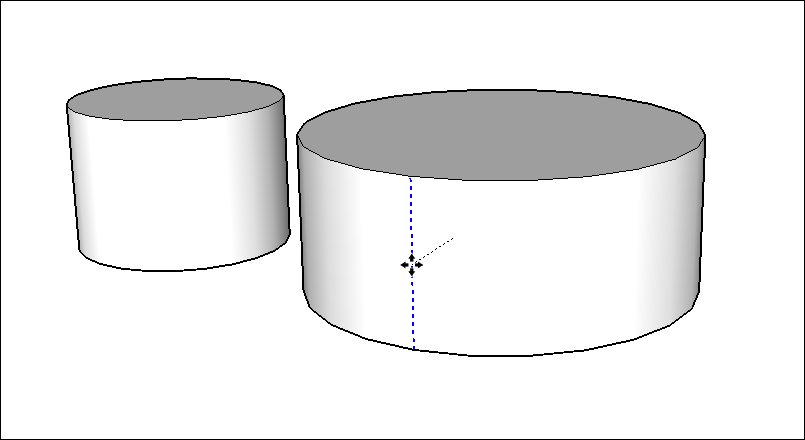
A surface entity extruded from a curve entity does not have a control edge. Similarly, if you stretch a circular cylinder into an ellipse, the surface entity lacks a control edge.
Bending faces with Autofold
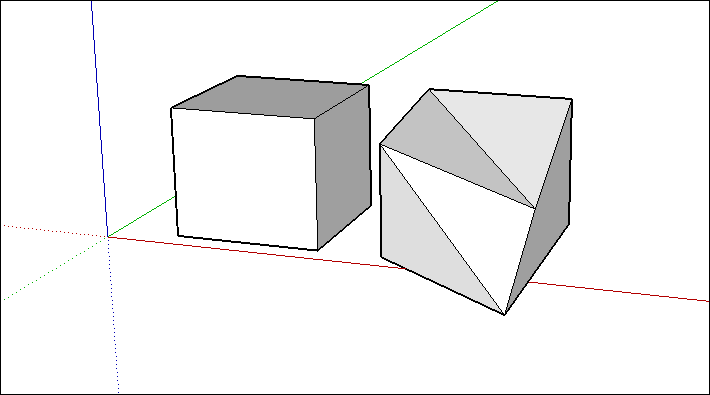
In SketchUp, faces must remain planar. To help with that, SketchUp uses a feature called Autofold. If you stretch geometry in a way that bends a face, Autofold makes a crease so that all the faces in your geometry remain flat.
Still need help?
Technical support from our New Zealand team is available to customers with a current Procadsys SketchUp Plus subscription: Pro Plus, Pro Scan Plus, Pro Civil Contractor Plus, Advanced Workflows Plus or Studio Plus. Self-help articles are public.
Contact SketchUp support