Use My Chaos to manage users and their licences as an administrator of your organisation.
Overview
As an administrator, you can use My Chaos to:
- Invite users
- Enable Floating Licenses Pool
- Remove users
- Search for users
- Assign product licences
- View what users see
- Revoke product licences
- Check restrictions on revoking offline licences
- View licences on the Centralized licence server
This article covers actions for individual users. For bulk actions, see Bulk User Management.
Add users to your organisation
Open the ellipsis menu on the Users tile and select Invite users.

Select Individual.
Enter the user's email address.
Select Send Invite.
To invite users in bulk, see Bulk User Management.

The user receives an email confirming that you have added them to your organisation. If they already have a Chaos account with that email address, they do not need to do anything else.
If they do not have an account, they can select Complete account. This takes them to My Chaos to sign in with their credentials.
The user joins your organisation immediately, whether or not they have a Chaos account. If they do not have an account, they must create one before they can use shared licences.
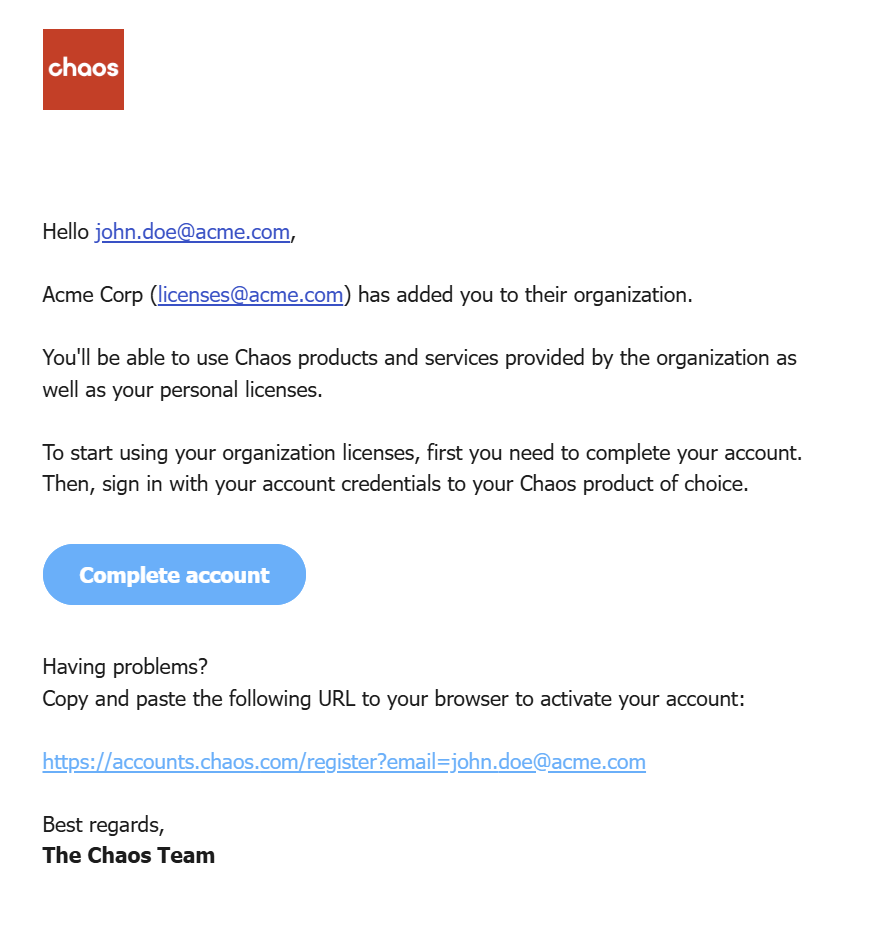
Example message
After signing in, users can use licences shared within your organisation.

Remove users from your organisation
Open the ellipsis menu next to the user you want to remove and select Remove user.

Search for users
Use the drop-down menu at the bottom of the page to choose how many users appear per page.
Enter an email address, user name or role in the search bar to find a user.
You can also search by assigned products or filter by whether the Chaos cloud credit quota is enabled.

Assign a licence to a user
After you add users to your organisation, you can assign product licences to them.
Open the ellipsis menu next to the user's username and select Allocate product to user.

A new screen opens.
Choose the product and the number of licences to assign to the user. The expiry date is pre-filled, but you must select it before you can assign the licence.

What users see
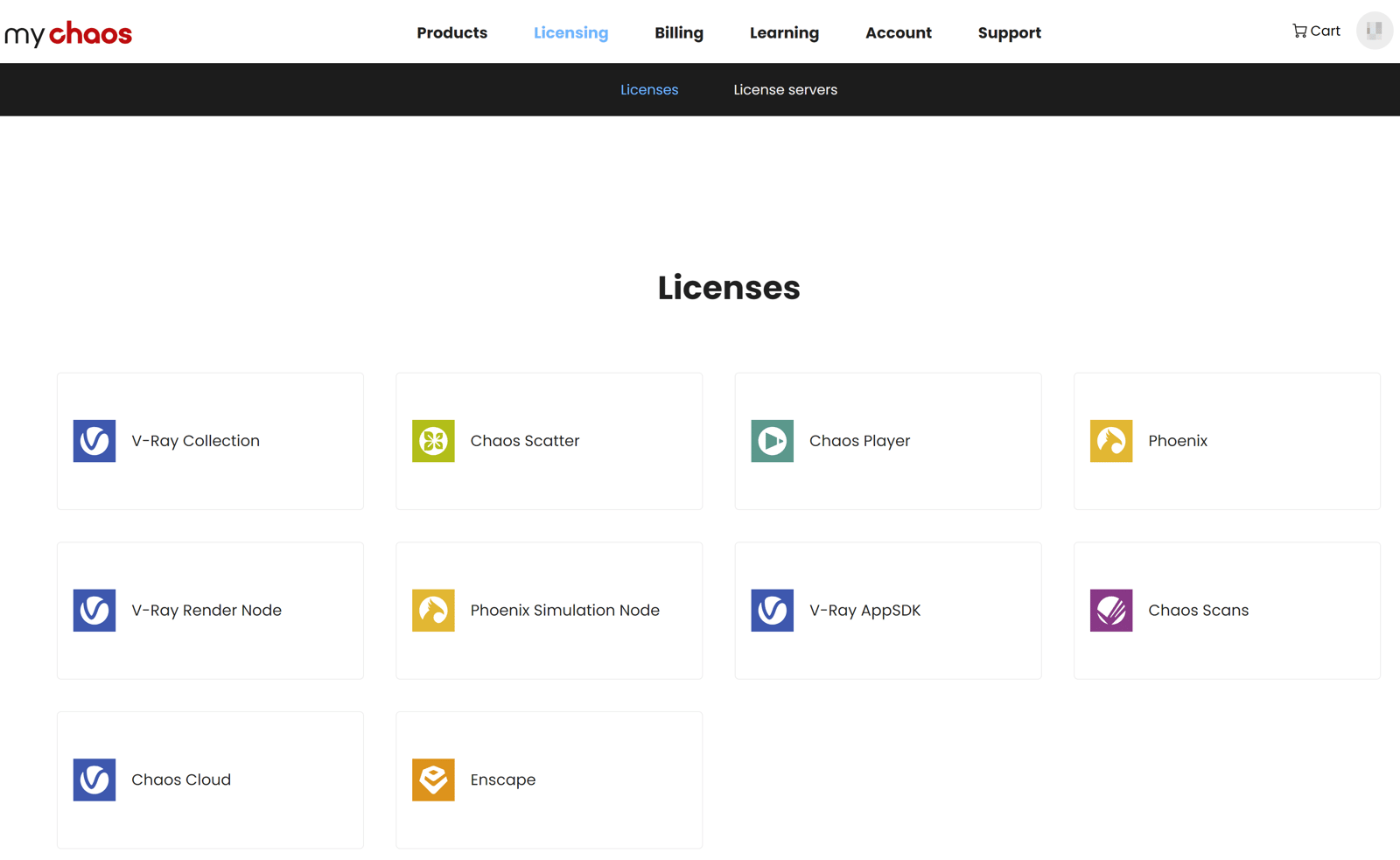
Users can still make personal purchases, so they see a different view in My Chaos.
Users see their personal products under Active Products, with options to renew or upgrade them. Contact Procadsys for renewals or upgrades.

Users see their personal licences under Licenses in the Licensing tab, alongside licences assigned by your organisation.
Revoke a user's assigned licence
Choose the user whose licence you want to revoke. Then select the product.
Select the product you want to revoke from that user.
Click the product and select Revoke product.
A pop-up asks you to confirm that you want to revoke the product.

Revoke an offline licence
You can currently revoke product licences only when the user uses them online.
You cannot revoke a licence borrowed for offline use. If you try, you see this message: "The source user example@user.com has borrowed licenses for offline use. To realocate them, the borrowing period should first expire or the user should release them for offline use.:invalid arguments or operation".
Contact Chaos for help with this restriction.