Use the AI Upscaler in Chaos Cloud Collaboration to increase the resolution of images rendered in Envision.
Overview
The AI Upscaler increases image resolution in Chaos Cloud Collaboration while preserving visual detail. You can save rendering time and improve the final image without repeating rendering and post-processing in Envision.
The AI Upscaler accepts PNG, TIFF, JPEG and EXR images. It always outputs PNG images. For details, see the Chaos Cloud documentation.
How to use the AI Upscaler
Sign in to Chaos Cloud Collaboration before uploading an image to the AI Upscaler.
Step 1. In Envision
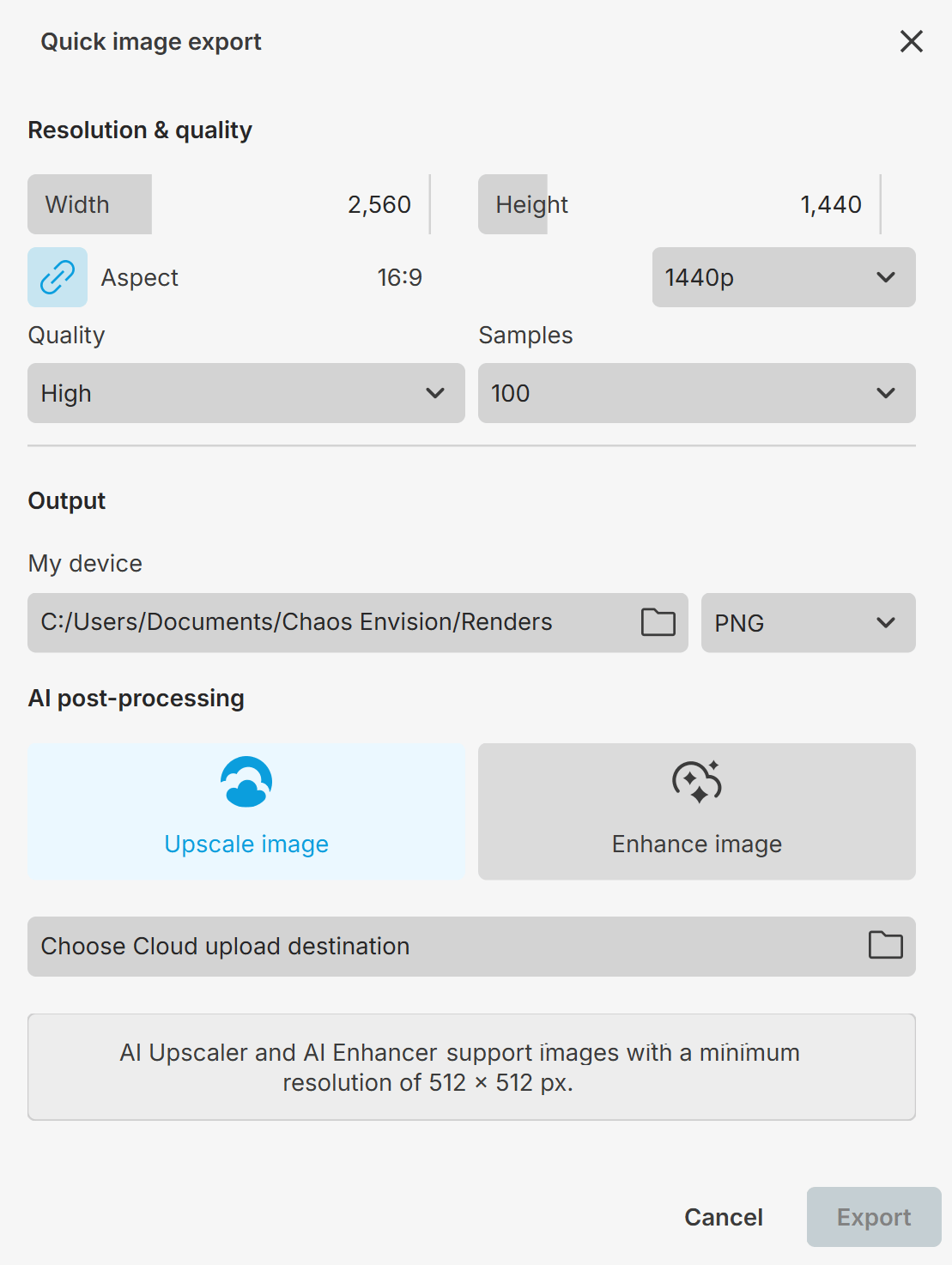
- Go to Render menu > Quick image export to open the Quick image export window. Alternatively, click the AI Hub toolbar button and select AI Upscaler.
- In the AI post-processing section, enable Upscale image.
- Choose a Cloud upload destination. This is the folder in Cloud Collaboration where your image uploads after export.
- Click Export.
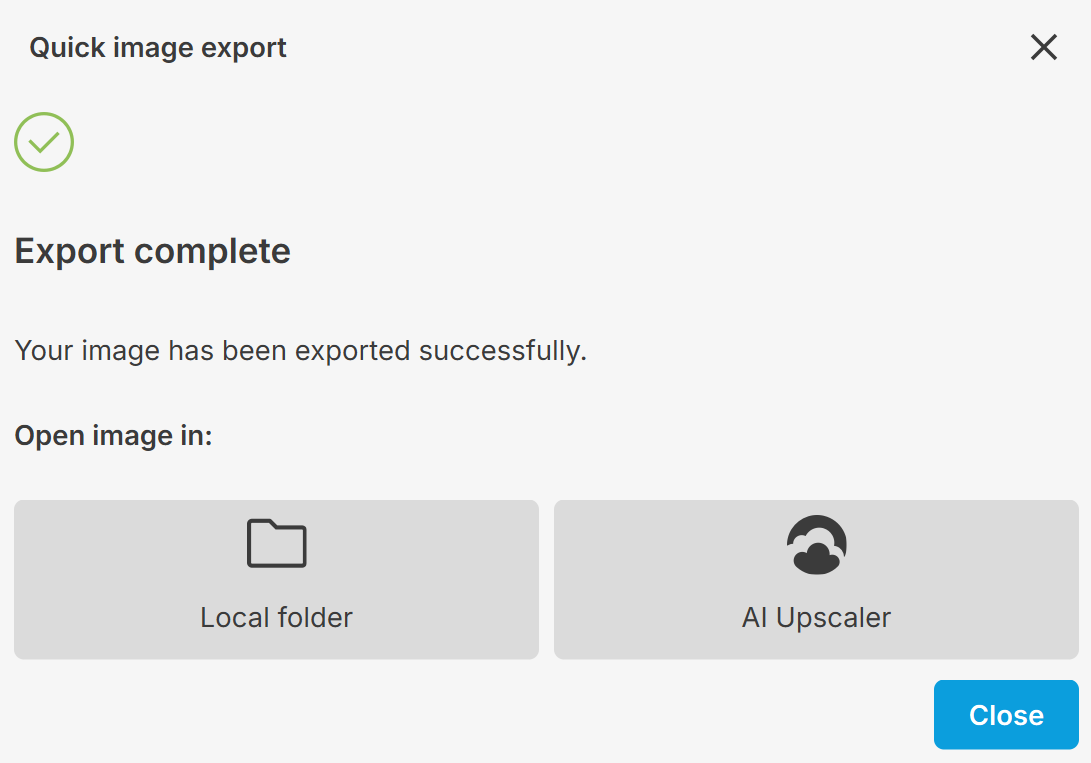
When the export finishes, click AI Upscaler to open the image in Cloud Collaboration.
Close the Quick image export window.
Step 2: In Cloud Collaboration
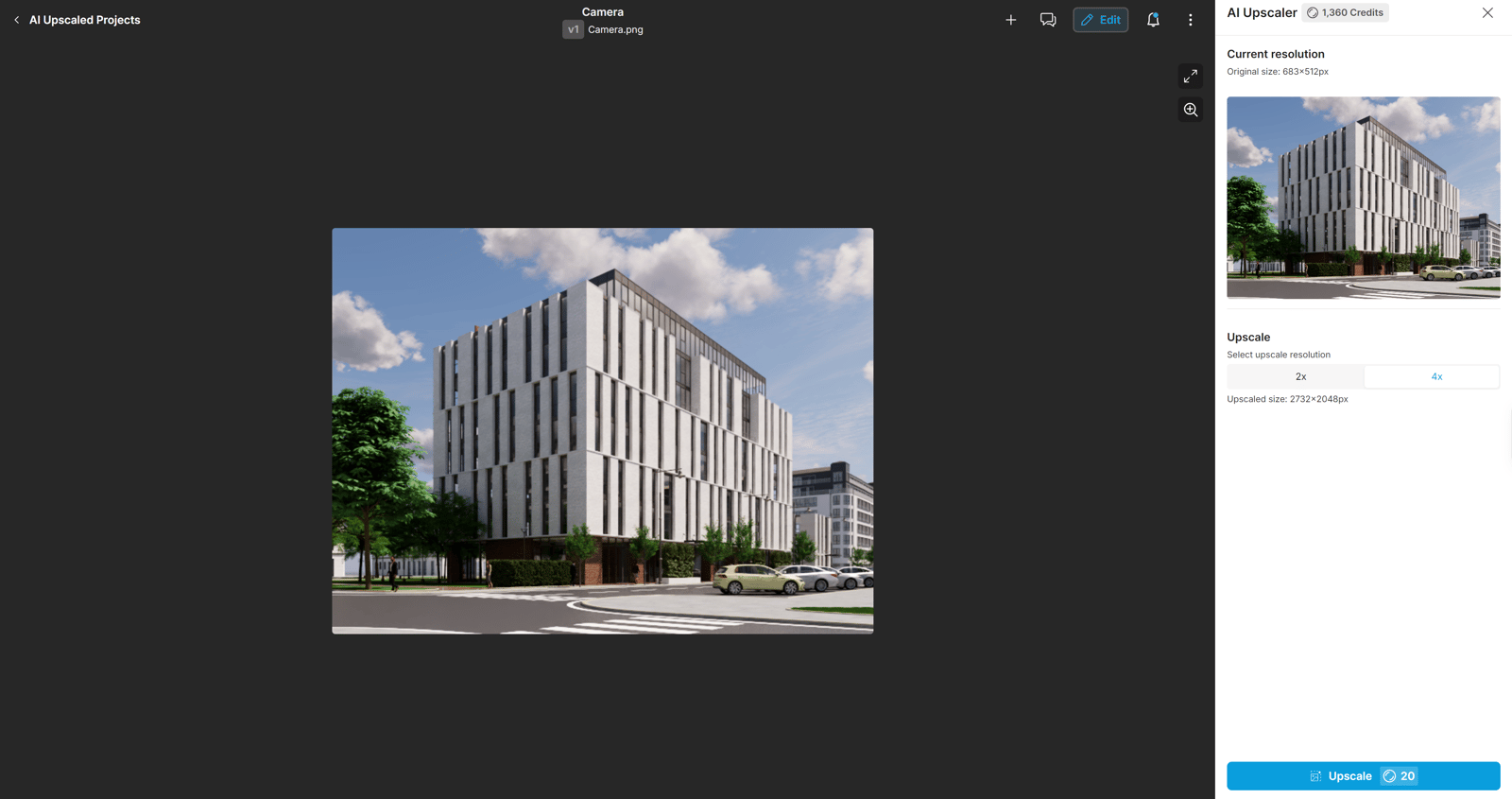
Upscale your image in Chaos Cloud Collaboration.
- Open the image and click Edit. Then choose AI Upscaler.
- Choose 2x or 4x upscaling, then click Upscale.
For details, see the Chaos Cloud documentation.
Advanced setup
For advanced setup, enable Advanced mode in Envision.
Step 1. In Envision
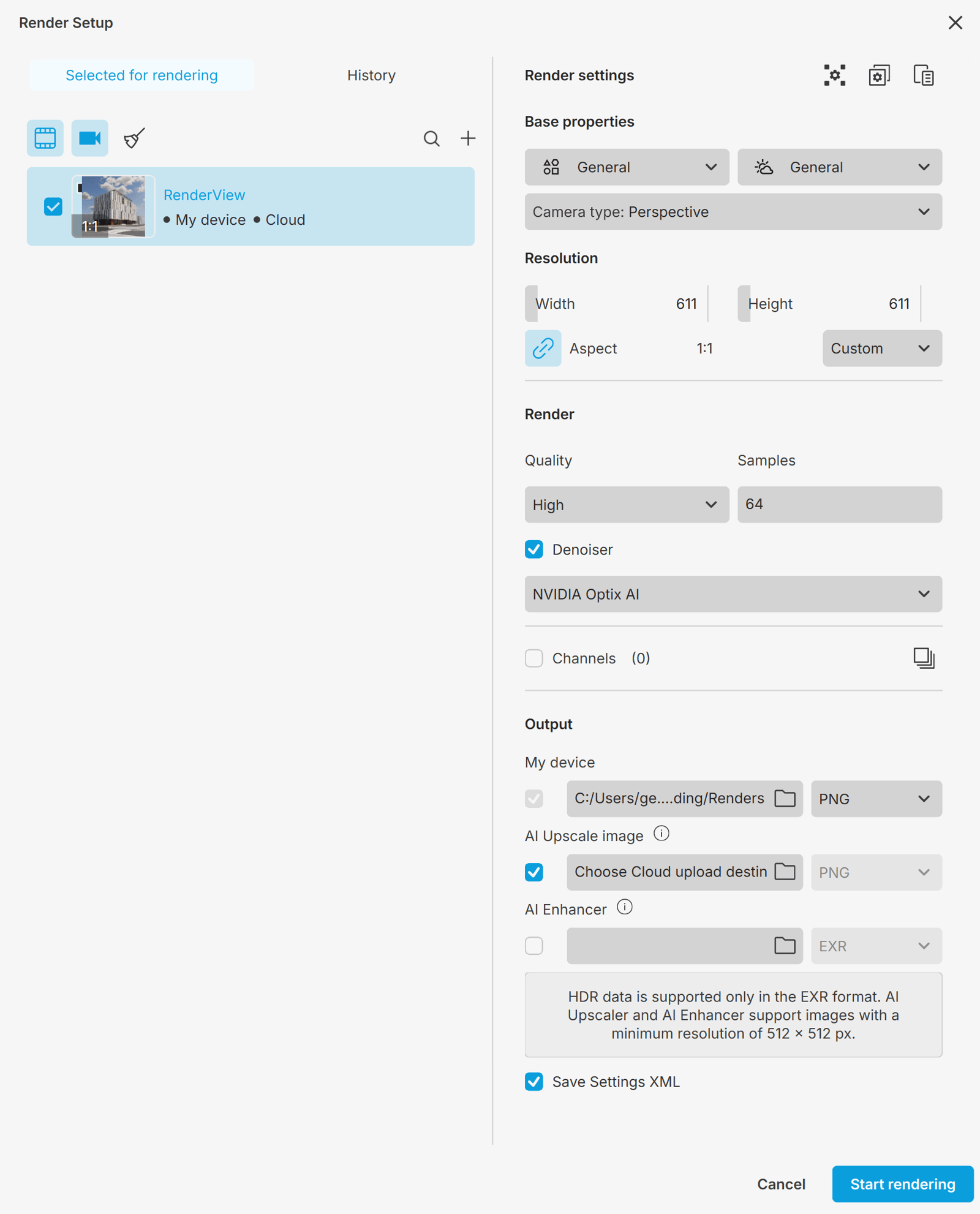
- Go to Render menu > Render setup to open the Render Setup window. Alternatively, click the AI Hub toolbar button and select AI Upscaler.
- Enable the AI Upscale image checkbox in the Output section.
- Choose a Cloud upload destination. This is the folder in Cloud Collaboration where your image uploads after rendering.
- To change the file format, use the dropdown under Output > My device. The selected format also applies automatically to AI Upscale image.
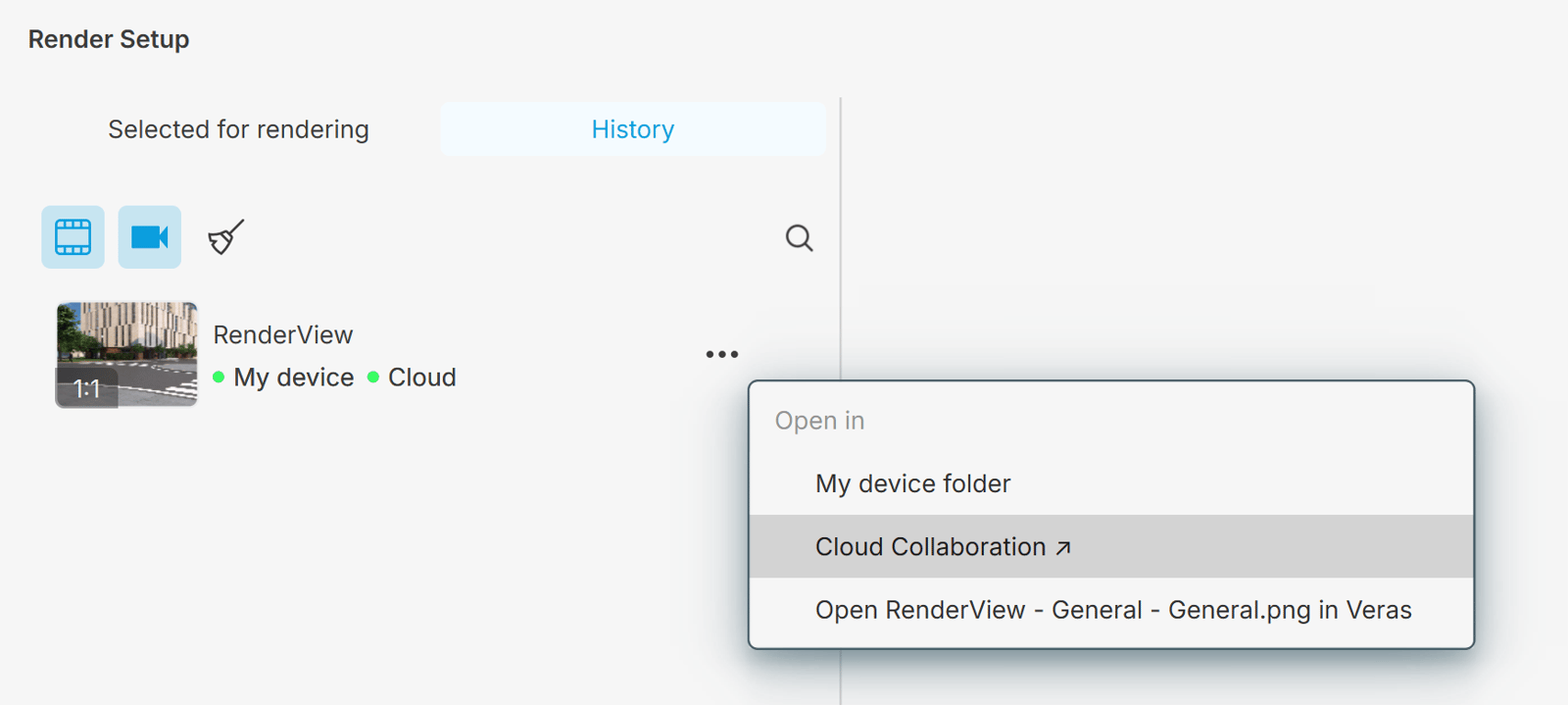
When rendering finishes, go to the History tab.
Open the three dots menu and select Cloud Collaboration. This opens Chaos Cloud Collaboration, where you can upscale the rendered image.
Step 2: In Cloud Collaboration
Upscale your image in Chaos Cloud Collaboration.
- Open the image and click Edit. Then choose AI Upscaler.
- Choose 2x or 4x upscaling, then click Upscale.
For details, see the Chaos Cloud documentation.
See also: