Learn how to create animation sequences in Enscape Envision.
Animation lessons
Use these lessons to learn about animation in Envision.
Timeline and animation concepts lesson
Learn how to:
- Use the Timeline Editor to build animations with cameras, environment and variations.
- Use keyframes, variations, paths and the Look At function.
- Add audio to animations using the sound layer.
Open the timeline and animation concepts lesson
Animate cameras lesson
Learn how to:
- Animate cameras using keyframes, paths and target tracking, or without keyframes.
- Adjust the camera's focal length, exposure and colour corrections.
- Use the Look At function to keep the camera focused on a moving object.
Open the camera animation lesson
Scene variations in animation lesson
Learn how to:
- Animate with variations by blending between scene states in the timeline.
- Adjust duration and transition types for more natural motion.
Open the scene variations lesson
Animate vehicles lesson
Learn how to:
- Create custom traffic animations using the Path tool.
- Assign vehicles to follow a path and adjust their speed and position.
- Use Extrapolation and Looping to control vehicle behaviour.
- Add multiple vehicles to a single path.
Open the vehicle animation lesson
Animate people lesson
Learn how to:
- Add animated characters to your project using the Anima tool.
- Draw crowd paths and customise their shape and interpolation.
- Adjust the properties of crowds and individual characters.
- Preview the animation in your project.
Open the people animation lesson
Animate the sun lesson
Learn how to:
- Create a timelapse effect by animating the sun and sky.
- Use Environment variations to simulate changes in lighting and atmosphere.
- Animate cloud movement and adjust the sun's position using Azimuth and Altitude.
- Apply similar techniques using HDRi environments.
Compositing animations lesson
Learn how to:
- Combine environment variations, scene variations and cameras into a sequence with multiple camera views and lighting setups.
- Import a sound file into the timeline to add atmosphere to your project.
Open the compositing animations lesson
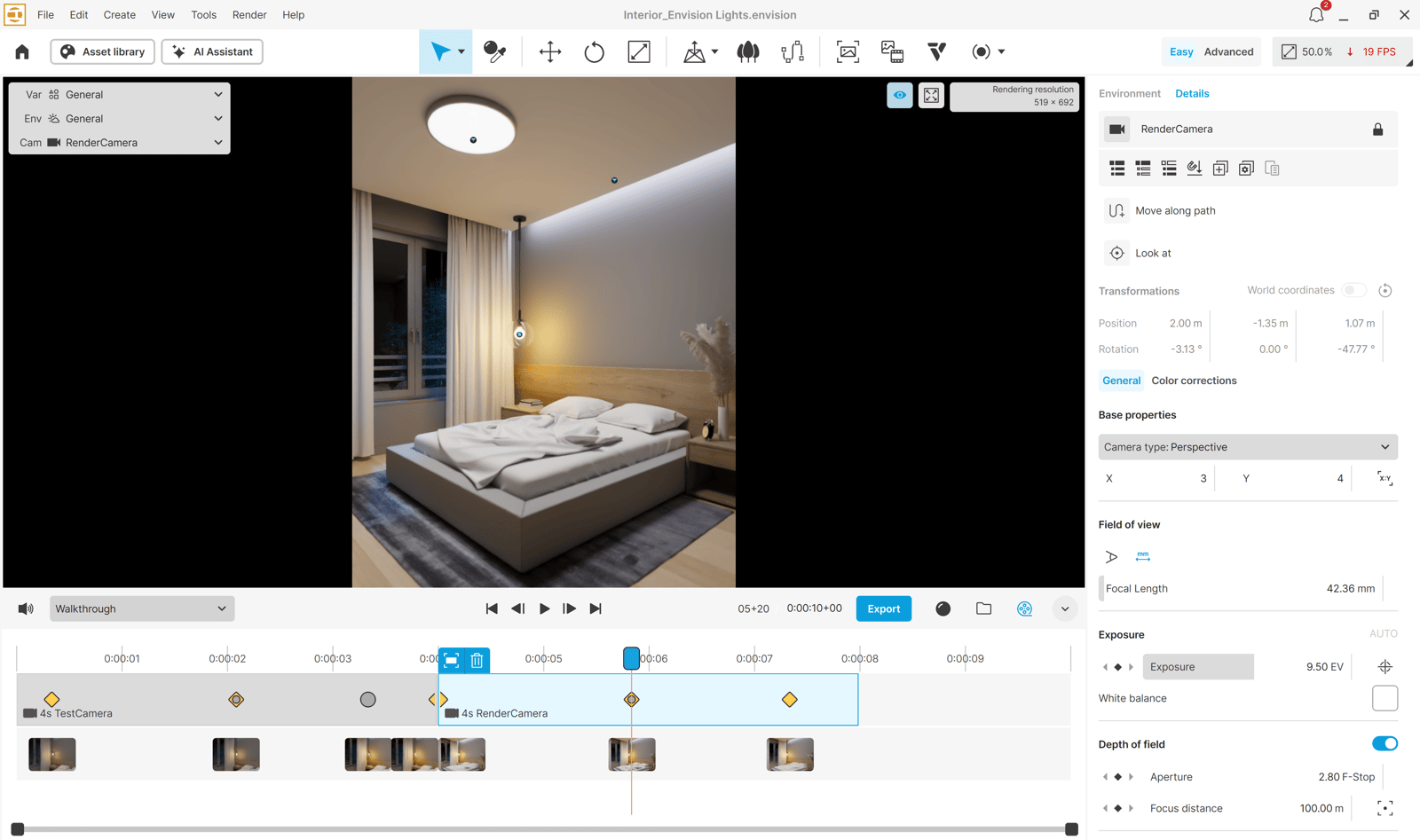
To animate camera properties such as Aperture, Exposure and Focal Distance:
- Select a camera clip in the camera track to show its properties in the Details tab. A keyframe button appears beside each parameter you can animate.
- Click the keyframe button and adjust the parameter value.

You can show or hide keyframes only in Advanced mode. To hide keyframes in the camera track, open Keyframe settings and clear the checkbox for keyframe visibility.
Related references: