Enscape Envision
Chaos Cloud Collaboration
This page provides information about the Chaos Cloud Collaboration for Envision.
Last updated 1 September 2026
This page provides information about the Chaos Cloud Collaboration for Envision.
Overview
The Chaos Cloud Collaboration is a tool for sharing your work with other users. You can upload images from the Render Setup window to the Chaos Cloud Collaboration, where other users can add comments and annotations.
Signing into Chaos Cloud Collaboration using your Chaos credentials is required once. After that you are automatically signed in every time you open the Cloud collaboration window.
For more information about Cloud Collaboration, refer to the Chaos Cloud documentation.
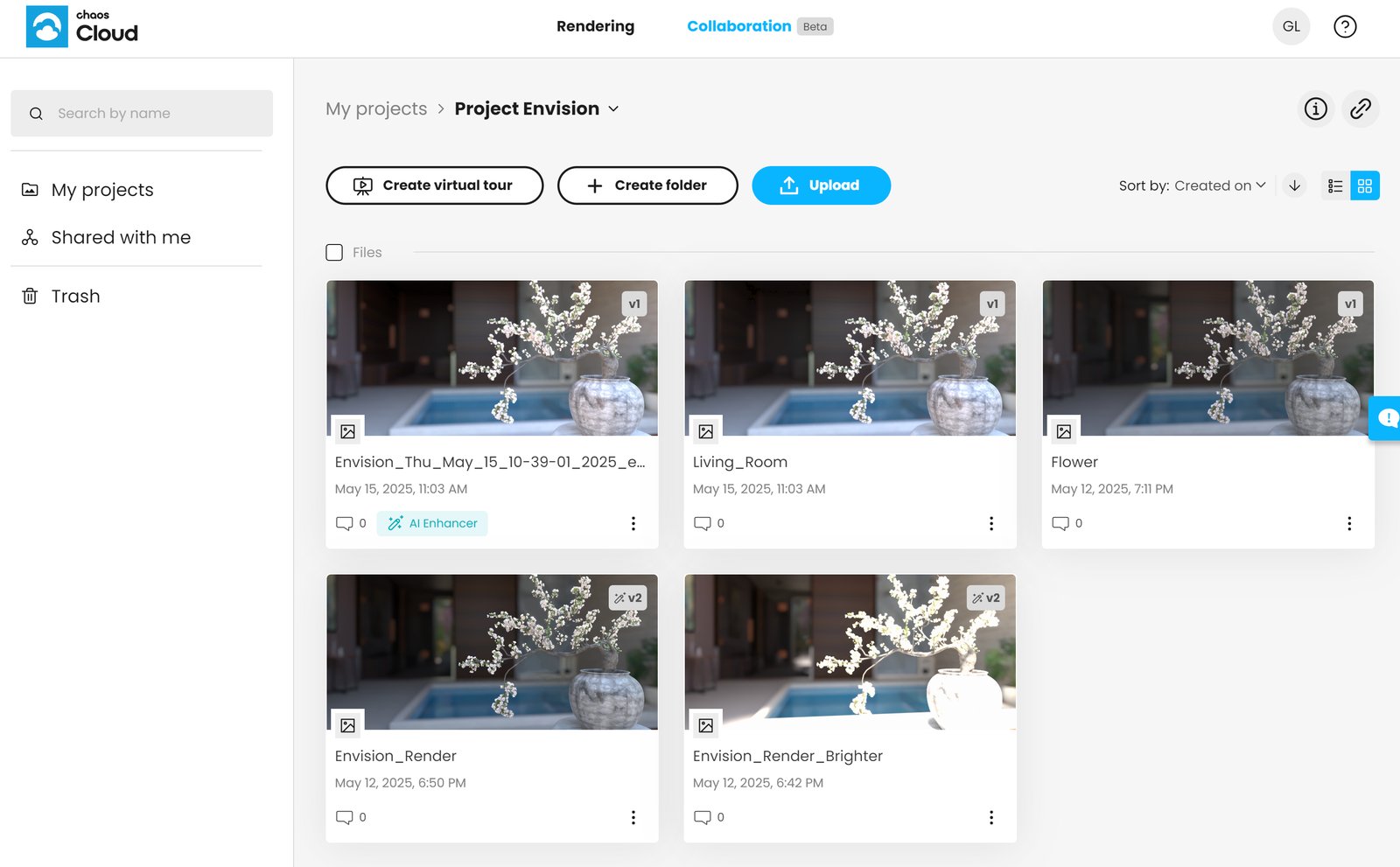
How to Use Cloud Collaboration
To upload an image to the Chaos Cloud Collaboration website, you need to have a project and enable the Cloud collaboration feature inside Envision.
- Go to Render menu > Render image(s) and open the Render Setup window.
- In the Output section at the bottom of the window, navigate to Cloud collaboration and click Choose file destination.
If you are using Cloud Collaboration for the first time, you will be prompted to create a new project and upload your work there. If you've already used Cloud Collaboration with other Chaos products, you will be prompted to select an existing project or create a new one. - Click Create new project and type the name of your project.

- When ready, click Create project. This creates a folder on the Cloud Collaboration website.

- Click Select destination.
You can create subfolders for your project and select any of them as a file destination. To do it, use the Create new button next to the project's name, and then select Create folder.

- Back in the Render Setup under the Output section, enable the Cloud () button next to the file destination field. Thus, the output is automatically uploaded after rendering.

See also: