Use the Details tab in Enscape Envision to view and change settings for selected scene elements.
Overview
The Details tab shows settings for the scene element you select. Select an element from tabs such as Cameras, Objects or Lights, or directly in the viewport. The tab updates when your selection changes. Some objects created in Advanced mode cannot be edited in Easy mode and show a warning.
The Details tab is in the right-hand side panel.
Edit objects created in Advanced Mode
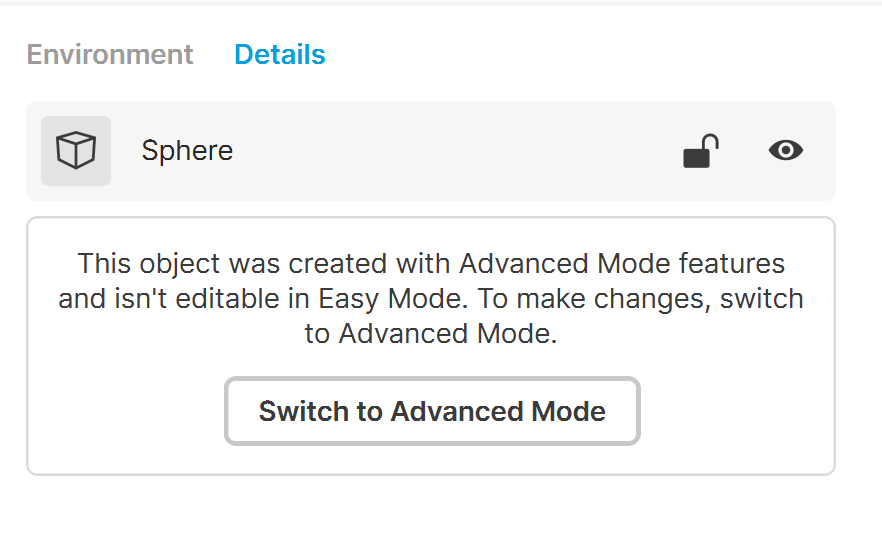
You cannot edit objects created with Advanced Mode features in Easy Mode. When you select one of these objects, the Details tab shows a message explaining the restriction and a Switch to Advanced Mode button.
Click Switch to Advanced Mode to change the interface mode and edit the object's settings.
Selection details
These settings are available when you select multiple elements.
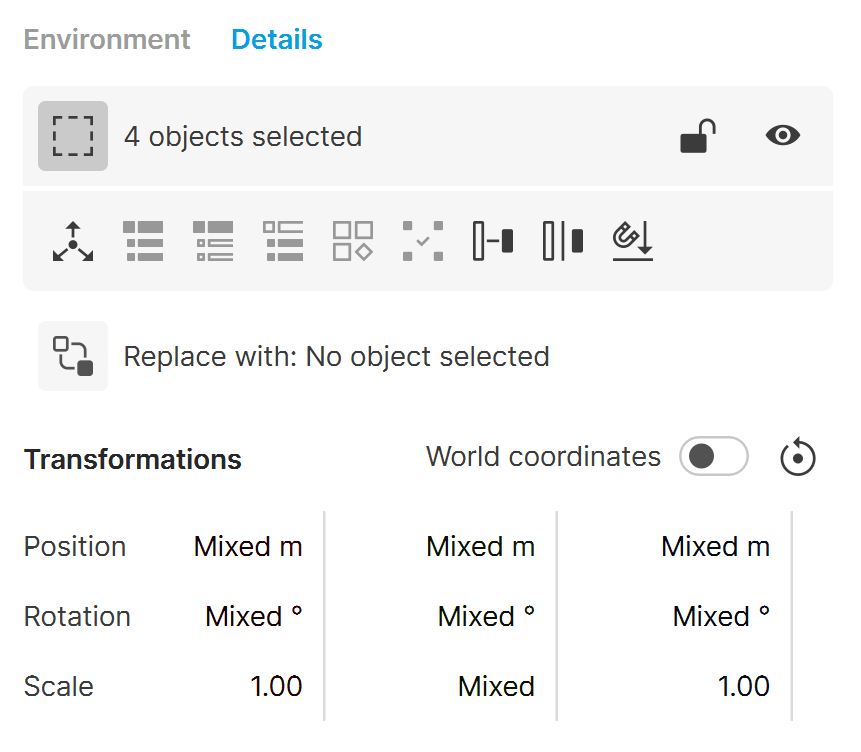
Shows how many elements you have selected. |
Shows how many elements you have selected. | |
Lock disables the position, rotation and scale options for the selected elements. These options appear greyed out. Click again to enable them. | |
Hide switches the elements' visibility on or off. Invisible elements have a visibility indicator and are not rendered. | |
Move pivot opens the Pivot Point Adjustment settings so you can adjust the selection's pivot point. | |
Select hierarchy All selects the parent element and all its children in the current selection's scene hierarchy. | |
Select hierarchy Parent only selects only the parent of the current selection in the scene hierarchy. | |
Select hierarchy All children selects the remaining children in the scene hierarchy group that contains the current selection. | |
Make instance unique separates the selection from its other instances and makes it unique. This action is disabled if the selection has no instances. | |
Select all instances selects every instance of the selected objects in the project. | |
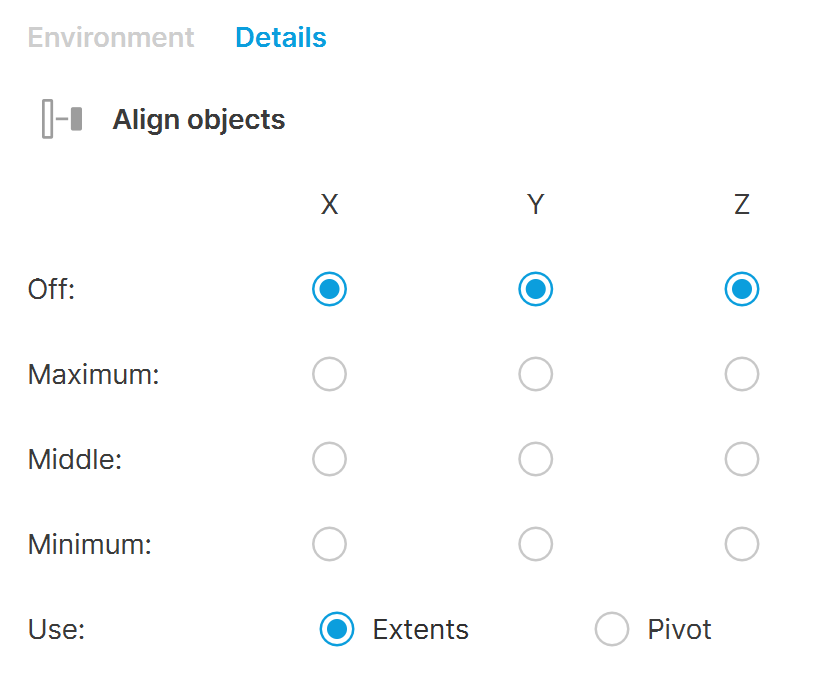
Align objects opens the Align Objects settings so you can align selected objects along the X, Y and Z axes. | |
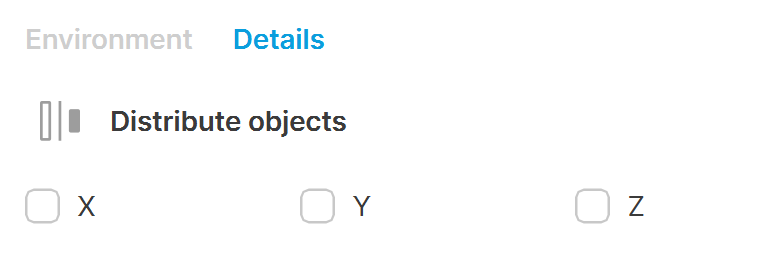
Distribute objects opens the Distribute Objects settings so you can space selected objects equally along the selected X, Y and Z axes. | |
Land to surface moves the selected object down along the Z axis until its bounding box touches the first object below it. |
Transformation
World coordinates uses the global scene axes to transform objects when enabled. When disabled, transformations use each object's local axes.
Position moves the selected elements along the X, Y and Z axes.
Rotation rotates the selected elements along the X, Y and Z axes.
Scale scales the selected elements along the X, Y and Z axes.
Pivot point adjustments
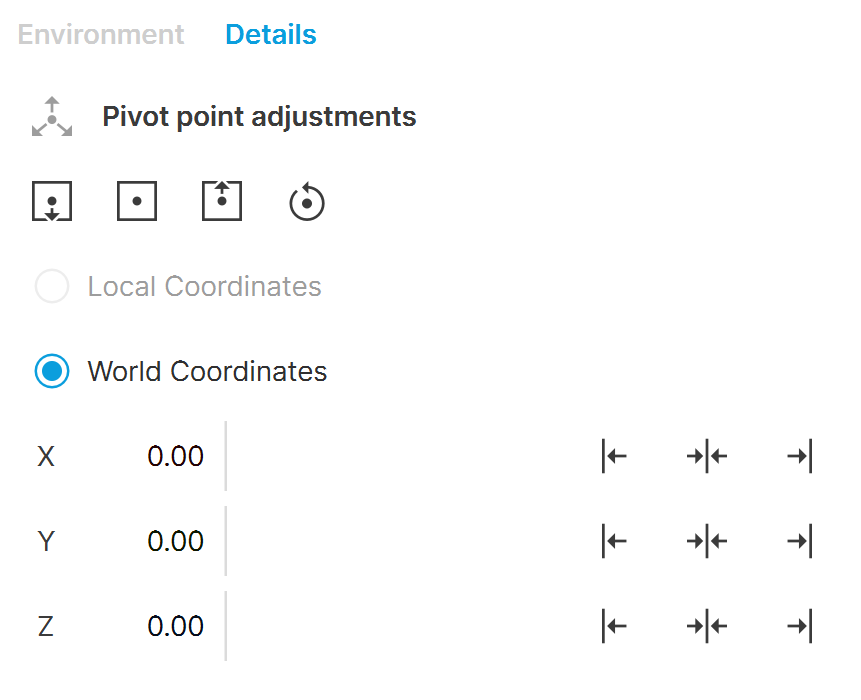
Moves the pivot to the bottom centre of the bounding box. |
Moves the pivot to the bottom centre of the bounding box. | |
Moves the pivot to the centre of the bounding box. | |
Moves the pivot to the top of the bounding box. | |
Resets the pivot to its initial position. | |
The minimum bounding box value on the X / Y / Z axis. | |
The centre bounding box value on the X / Y / Z axis. | |
The maximum bounding box value on the X / Y / Z axis. |
Local Coordinates uses the object's local coordinate system when you adjust the pivot point. Each object has its own local coordinate system. The X, Y and Z axes align relative to the object's transformation.
World Coordinates uses the scene's global coordinate system when you adjust the pivot point. The X, Y and Z axes always align with the scene's global orientation.
X shows and lets you set the selected pivot's position on the X axis. The value depends on whether you use World or Local coordinate space.
Y shows and lets you set the selected pivot's position on the Y axis. The value depends on whether you use World or Local coordinate space.
Z shows and lets you set the selected pivot's position on the Z axis. The value depends on whether you use World or Local coordinate space.
Align objects
Aligns the selected objects to a shared virtual pivot point. You can position this point at the base, middle or top of the objects.
Distribute objects
X spaces the selected objects equally along the X axis.
Y spaces the selected objects equally along the Y axis.
Z spaces the selected objects equally along the Z axis.