Learn how imported Enscape materials work in Enscape Envision and how to adjust their properties.
Overview
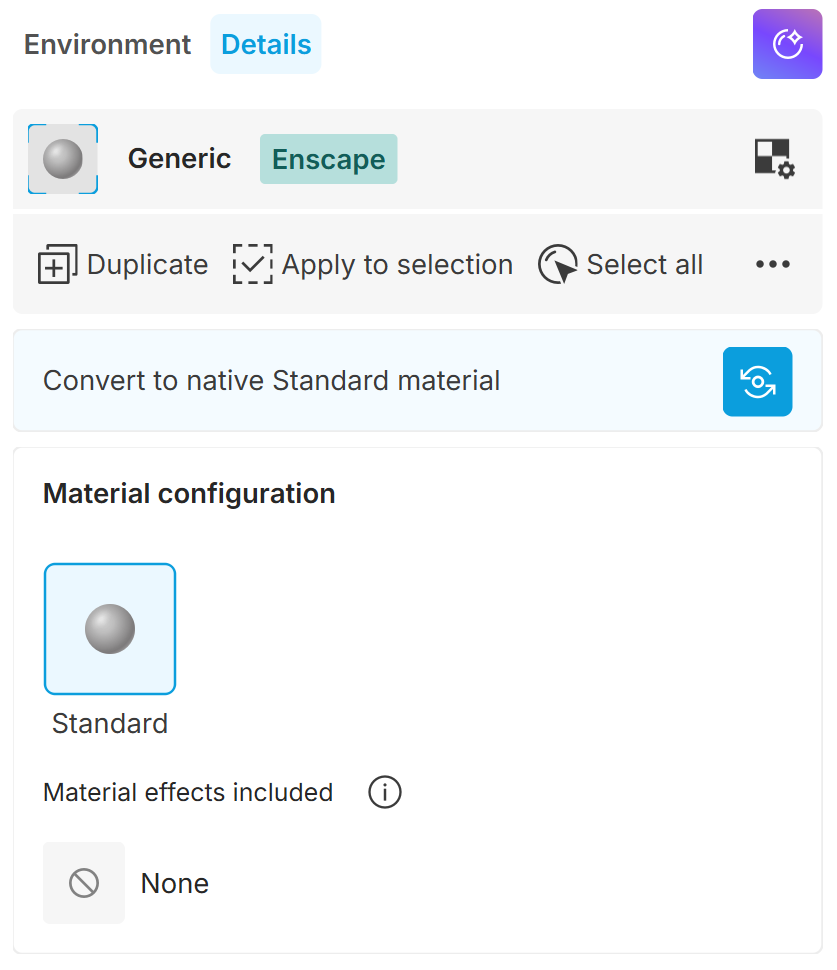
Most imported Enscape material types, including Generic, Carpet and Glass, appear as an Enscape Generic material in Envision. Properties specific to each type appear as locked Effects. For example, Grass properties appear as the Strands effect. A label identifies materials imported from Enscape. Enscape Generic materials have only essential properties. Convert them to Standard materials for finer control.
Actions with Enscape materials
Convert to native Standard material converts the Enscape Generic material to a Standard material and unlocks the Material effects.
See the Material Editor page for the other available actions.
See the Standard Material page for details about Material effects.
Properties
Material base
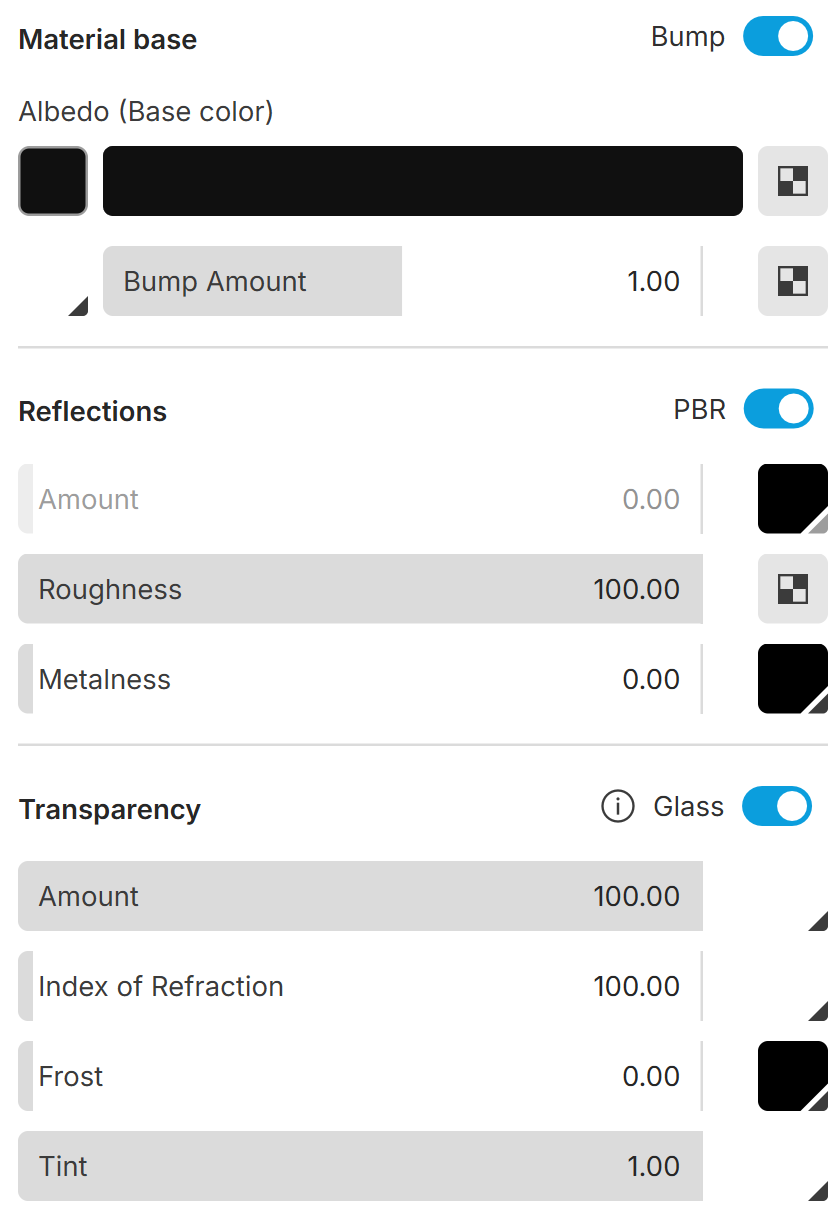
Bump enables a bump or normal map.
Albedo (Base colour) sets the material's base colour. Use a solid colour, a texture or both. Use the slider to blend between them.
Bump Type sets whether the material uses a bump map or a normal map.
Bump Amount controls the strength of the surface relief created by the bump texture. Add a Bump texture, then adjust the strength with the slider. Higher values make the bump effect more visible. A value of 0 hides it completely.
Reflection
Amount controls the material's reflectivity. Set it with the slider, a colour or a texture. A value of 0 or black means no reflectivity. A value of 100 or white means maximum reflectivity.
Roughness controls how blurry reflections appear. A value of 0.0 gives a perfect mirror-like reflection. Higher values produce blurry or glossy reflections.
Metalness sets the material's reflection model and controls how metallic it looks. A value of 0.0 represents a non-metal surface (dielectric), such as plastic or ceramic. A value of 100.0 represents a fully metal surface, such as silver or gold. Intermediate values are valid but do not represent any physical material.
Transparency
Glass converts the material to glass and unlocks additional glass properties.
Amount controls the material's transparency when Glass is enabled. A value of 0.0 makes the material fully opaque. A value of 100.0 makes it fully transparent. When you use a colour or texture, black means no transparency and white means full transparency.
Index of Refraction controls how the material bends light and how reflective it is. This affects how much objects behind the material appear distorted. Typical values are 1.52 for glass and 1.33 for water. A value of 1 means light does not change direction.
Frost controls the roughness of the material's refraction. Higher values give the material a frosted glass appearance.
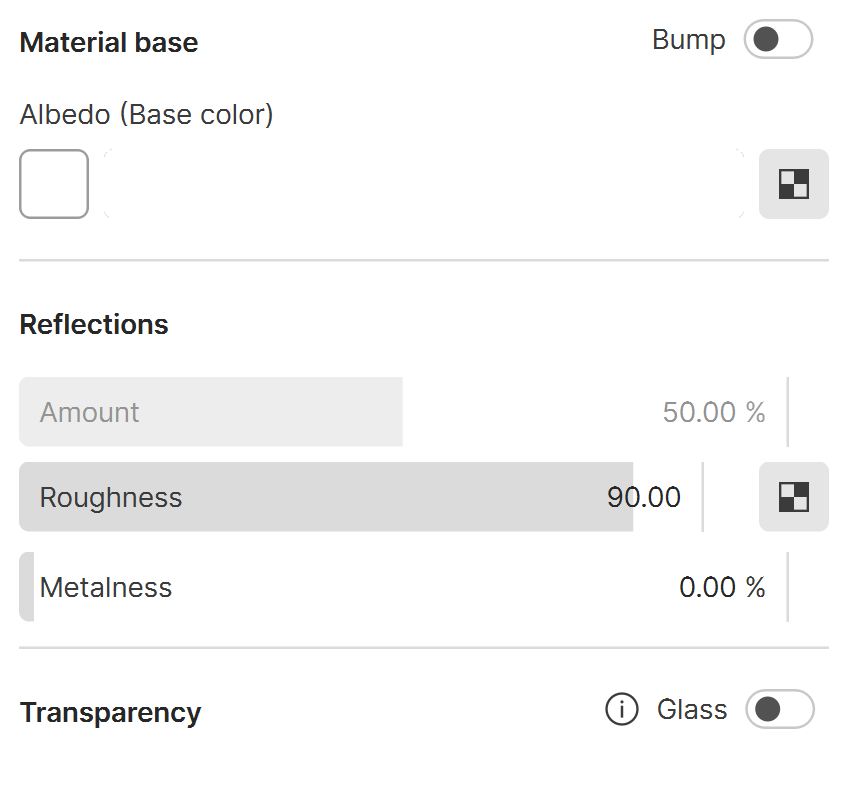
Toggles disabled
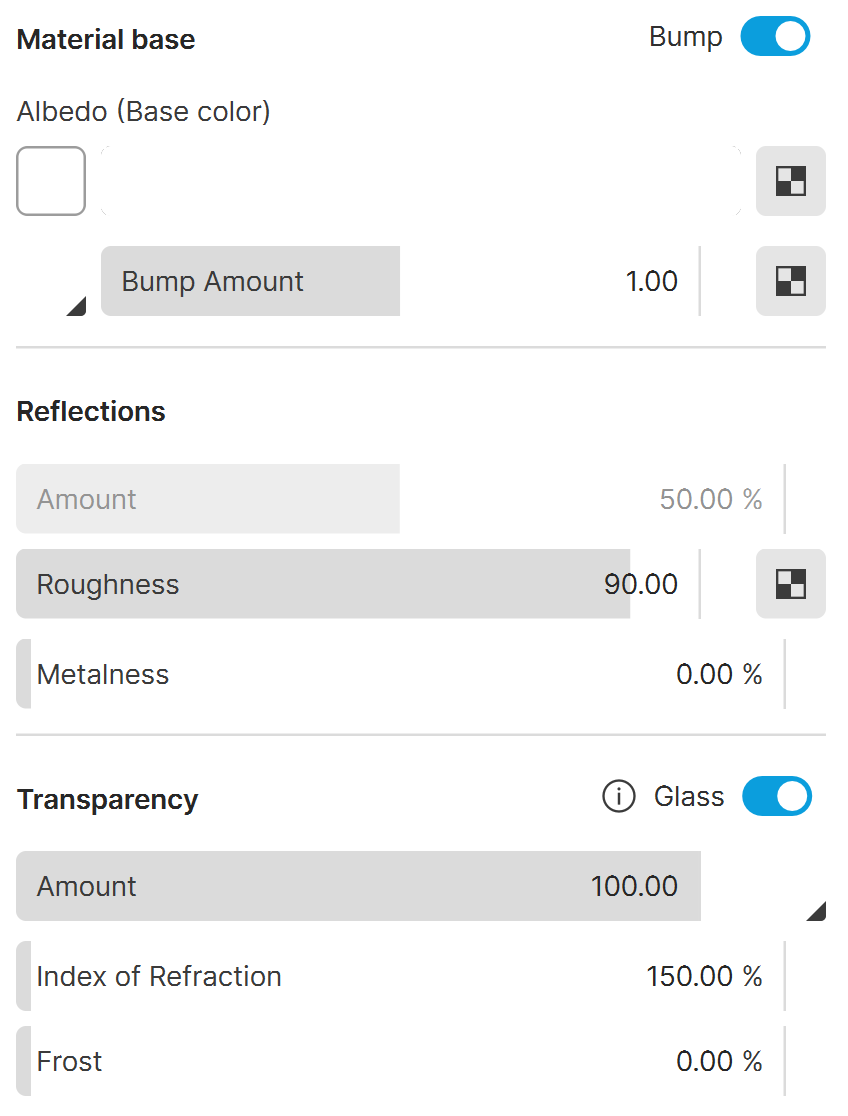
Toggles enabled
Advanced properties
The following parameters are available only in Advanced mode. Advanced mode provides the same options as the Standard material, including material effects. The Enscape label stays visible.
Reflection
PBR turns Physically Based Rendering (PBR) mode on or off. When enabled, you control reflections with roughness and metalness. When disabled, you use glossiness and strength.
Glossiness controls the sharpness of reflections. A value of 1.0 gives a perfect mirror-like reflection. Lower values produce blurry or glossy reflections. This parameter is available when PBR mode is disabled.
Strength gives you finer control over reflection strength. Higher values produce more intense, metallic-like reflections. When Glass is off, Strength corresponds to IOR. When Glass is on, Strength controls reflections independently of IOR. This parameter is available when PBR mode is disabled.
Transparency
Opacity controls the material's transparency. A value of 0.0 makes the material fully transparent. A value of 100.0 makes it fully opaque. This parameter is available when Glass is disabled.
Tint is a combined colour and texture slot that sets the colour tint of the material's refraction. Use the slider to control tint strength. Higher values increase the tint strength and make the material more opaque. This parameter is available when Glass is enabled.
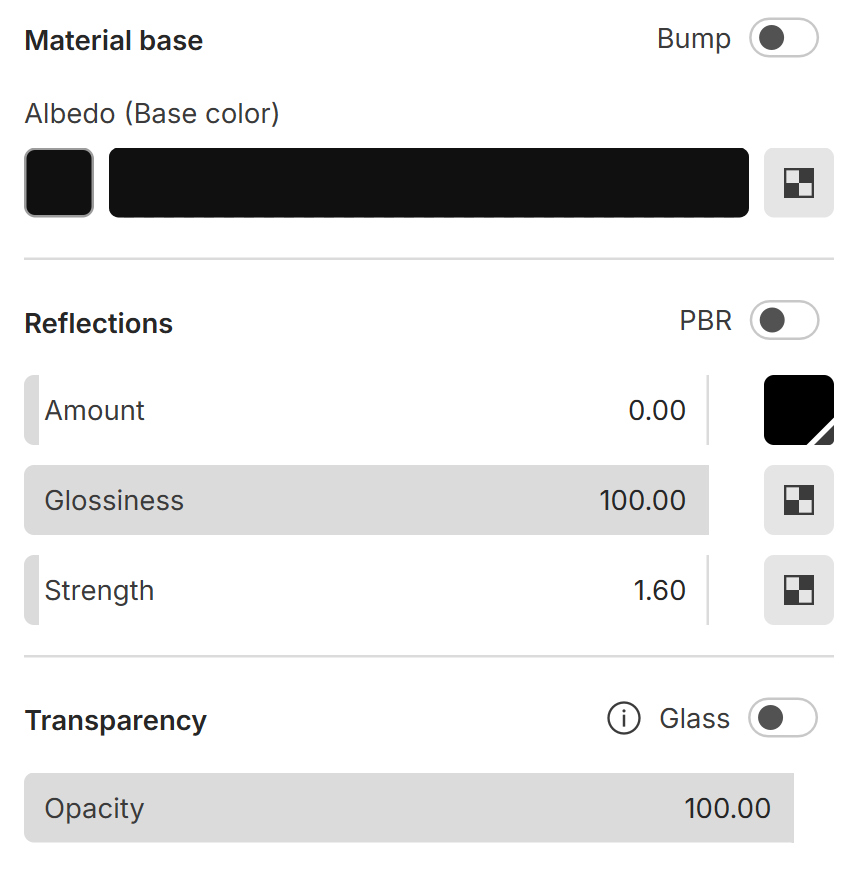
Toggles disabled
Toggles enabled
See also: