Use the Environment tab in the left-hand panel of Enscape Envision to create and manage environment lighting variations.
Overview
You can create as many variations of your current project as you need in Enscape Envision. Use them to explore design options or animate between them.
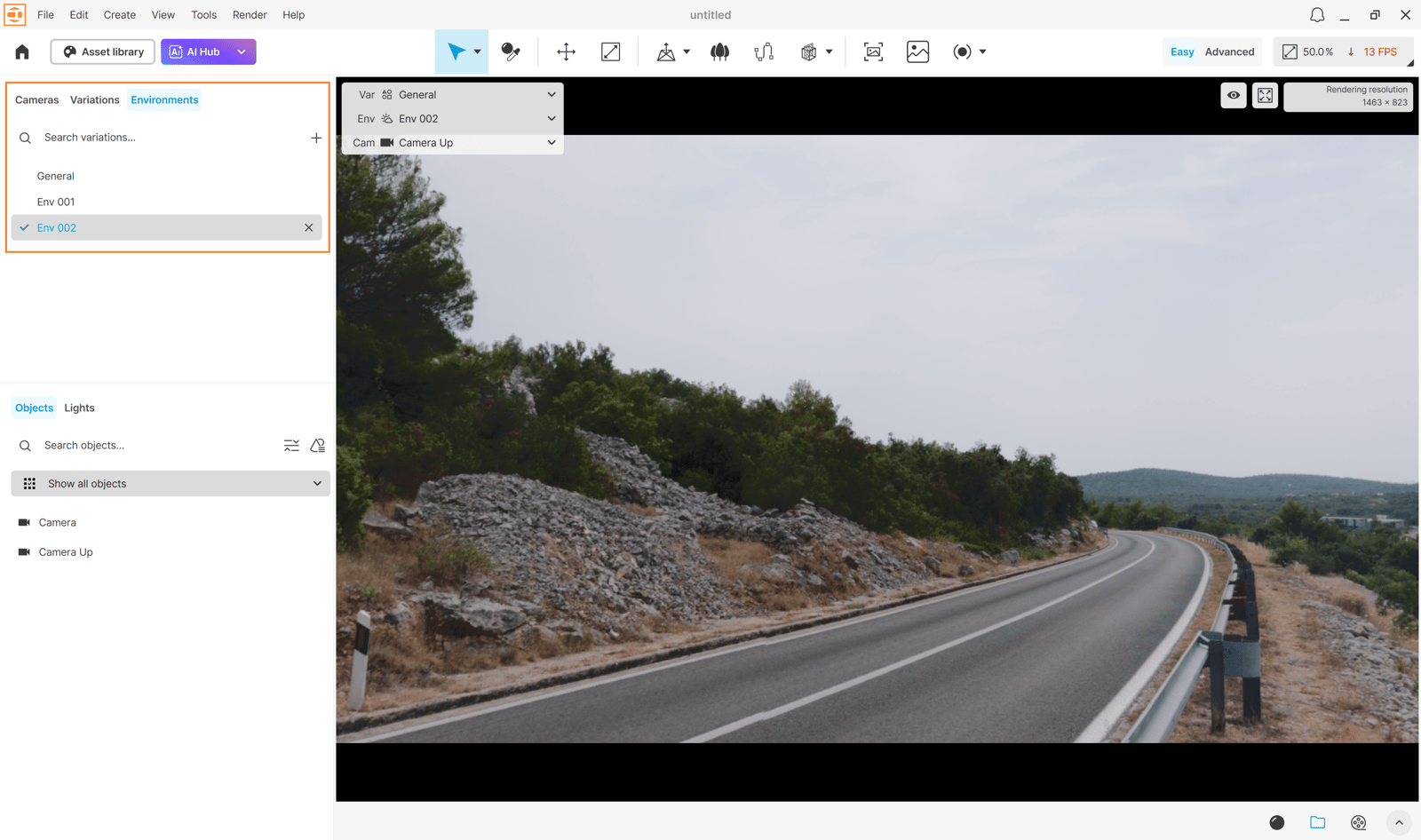
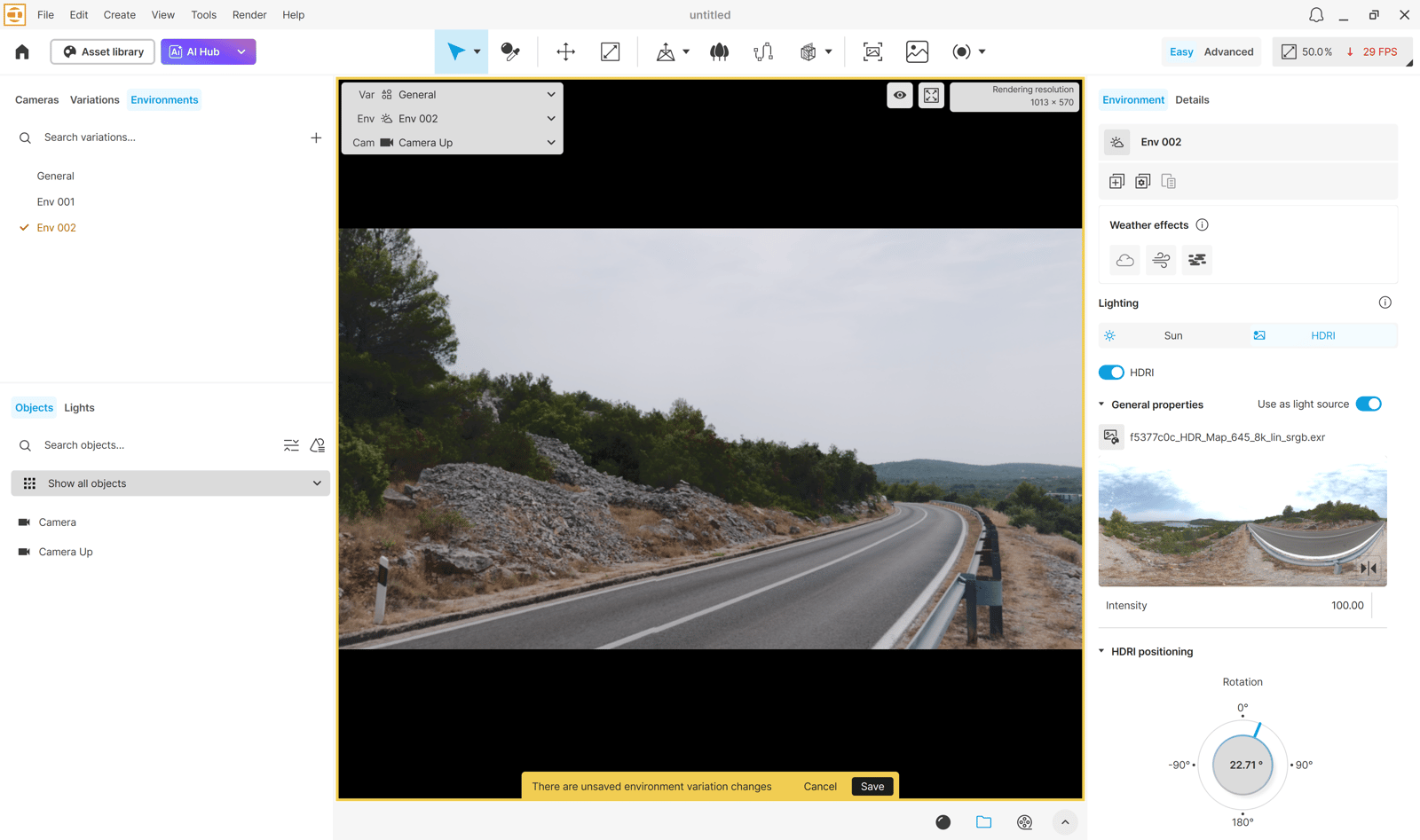
In the Environment tab, you can create variations of your project's environment lighting. Each variation can use different settings for all lighting parameters in the Environment tab on the right.

Environment variations have their own track in the Envision timeline. You can combine variations and create transitions between them. Use the Toggle timeline preview mode button to switch between the scene at the current playhead time and the environment variations selected in the Environment tab. See the Animation page for details.
Select a variation in the variations list to update the viewport immediately. You can also switch between environment variations in the current view quick settings.
Manage environments

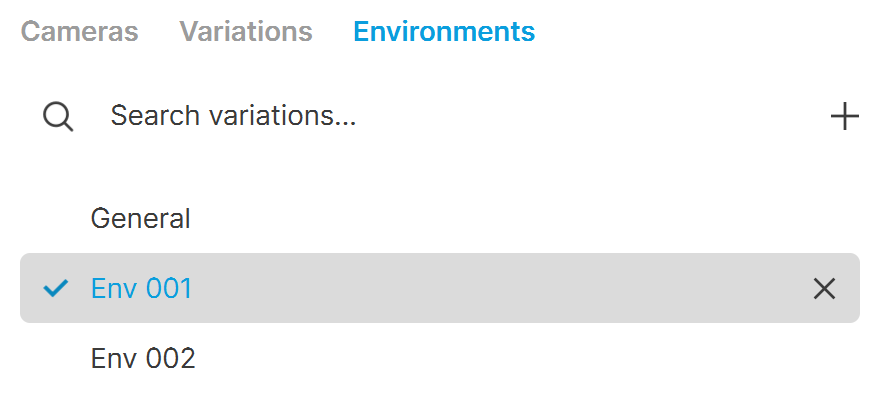
The environment list marks the applied variation with a blue highlight and a check mark. Use the controls below to search for, create and delete environment variations.
Search variations filters the environment list to show only variations whose names contain the text in the search field. Click the button on the right to clear the search. |
Search variations filters the environment list to show only variations whose names contain the text in the search field. Click the button on the right to clear the search. | |
Create a new environment variation creates an environment state using the settings in the Environment details tab on the right. | |
Remove deletes the selected environment variation. |
Actions with environments
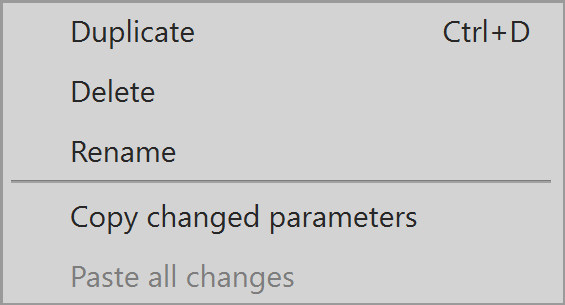
Right-click an environment variation to open a context menu with the actions below.
Duplicate copies the selected environment variation. Shortcut: Ctrl+D
Delete deletes the selected environment variation.
Rename changes the name of the selected environment variation.
Copy changed parameters copies the parameters you have changed in the selected environment variation.
Paste all changes pastes all changes from one environment variation into another.
See also: