Enscape Envision
File Menu
This page provides information about the File menu and its sub-menus in Enscape Envision.
Last updated 27 May 2026
This page provides information about the File menu and its sub-menus in Enscape Envision.
Menu Options
New – Creates a new empty project. Shortcut: Ctrl+N
Open… – Opens a browser window to load a supported file. Shortcut: Ctrl+O
Open recent – Displays a list of up to 10 recently opened projects and allows you to load any of them. Use the Clear recent file list button at the bottom of the list to clear all files from the list.
Import… – Opens a browser window to load a scene or object file. The file is linked to the current Envision project. If you make changes to the imported file, it can be updated in Envision to reflect those changes. The supported file formats are V-Ray Mesh (.vrmesh) and V-Ray Scene (.vrscene). The linked .vrscene file can be embedded from the vrscene parameters in the Details tab. Find more information at VRscene Details and Importing Files.
Merge… – Opens a browser window to load an Envision project file. The file is embedded to the current Envision project. Only .envision files are supported. Find more information at Merging Files.
Save – Saves the current project in .envision format. Shortcut: Ctrl+S
Save as… – Saves the current project in .envision format. You can specify a name and directory for the file.
Close – Closes the currently opened project and clears the viewport. Shortcut: Ctrl+F4
Import Camera from XML – Imports an .xml file containing animated camera paths from Enscape. Note that the .xml file must contain only the camera path, not anything else. Find more information at Import Camera Paths from Enscape.
Project settings – Opens the Project Settings window where you can manage the settings for the current project such as angle, speed, and length units, denoiser type, gizmos display, etc.
Missing dependencies – Opens the Missing Dependencies dialog, which displays all missing or conflicting dependencies from linked .vrscene files. For example, if an object references a material that no longer exists in the .vrscene file, the dialog allows you to resolve the issue by removing the missing dependency, such as by removing the material from the object.
Quit Envision – Closes Enscape Envision.

Import Camera Path from Enscape
Import to Cameras list only – Imports the Enscape cameras into the project, adds them to the Cameras list, but does not place them on the Timeline.
Import to Cameras list and Timeline (Camera Track) – Imports and adds the Enscape cameras to the Cameras list and places them on the Timeline's Camera track.
Replace all existing cameras – Replaces all existing cameras in the Timeline with the imported ones from the .xml file, when Import to Camera list and Timeline (Camera Track) is selected.
Keep existing cameras – Keeps all existing cameras in the Timeline and adds the imported ones from the .xml file either at the start or at the end of the Timeline, when Impor to Camera list and Timeline (Camera Track) is selected.
Import at start – Adds the imported Enscape cameras to the start of the Timeline.
Import at end – Adds the imported Enscape cameras to the end of the Timeline.
Cancel – Terminates the action.
Import – Initiates the import process.

Project Settings
Denoiser – Sets the type of the denoiser used in the viewport.
None – No denoising is used. This results in noise visible in the viewport.
Optix – Uses the NVIDIA OptiX AI denoiser which offers high image fidelity.
Vantage – Uses the Vantage denoiser which produces sharp initial image, but some artifacts may remain even when more render samples are accumulated.
Combined – A combination of Vantage and Optix denoisers.
DLSS – Uses NVIDIA DLSS which offers real-time AI denoising.
DLSS Combined – Uses a combination of DLSS and Optix denoisers.
Enable Dynamic Textures – When enabled, textures are downscaled based on where they are viewed from. This reduces GPU memory consumption (this is project-dependent). Texture size is updated if necessary on every scene movement.
Angle Units – Specifies the units for measuring angles (e.g. when rotating objects).
Length Units – Specifies the units for measuring distance (e.g. when moving objects).
Speed Units – Specifies the units for measuring speed (e.g. when animating objects).
Time Units – Specifies the units for measuring time.
Create new Variation Warning – Defines the behavior when creating a new variation while having unsaved changes in the current variation.
Ask – Always ask whether to apply or discard changes made to the current variation.
Always reset current – Always discard changes made to the current variation and transfer them to the new one.
Always save current – Always save changes made to the current variation and duplicate them to the new one.
Switch to Variation Warning – Defines the behavior when switching to a variation while having unsaved changes in the current one.
Ask – Always ask whether to apply or discard changes made to the current variation when switching to another one.
Always reset current – Always discard changes made to the current variation when switching to another one.
Always save current – Always save changes made to the current variation when switching to another one.
Change Animation Time Warning – Defines the behavior when moving the animation slider while having unsaved changes in the current variation.
Ask – Always ask whether to apply or discard changes made to the current variation when moving the animation slider.
Always proceed without saving – Always discard changes made to the current variation when moving the animation slider.
Always save modifications – Always save changes made to the current variation when moving the animation slider.
Hide all gizmos – When enabled, hides all gizmos (e.g. for camera and light objects).
Hide light gizmos – When enabled, hides the light object gizmos.
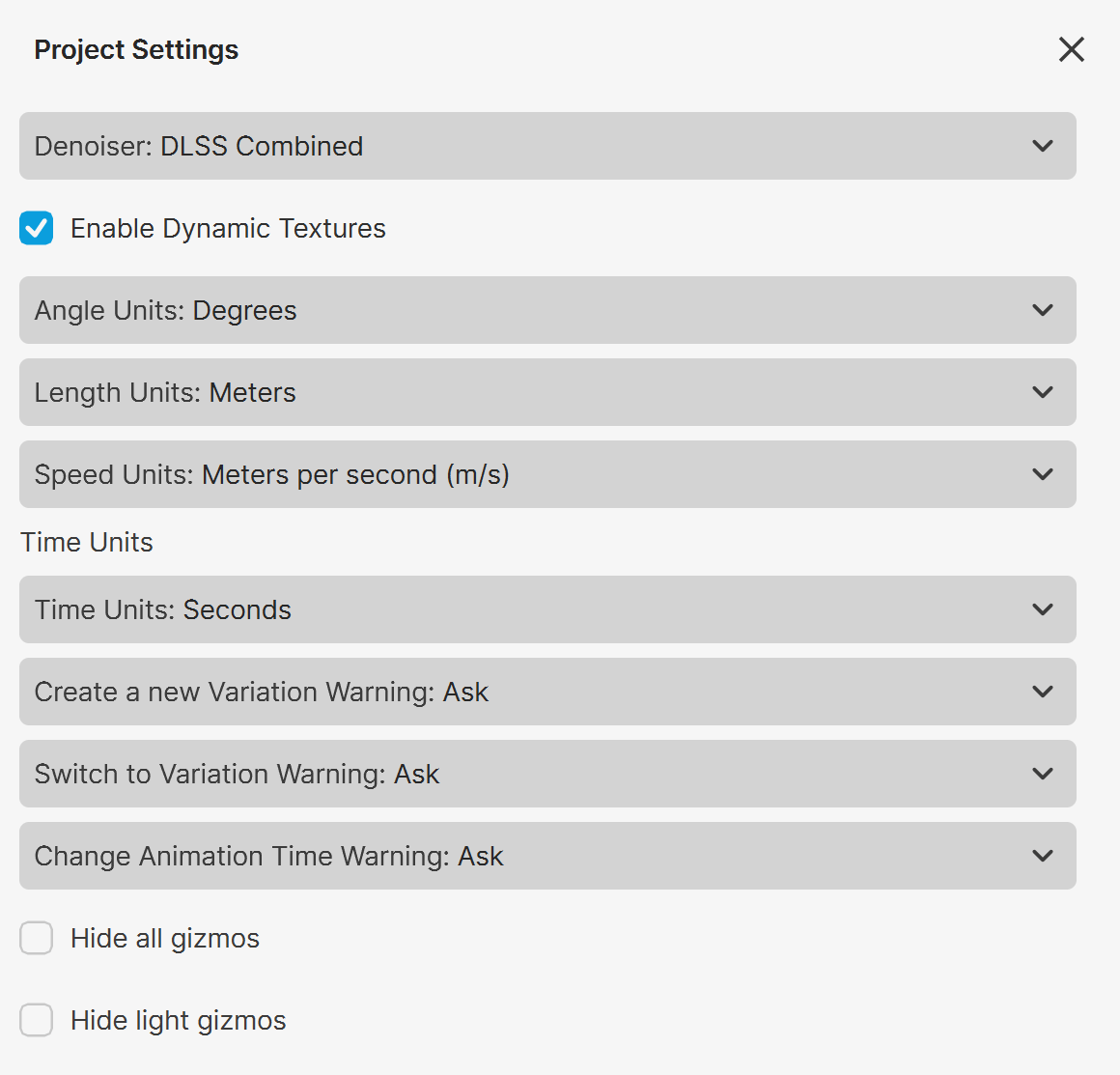
Click on the image to view it in higher resolution.
Missing Dependencies
The Missing dependencies dialog displays a list of missing or conflicting dependencies from the linked .vrscene file. The dependencies can be ordered in ascending or descending order based on their status, name, type, or project and source file paths.

The Refresh the dependency list () button refreshes all missing and conflicting dependencies from the linked .vrscene file.

The Remove all missing and conflicting dependencies () button removes the dependencies.

Click on the image to view it in higher resolution.
See also: