Enscape Envision
Help Menu
This page provides information about the Help menu in Enscape Envision.
Last updated 27 May 2026
This page provides information about the Help menu in Enscape Envision.
Menu Options
Chaos account – Opens a window where you can find information about the logged-in account, manually log in or out, and access the My Chaos portal. Please check the Chaos Licensing Window section below for more information.
Check for updates – Verifies whether your Enscape Envision installation is up to date. By default, the application automatically checks for updates in the background. This behavior can be disabled by using the Edit menu > Preferences.
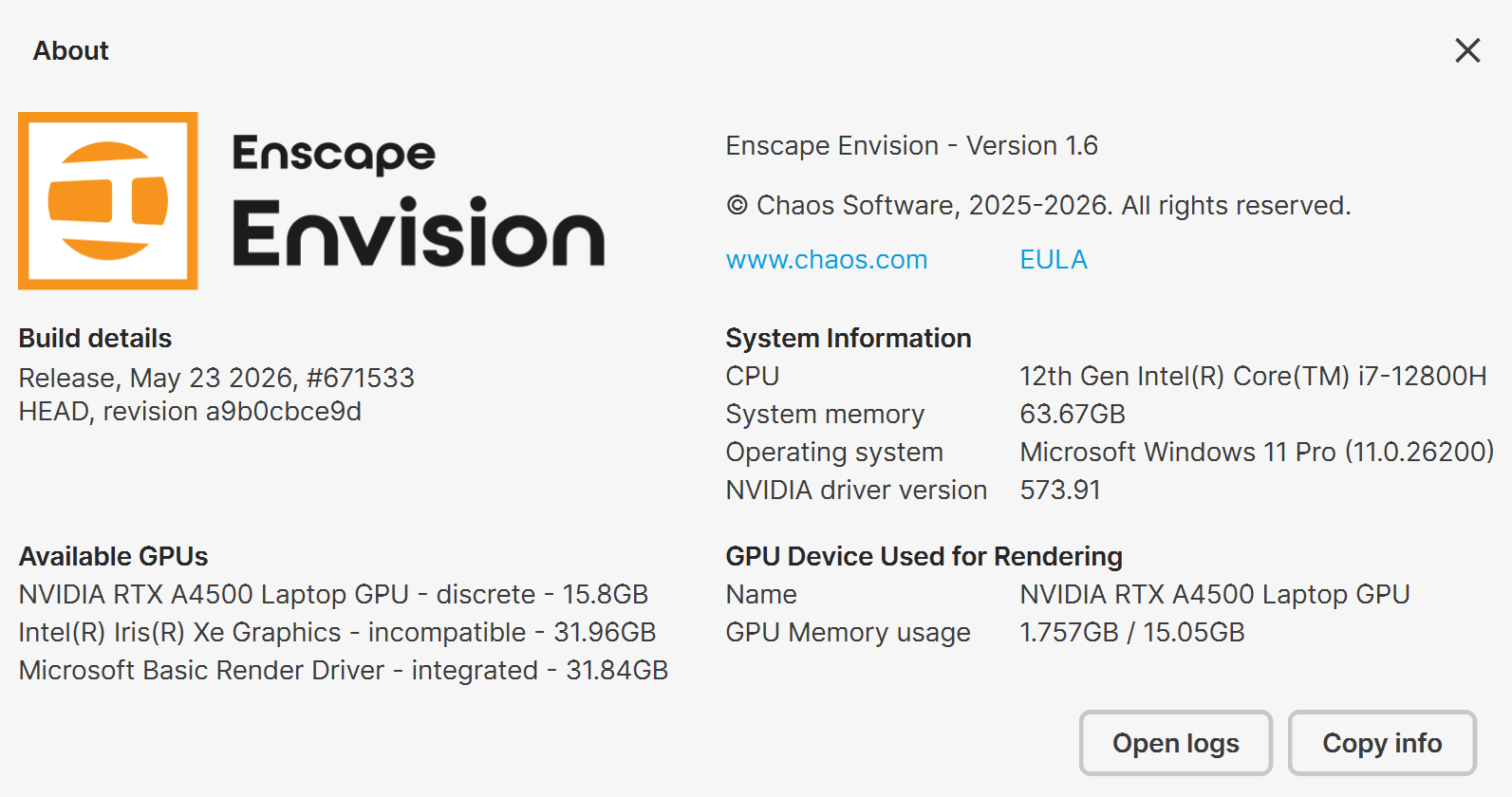
About… – Opens the About dialog, where you can check information about the installed version of Envision, memory usage, as well as CPU and GPU device information.

Chaos Licensing Window
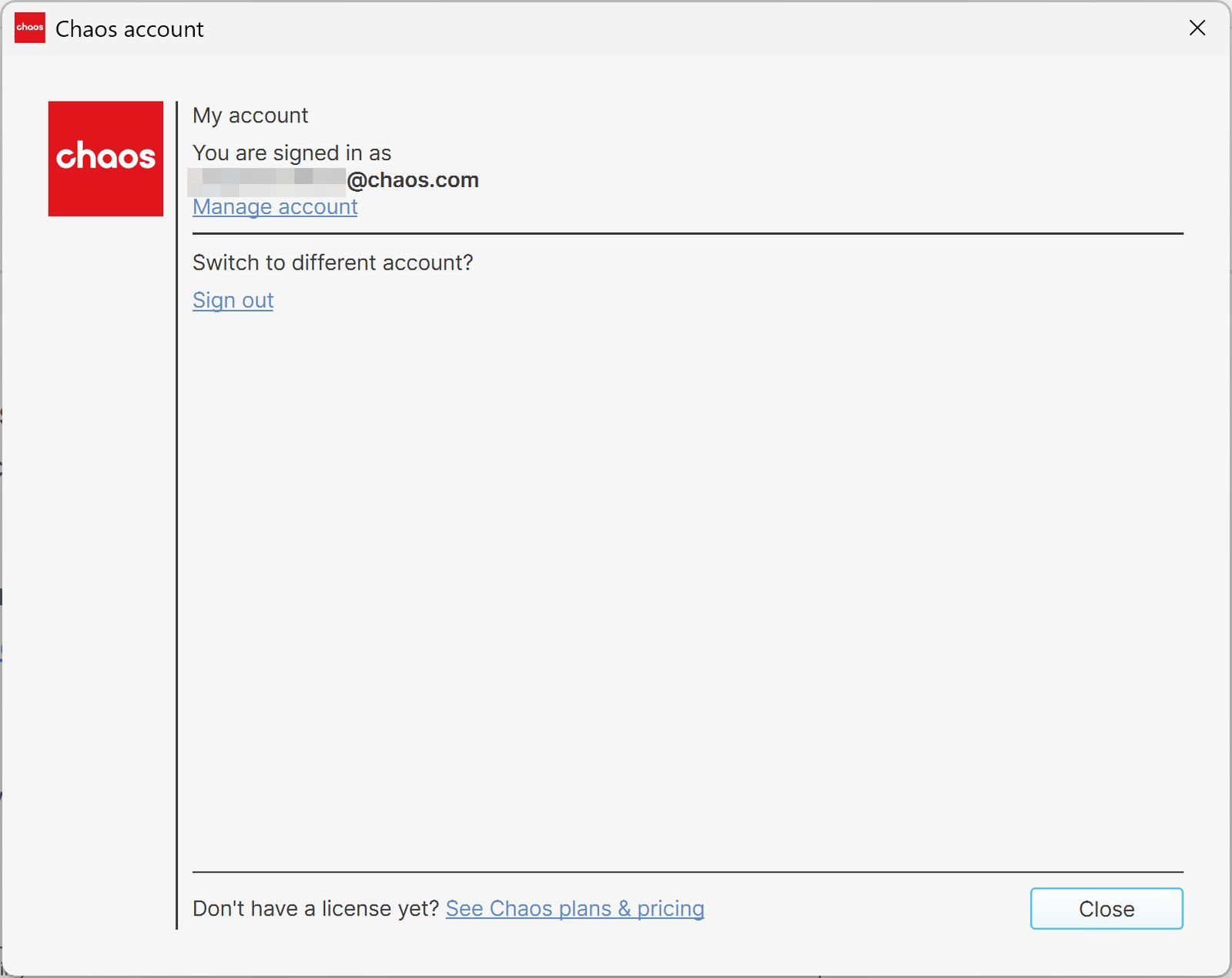
The Chaos licensing window, accessible from Help > Chaos account in Envision, shows you which account is used currently as a license holder.
Press the Manage account button to open My Chaos portal and manage the licenses. You can assign, remove, allocate licenses to different users. For more information, see the My Chaos Portal Guide page.
To switch the current account, press the Sign out button.
If you haven't signed in during the installation, you can do so in this window:

See Chaos plans & pricing link leads you to Envision's pricing list on Chaos website.
This window blocks all the rest of the UI, so make sure to close it once done to go back to Envision.
About Dialog
The About dialog, accessible from Help > About…, provides detailed information about the Envision version, system specifications, available GPUs, and the GPUs used for rendering, which can be copied. It also includes copyright information and links to the Chaos website and the Chaos End-User License Agreement.