Enscape Envision
Light Types
This page provides information about Envision's native light types.
Last updated 16 July 2026
This page provides information about Envision's native light types.
Overview
Envision provides three native types of lights that you can create in your project:
Disk – A general-purpose light that simulates real-world point light sources such as lamps and ceiling lights. |
Disk – A general-purpose light that simulates real-world point light sources such as lamps and ceiling lights. | |
Rectangular – A planar light source, also commonly referred to as "rectangle" light. | |
Sphere – A spherical object that serves as a general-purpose light for simulating real-world point sources such as lamp bulbs. It emits light outward in all directions and can be scaled to any size. |
All light types can be accessed through their respective filter tab in the Lights and Objects tabs. The parameters of each light are available in the Details tab upon light selection.
youtu.be
UI Path
Sphere Light
The following parameters are available for the sphere light type.
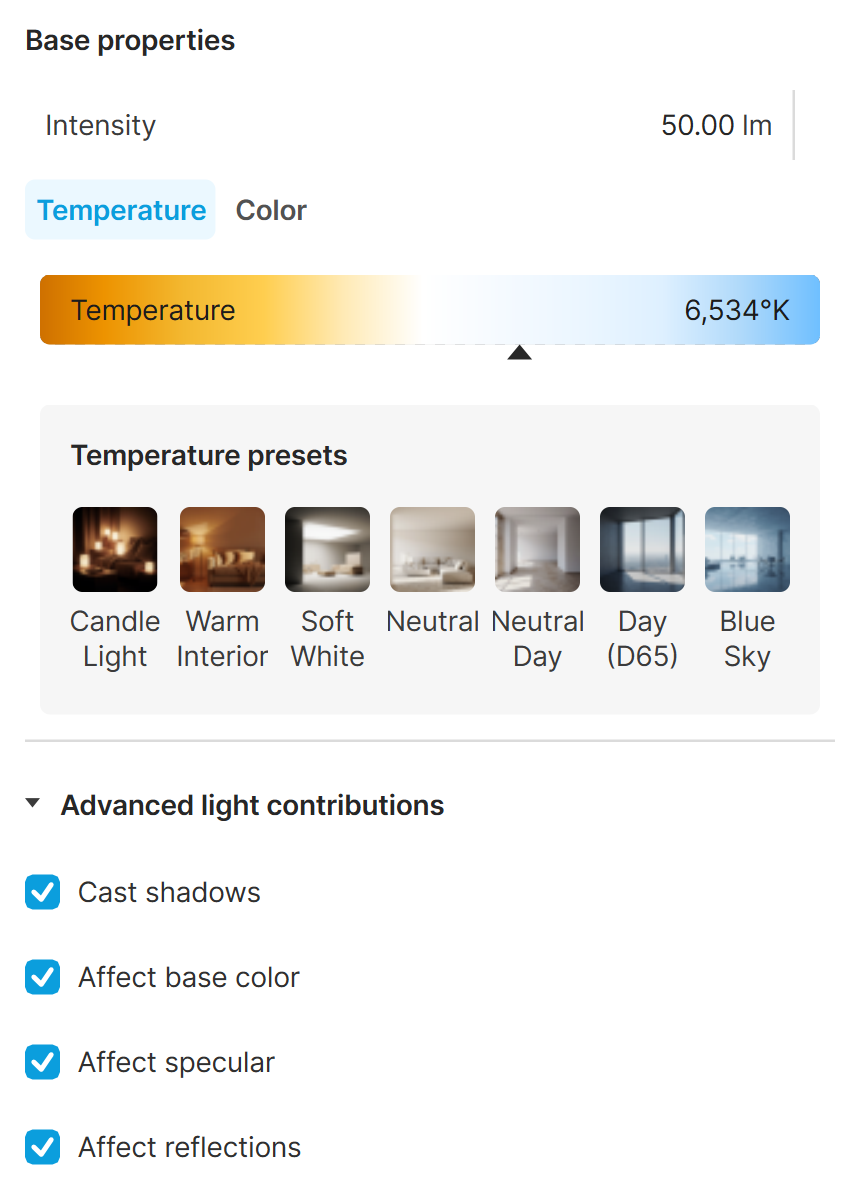
Base properties
Intensity – Controls the intensity of the sphere light's brightness. See the Intensity example below.
Temperature – Controls the color of the sphere light by degrees Kelvin.
Temperature presets – Provides predefined color temperature settings (measured in degrees Kelvin) to quickly adjust the sphere light’s appearance. Choose from common lighting profiles, ranging from warm to cold colors, without manually adjusting the Kelvin value.
Color – Changes the color of the sphere light. See the Color example below.
Advanced properties
Cast shadows – When enabled (the default), the light casts shadows. Turn this option off to disable shadow casting for the light.
Affect base color – Specifies whether the light affects the base color of the materials.
Affect specular – Specifies whether the light affects the specular portion of the materials.
Affect reflections – Specifies whether the light source appears in reflections.
Rectangular Light
The following parameters are available for the rectangular light type.
Base properties
Intensity – Specifies the intensity of the rectangular light's brightness. See the Intensity example below.
Temperature – Controls the color of the rectangular light by degrees Kelvin.
Temperature presets – Provides predefined color temperature settings (measured in degrees Kelvin) to quickly adjust the rectangular light’s appearance. Choose from common lighting profiles, ranging from warm to cold colors, without manually adjusting the Kelvin value.
Color – Controls the color of the rectangular light. See the Color example below.
Light emission
Double-sided – Specifies whether the light illuminates from both sides.
Beam spread – Specifies the width of the light’s beam.
Invert light direction – Reverses the direction of the light. For example, if the light is shining from above downward onto a scene, enabling Invert light direction reverses the direction of that light, making it shine from below upward.
Advanced light contribution
Cast shadows – When enabled (the default), the light casts shadows. Turn this option off to disable shadow casting for the light.
Affect base color – Specifies whether the light affects the base color of the materials.
Affect specular – Specifies whether the light affects the specular portion of the materials.
Affect reflections – Specifies whether the light source appears in reflections.

Disk Light
The following parameters are available for the disk light type.
Base properties
Intensity – Specifies the intensity of the disk light's brightness. See the Intensity example below.
Temperature – Controls the color of the disk light by degrees Kelvin.
Temperature presets – Provides predefined color temperature settings (measured in degrees Kelvin) to quickly adjust the disk light’s appearance. Choose from common lighting profiles, ranging from warm to cold colors, without manually adjusting the Kelvin value.
Color – Changes the color of the disk light. See the Color example below.
Light emission
Double-sided – Specifies whether the light illuminates from both sides.
Beam spread – Specifies the width of the light’s beam.
Invert light direction – Reverses the direction of the light. For example, if the light is shining from above downward onto a scene, enabling Invert light direction reverses the direction of that light, making it shine from below upward.
Advanced light contribution
Cast shadows – When enabled (the default), the light casts shadows. Turn this option off to disable shadow casting for the light.
Affect base color – Specifies whether the light affects the base color of the materials.
Affect specular – Specifies whether the light affects the specular portion of the materials.
Affect reflections – Specifies whether the light source appears in reflections.

Examples
The following examples demonstrate the effect that individual Light parameters have on the scene. Click on any image to view it at a higher resolution.
Example: Light Types
This example shows the difference between the three light types in Envision. Note that the Bloom effect and some color corrections have been added to the final image for artistic purposes.
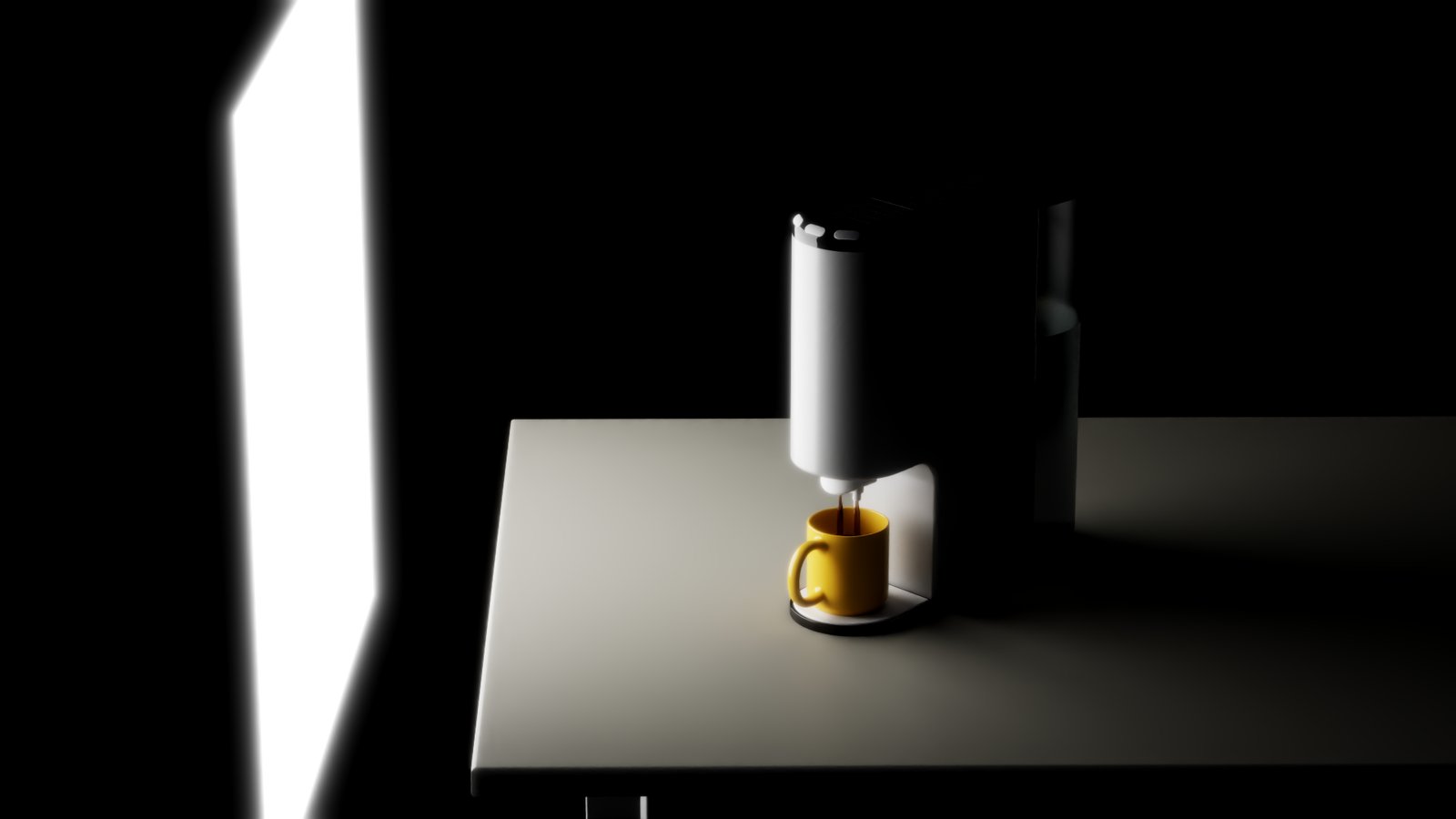
Rectangle Light
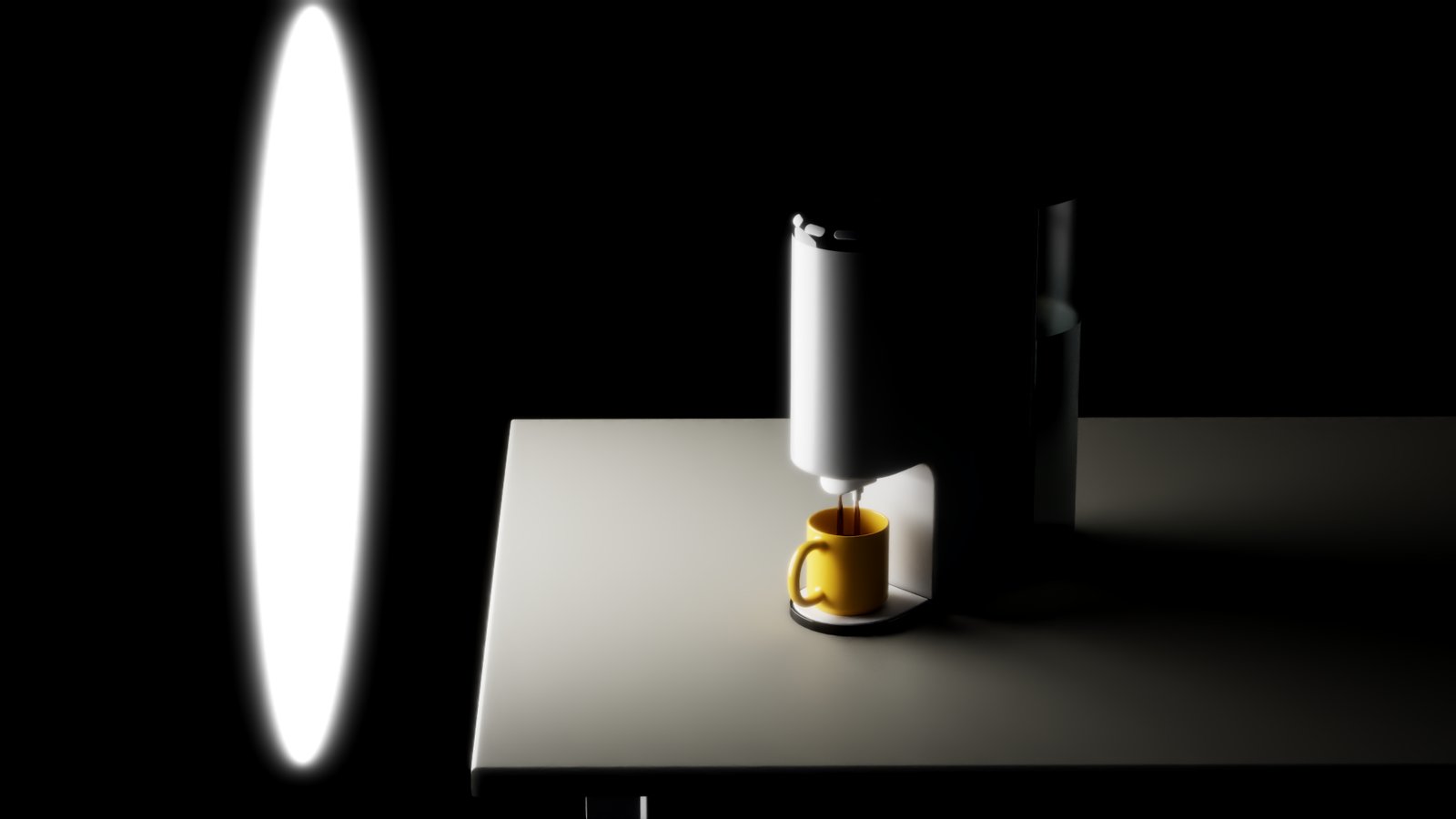
Disk Light

Sphere Light
Example: Intensity
This example shows the effect of the Intensity parameter. The Light Type is Disk and the Intensity parameter ranges from 100 to 10000.
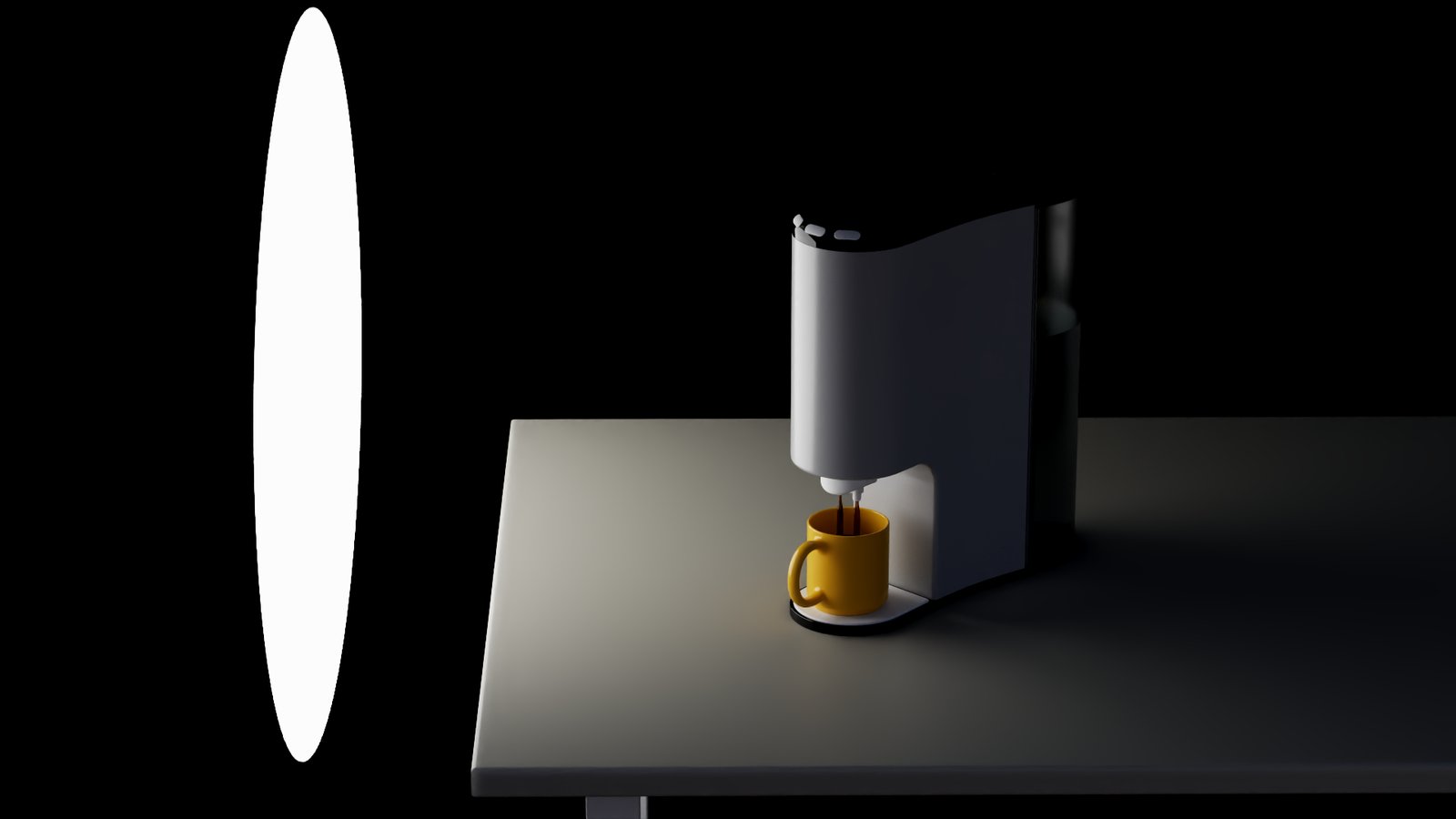
Intensity = 100

Intensity = 1000

Intensity = 2000
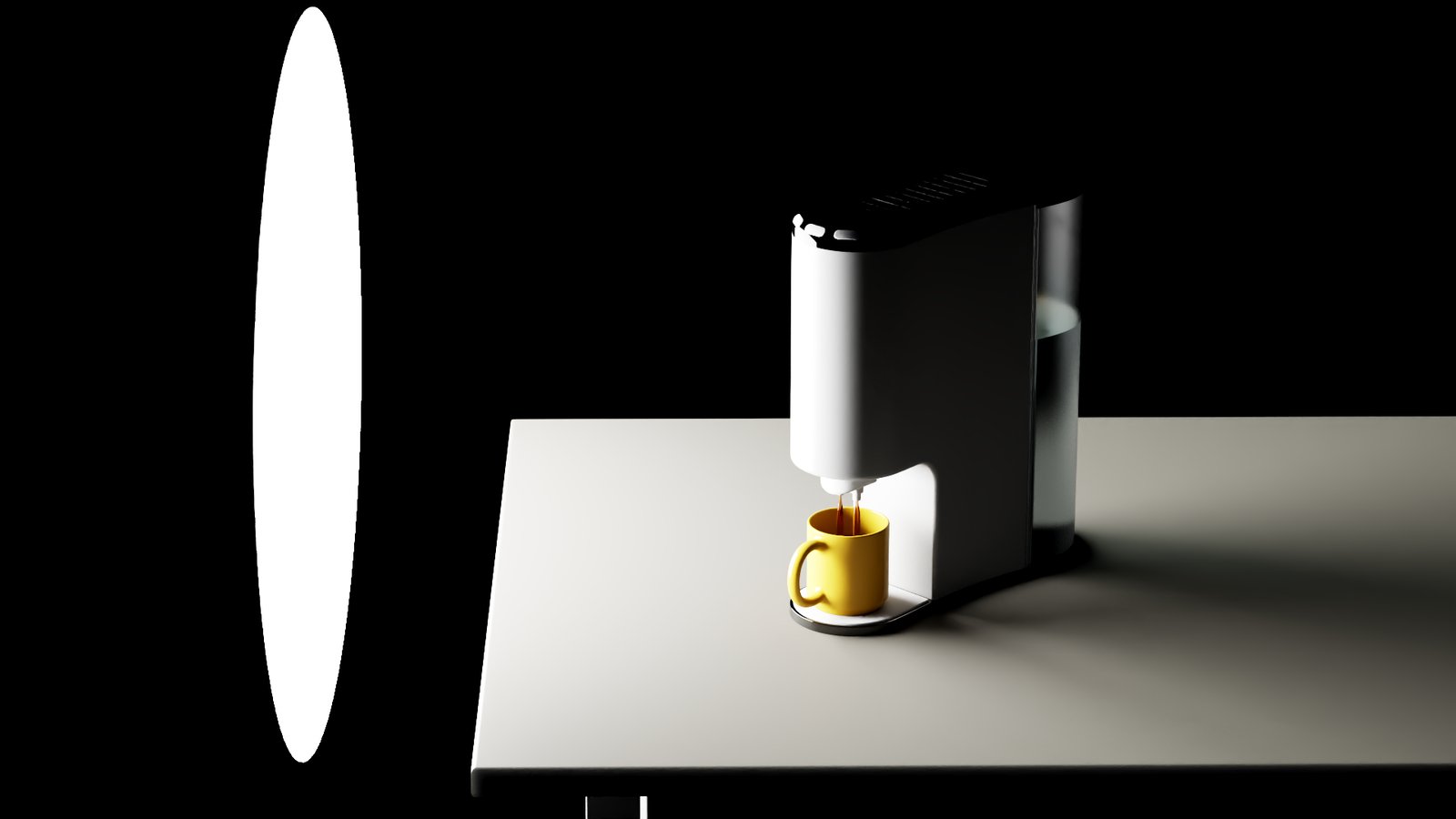
Intensity = 10000
Example: Color
This example shows the effect of the Color parameter. The Light Type is Disk and the Intensity is set to 100.
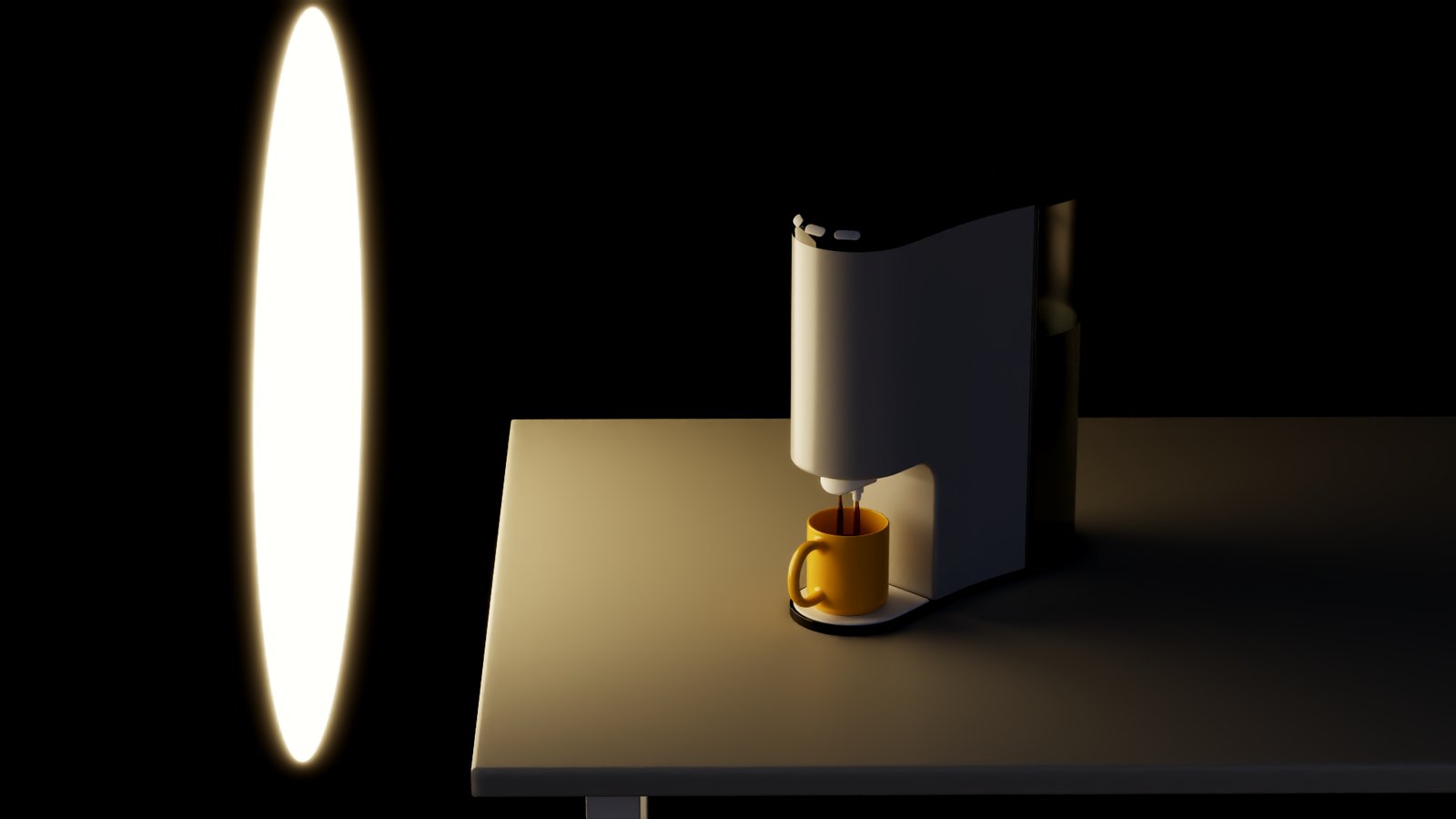
Orange Color
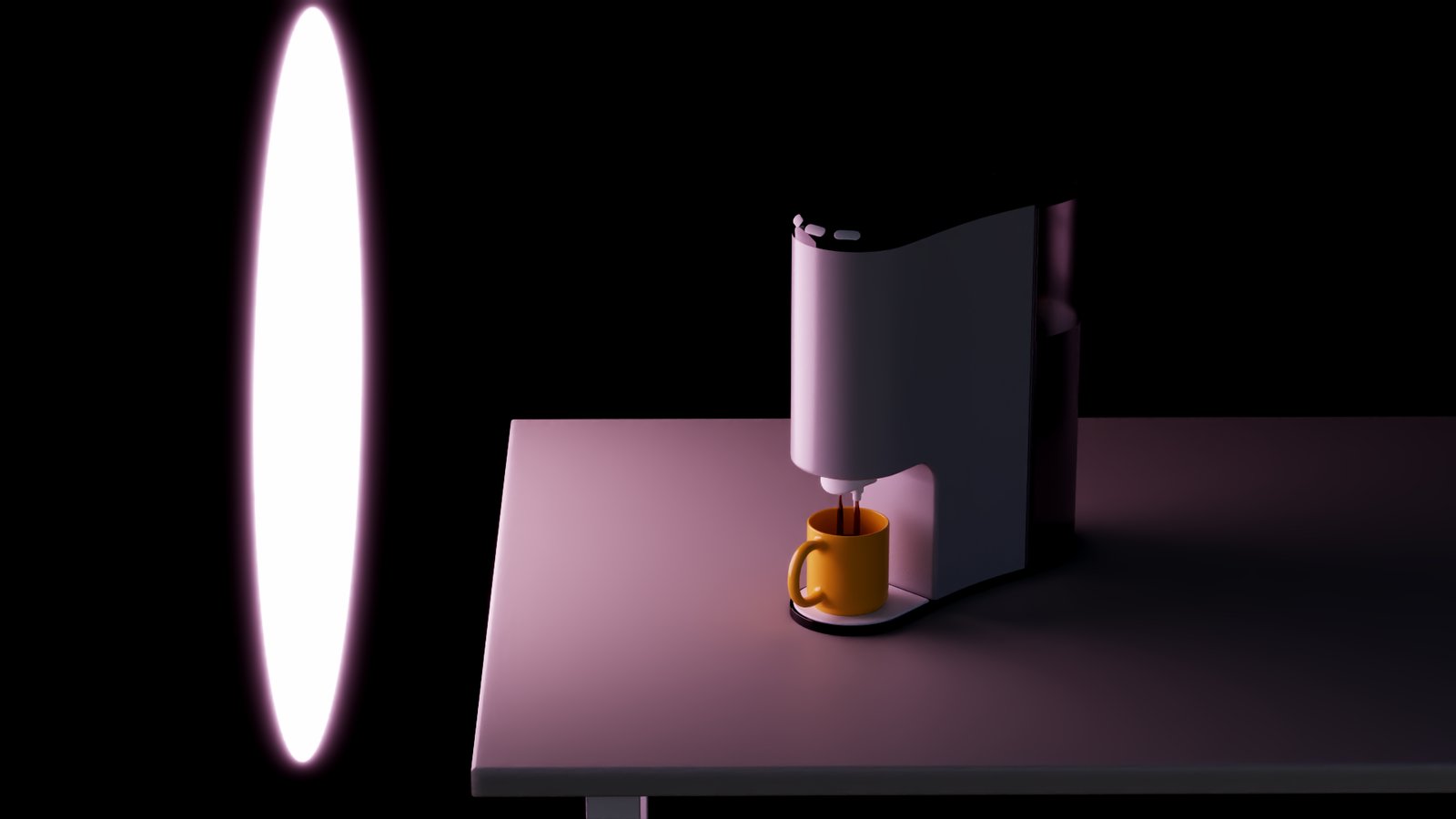
Pink Color

Blue Color

White Color