Use the Lights tab in Enscape Envision to find, filter and manage project lights.
Overview
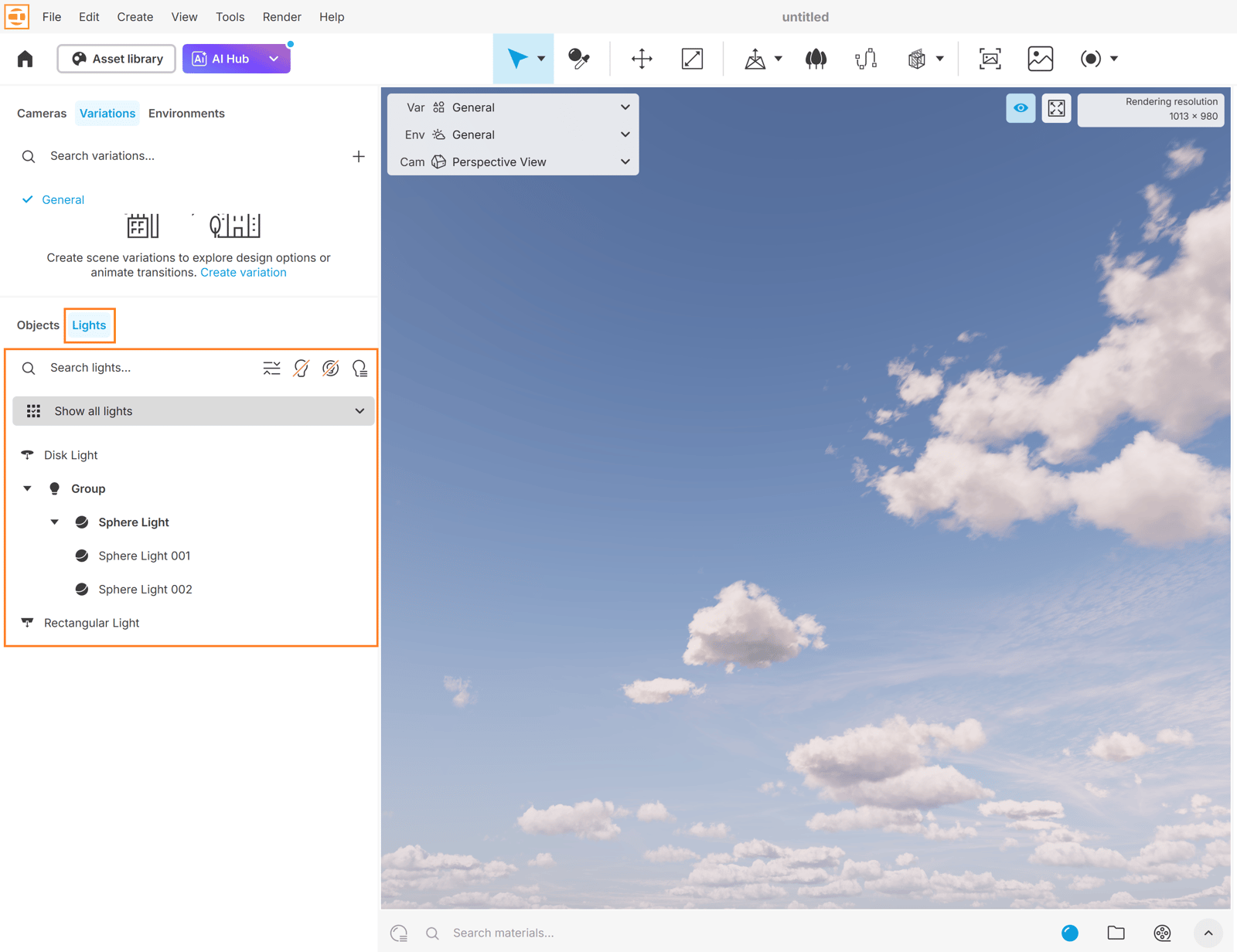
The Lights tab lists all lights in your project, grouped by type. You can search the list or filter it by light type:
Show all lights. Shows all lights in your project. |
Show all lights. Shows all lights in your project. | |
Rectangular. Shows all rectangular lights in your project. | |
Disk. Shows all disk lights in your project. | |
Spherical. Shows all sphere lights in your project. | |
Omni. Shows all omni lights in your project. | |
Mesh. Shows all mesh lights in your project. | |
IES. Shows all IES lights in your project. | |
Spotlight. Shows all spotlights in your project. |
Actions with lights
Search lights. Enter a search to show only matching lights. Click the X button on the right to clear the search. |
Search lights. Enter a search to show only matching lights. Click the X button on the right to clear the search. | |
Expand/Collapse all. Expands or collapses lights arranged in a parent-child hierarchy. | |
Turn OFF all lights. Disables all lights in your project. | |
Hide light indicators. Shows or hides all light indicators in your project at once. Shortcut: G | |
Filter by scene. Filters the lights list by project when you have imported multiple projects. | |
Show. Filters the light types shown in the Lights tab. | |
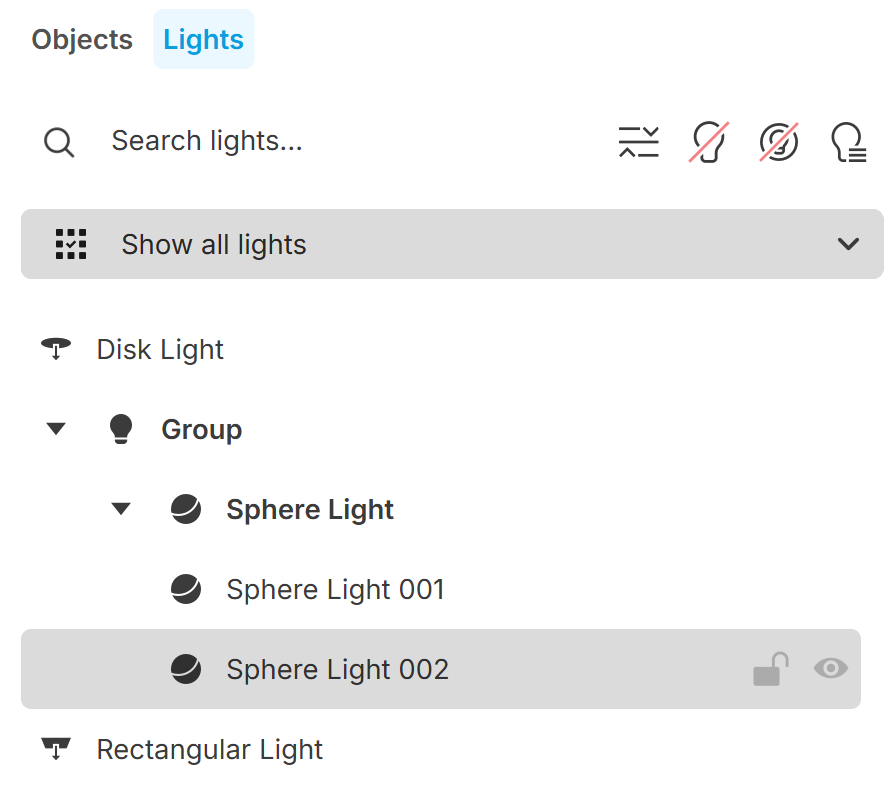
Lock. Disables the position, rotation and scale options in the Details tab. These options appear greyed out. Click again to enable them. | |
Hide. Shows or hides individual lights. Hidden lights do not render. Hover over a light to see its eye button. Hidden elements have an eye icon with a line through it. This icon stays visible without hovering. When a parent element is hidden, its child light is also hidden and marked with a dot. | |
Group/ungroup nodes. Use these right-click menu options to group or ungroup lights. A folder icon marks grouped lights. See Menu Options for details. | |
Drag-and-drop. Drag a light onto another light to create a parent-child relationship in the hierarchy. |
Menu options
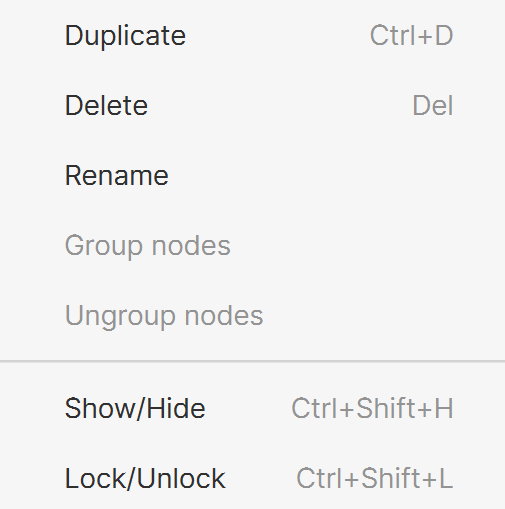
Right-click a light in the Lights tab to open a menu with these options:
Duplicate. Duplicates the selected light. Shortcut: Ctrl+D
Delete. Deletes the selected light. Shortcut: Del
Rename. Renames the selected light.
Group nodes. Creates a group and adds the selected nodes to it.
Ungroup nodes. Ungroups the selected lights.
Show/Hide. Shows or hides the selected light. Shortcut: Ctrl+Shift+H
Lock/Unlock. Locks or unlocks the selected light's transformation options in the Details tab. Shortcut: Ctrl+Shift+L
See also: