Enscape Envision
Local Library Tab
This page provides information about the Local Library tab in Enscape Envision.
Last updated 1 September 2026
This page provides information about the Local Library tab in Enscape Envision.
Overview
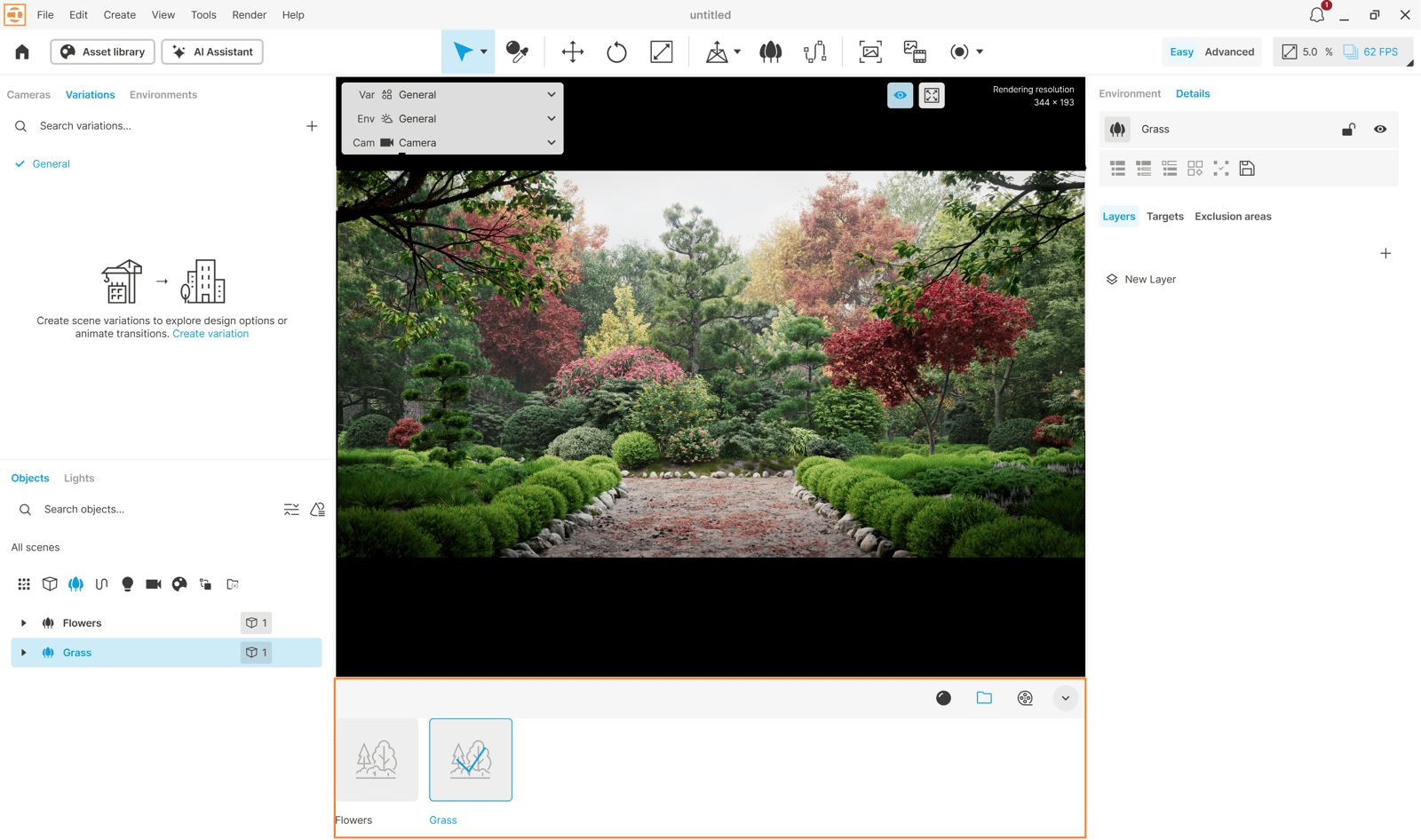
The Local Library tab, found in the bottom dock panel, provides access to all user-based generated presets. These presets are reusable and can be loaded in the current project or any other project by dropping them into the viewport.
The presets reside in the following location on your machine: C:\Users\<username>\Documents\Chaos Envision
Currently, the Local Library works only with Scatter presets.
Options
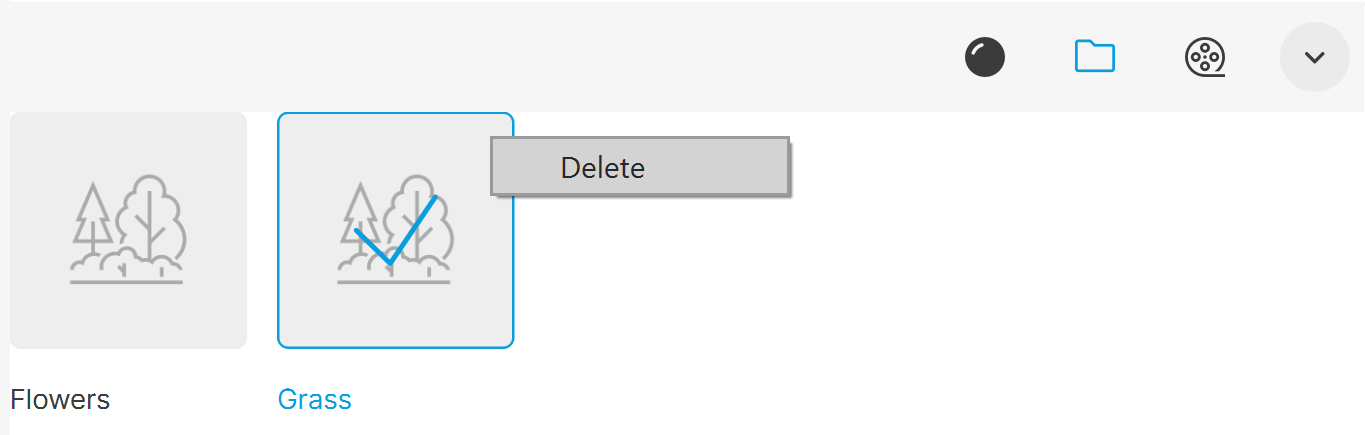
All saved presets are listed in the Local Library. You can delete a preset by right-clicking on it and selecting Delete.
Note that the preset is deleted not only from the list in the Local Library but also from the local folder: ...\Documents\Chaos Envision
The delete action cannot be undone.
Working with Presets in Local Library
To save a preset:
- Select the Scatter object you want to use as a preset from the Objects tab. This displays its parameters in the Details tab.
- In the Details tab, give a name to the Scatter preset and click Save as Scatter preset in the local library () to save it.
- The preset is now available in the Local Library tab () in the bottom dock panel.
youtu.be
To load a preset:
- Open the Local Library tab () in the bottom dock panel, and expand it.
- Select a preset from the Local Library.
- Drag the preset and drop it into the viewport. Ensure there is a surface available onto which you can drop the preset.
youtu.be
See also: