Use the Mix material in Enscape Envision to layer and blend a top material with a base material.
Overview
The Mix material combines two layers, a top material and a base material, to create a more complex material.
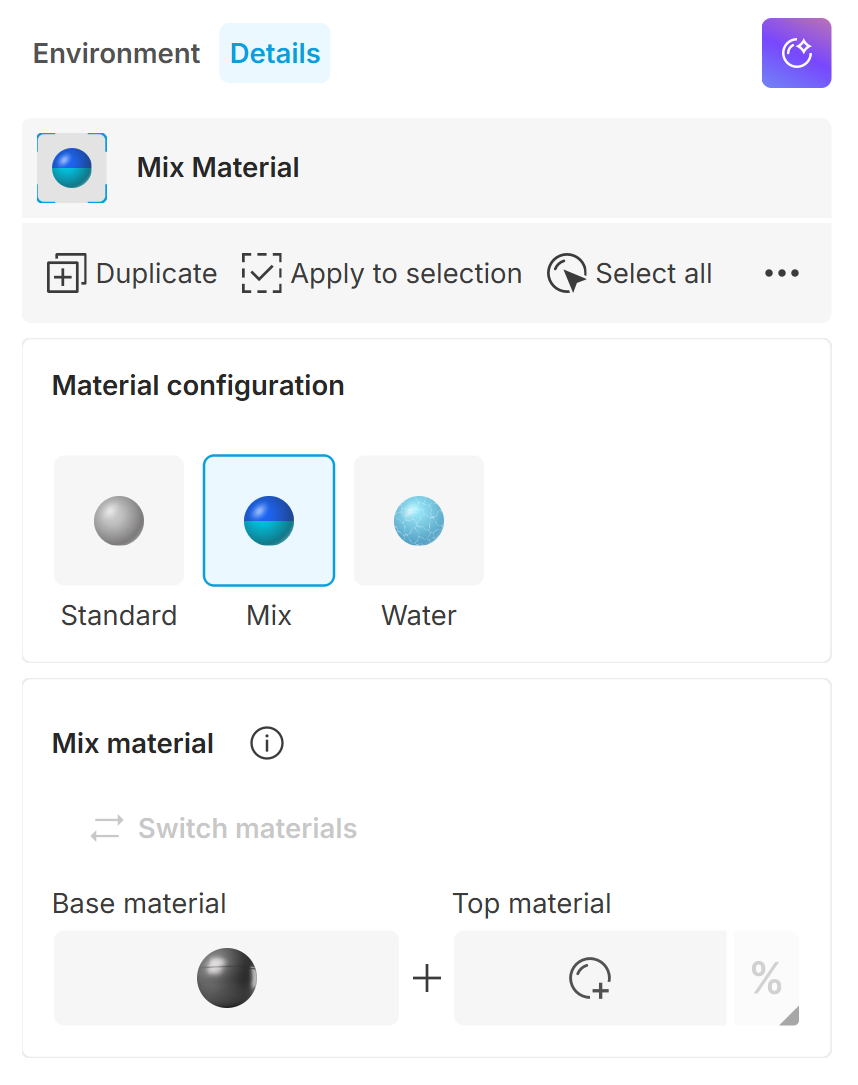
To see the Mix material properties in the Material Editor, set Material configuration to Mix.
Properties
Switch Materials swaps the top and base material layers. See the Switching Materials section below.
Base Material sets the base material.

Top Material sets the material used as a coating. Select a material from the Asset Library, then import it or drag it into the Top Material slot. It automatically becomes the top layer of the Mix material. See the Adding a Top Material section below.
Add Texture controls the strength of the top material effect using a texture or the Mix Amount slider. Right-click to open a dropdown menu with Texture and Mix Amount options. See the Mixing Materials section and the examples below.
Mix Amount is a multiplier that controls the strength of the top material effect. It is unavailable when you use Texture. See the Blending with Multiplier example below.
Tiling opens the Tiling Settings dialog, which controls textures across the whole material. To open it, hover over a base or top material and click the Tiling button. The dialog has two tabs: Placement and Randomization.
Working with Mix materials
Adding a top material
A Mix material has a top material and a base material. To add a top material, click the Top Material button. Browse and select a material in the Cosmos Asset Library that opens. Click Import to assign the selected material as the top material.
You can also drag a material from the Asset Library into the Top Material slot.
Video demonstration.
Switching materials
Use the Switch arrows to swap the top and base materials.
Video demonstration.
Mixing materials
Use the slider or a texture to control the strength of the Top material.
Drag the slider left to decrease the top material's effect on the Mix material's appearance. Drag it right to increase the effect.
You can also add a texture in the combined slot on the right to control the Top material's effect.
Video demonstration.
Examples
These examples show how individual Mix Material parameters affect the material's appearance. Click any image to view it at a higher resolution.
Example: Blending with texture
This example shows how a texture blends the top and base materials. The first image has no texture loaded and uses the Mix amount multiplier set to 50. The second image has a texture loaded in the Texture slot.
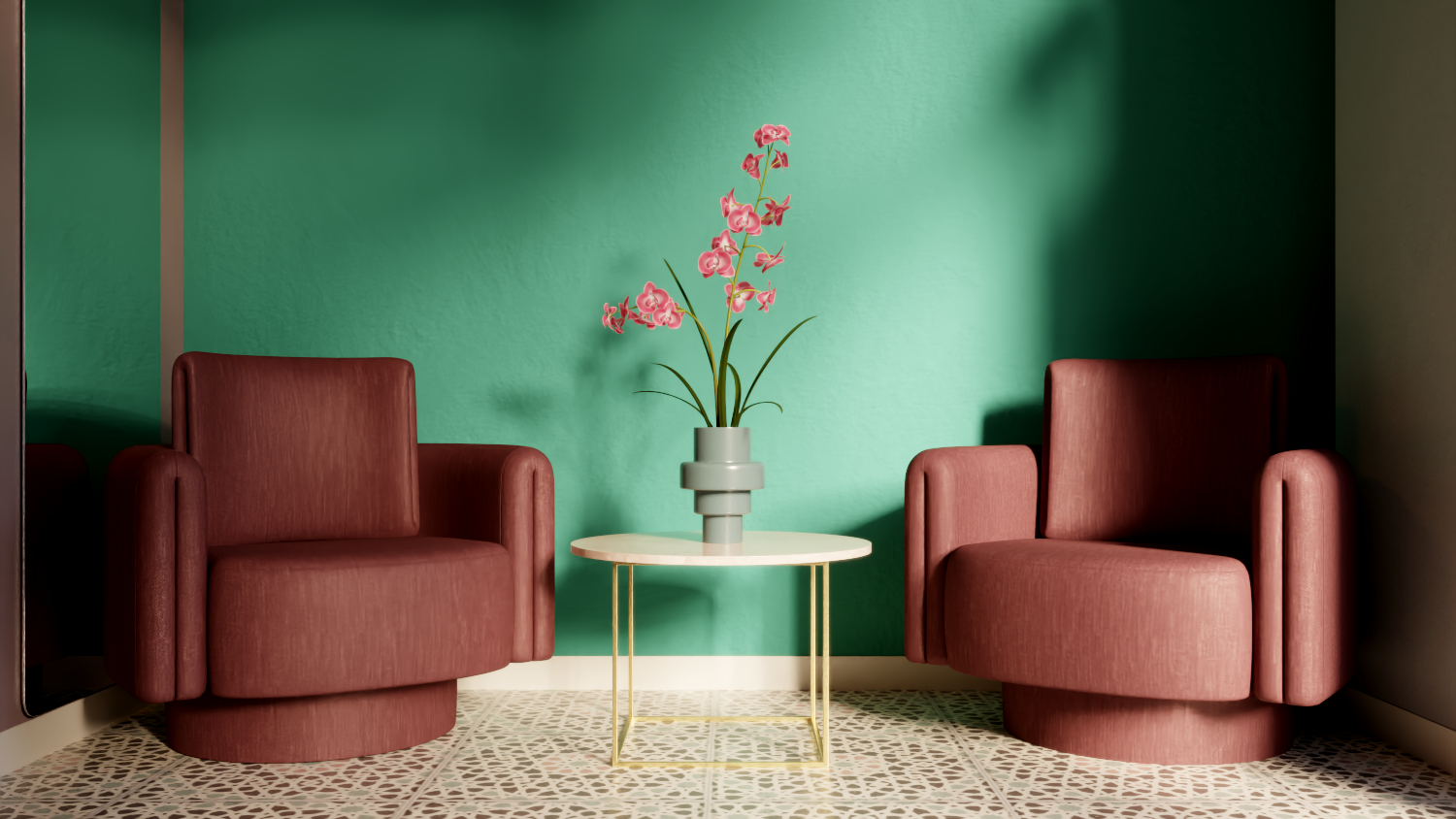
No texture is used.
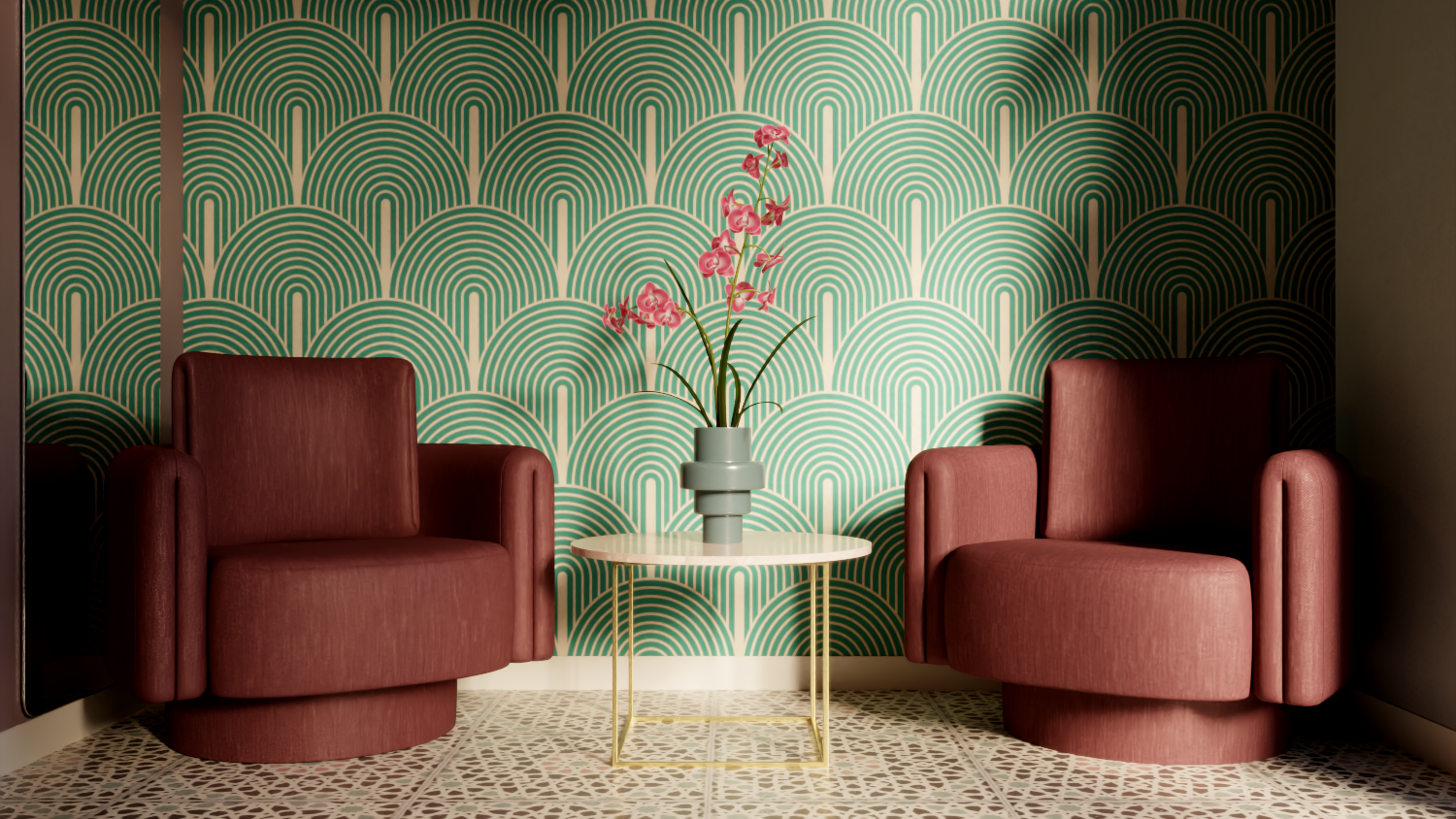
A bitmap texture controls the blending.
Example: Swapping materials
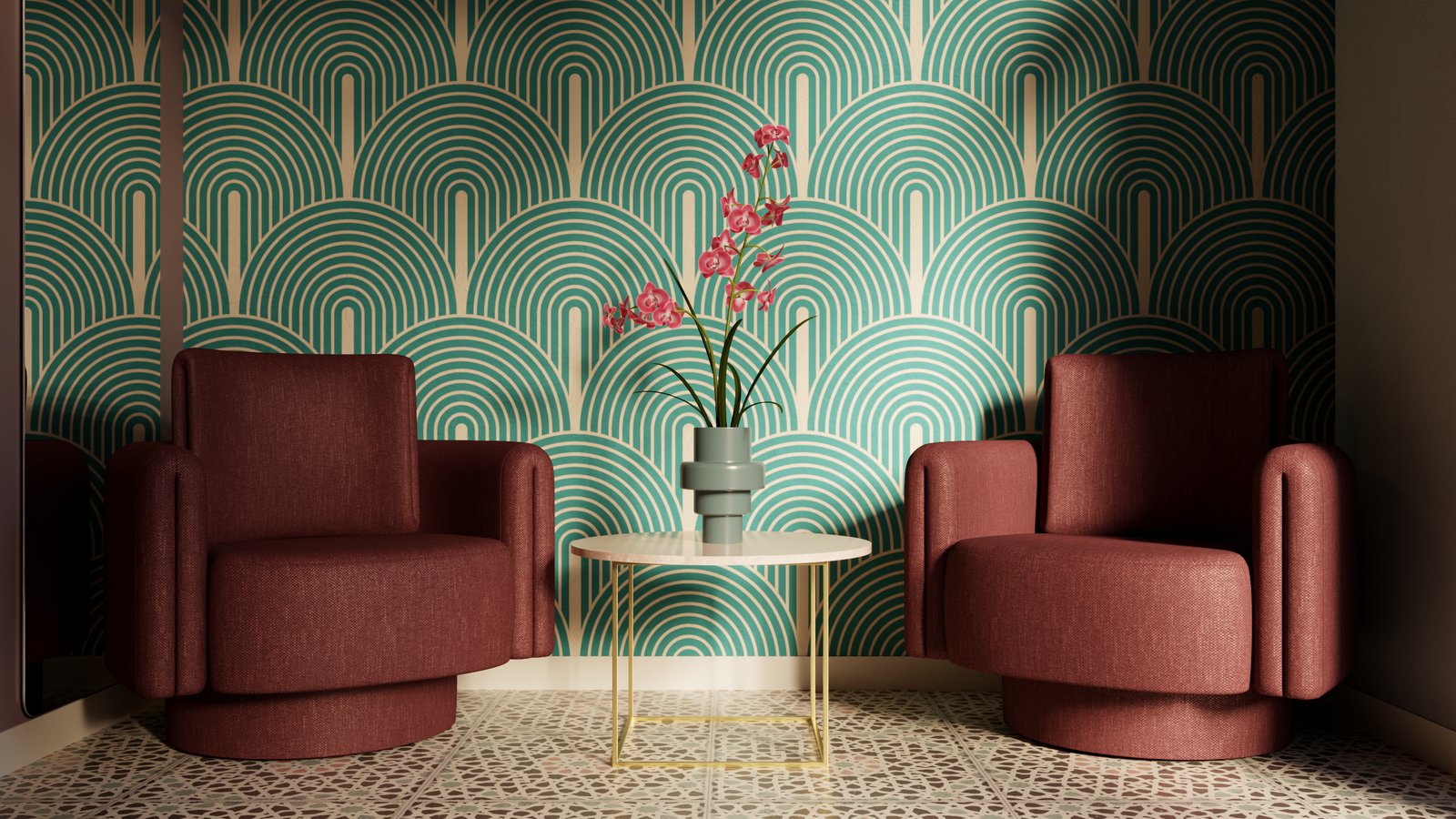
This example shows how swapping the top and base materials changes the wallpaper pattern. A texture blends the two materials.
Original
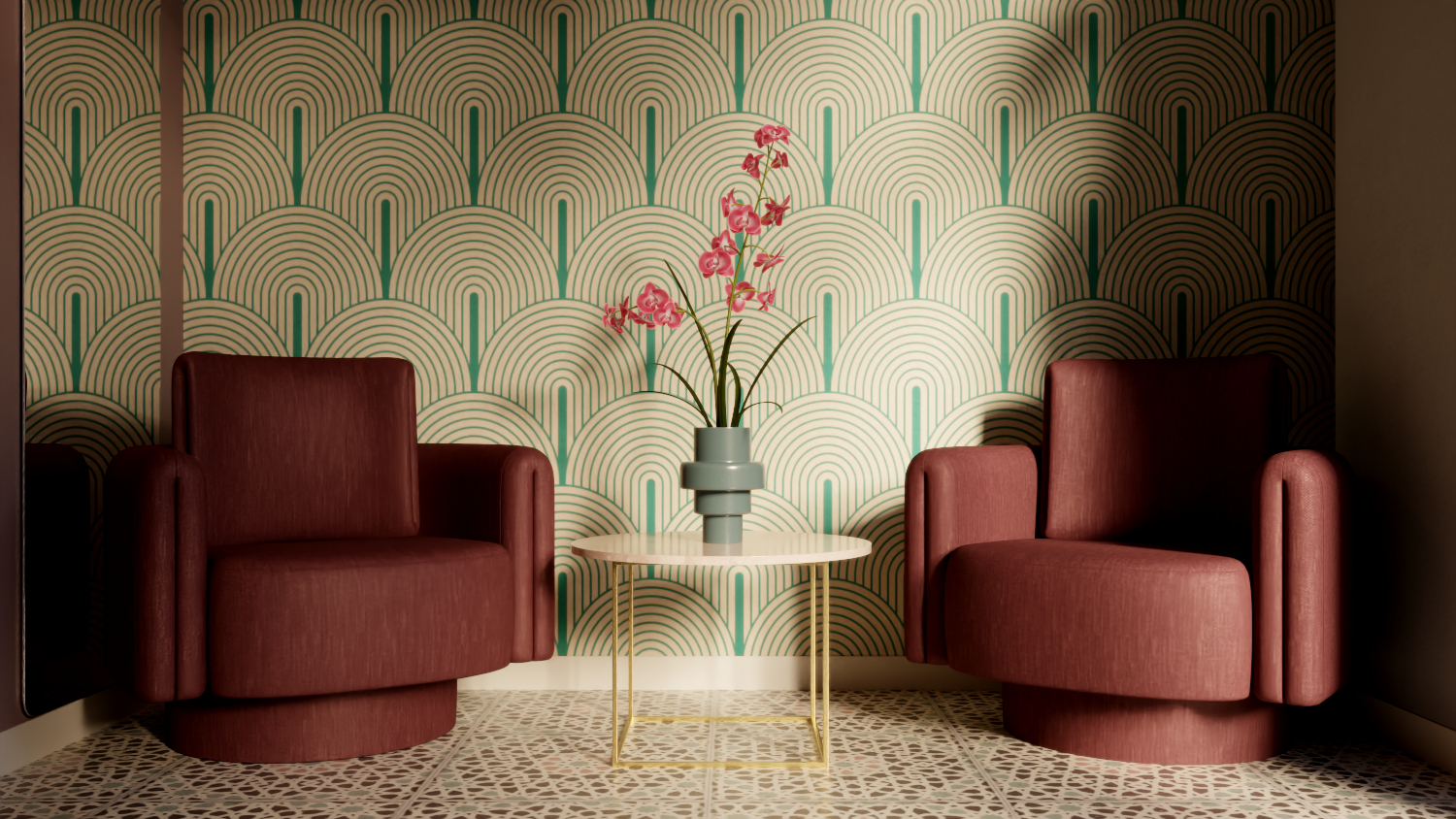
Swapped
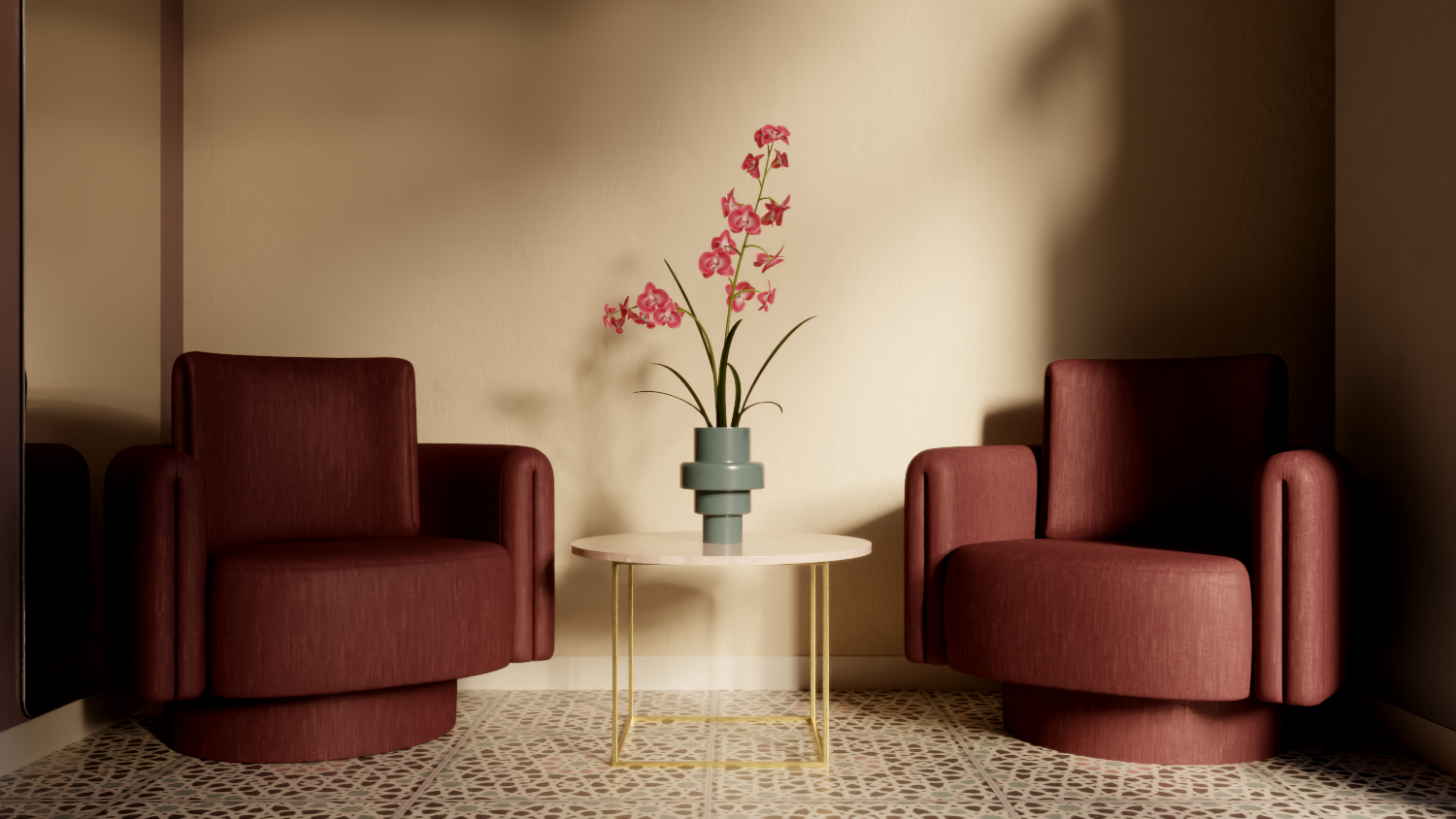
Example: Blending with multiplier
This example shows how Mix amount affects the material. The values 0, 50 and 100 correspond to black, grey and white.
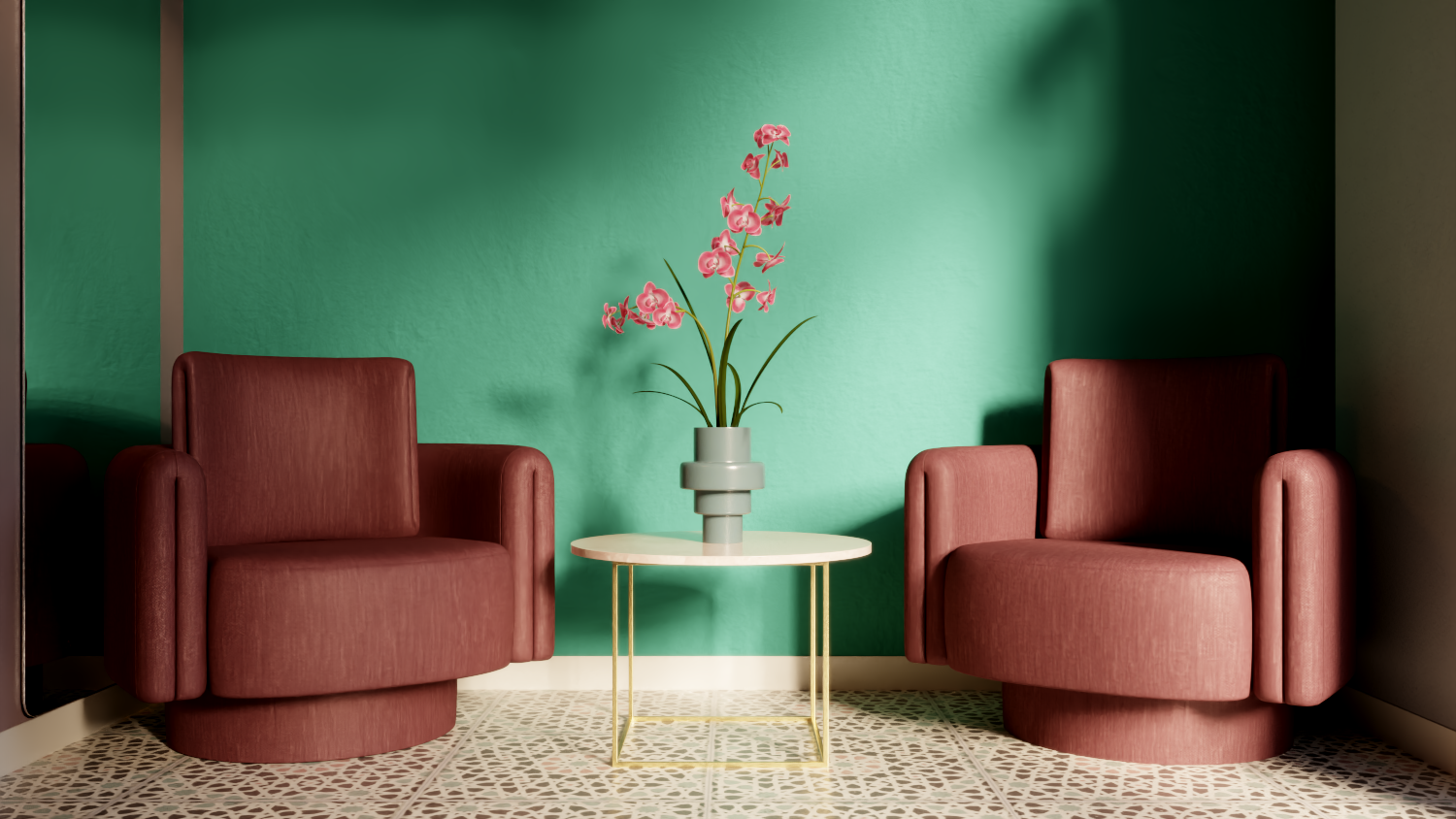
Mix amount is set to 0
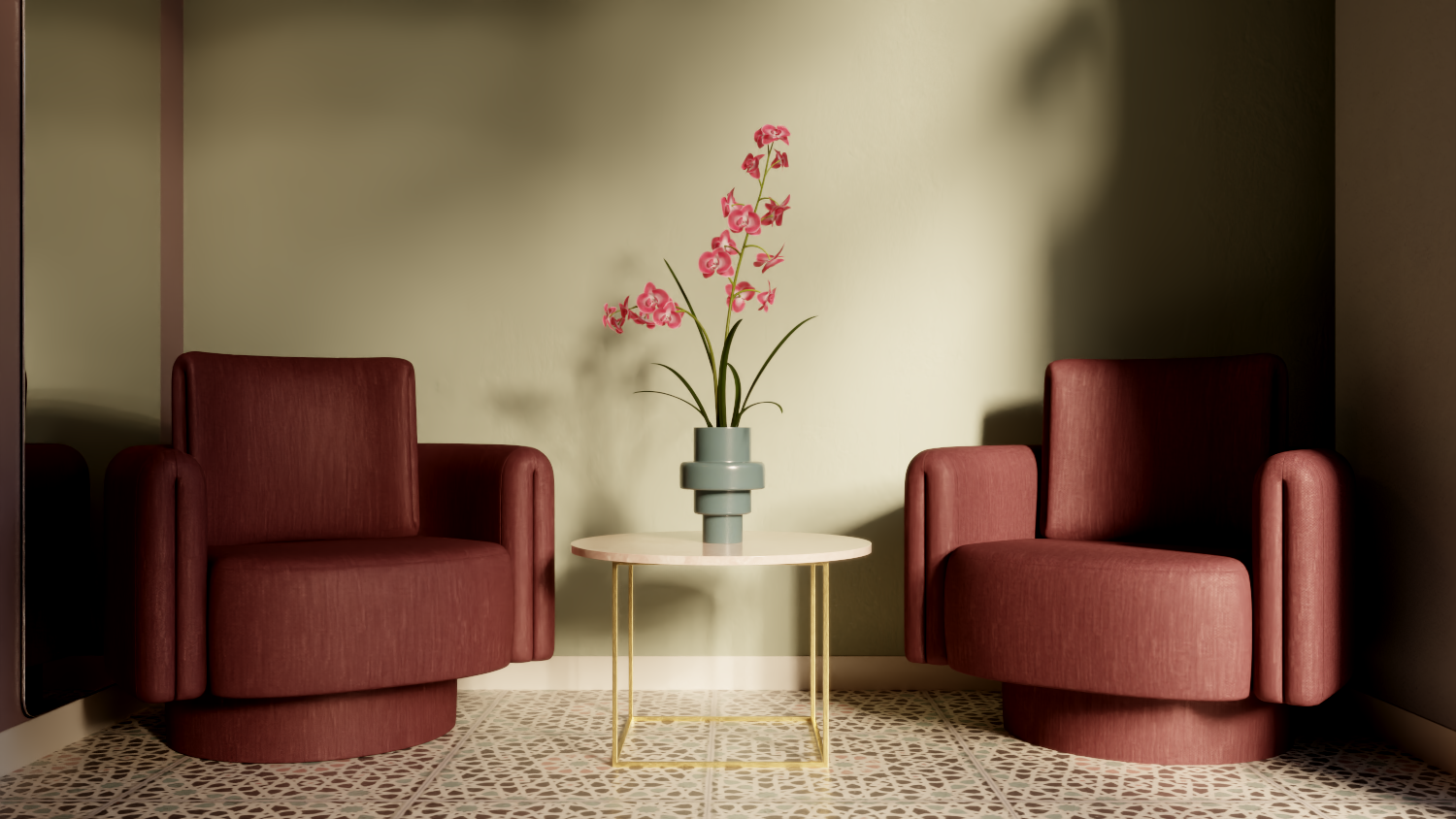
Mix amount is set to 50
Mix amount is set to 100
See also: